Up and Roamii in minutes

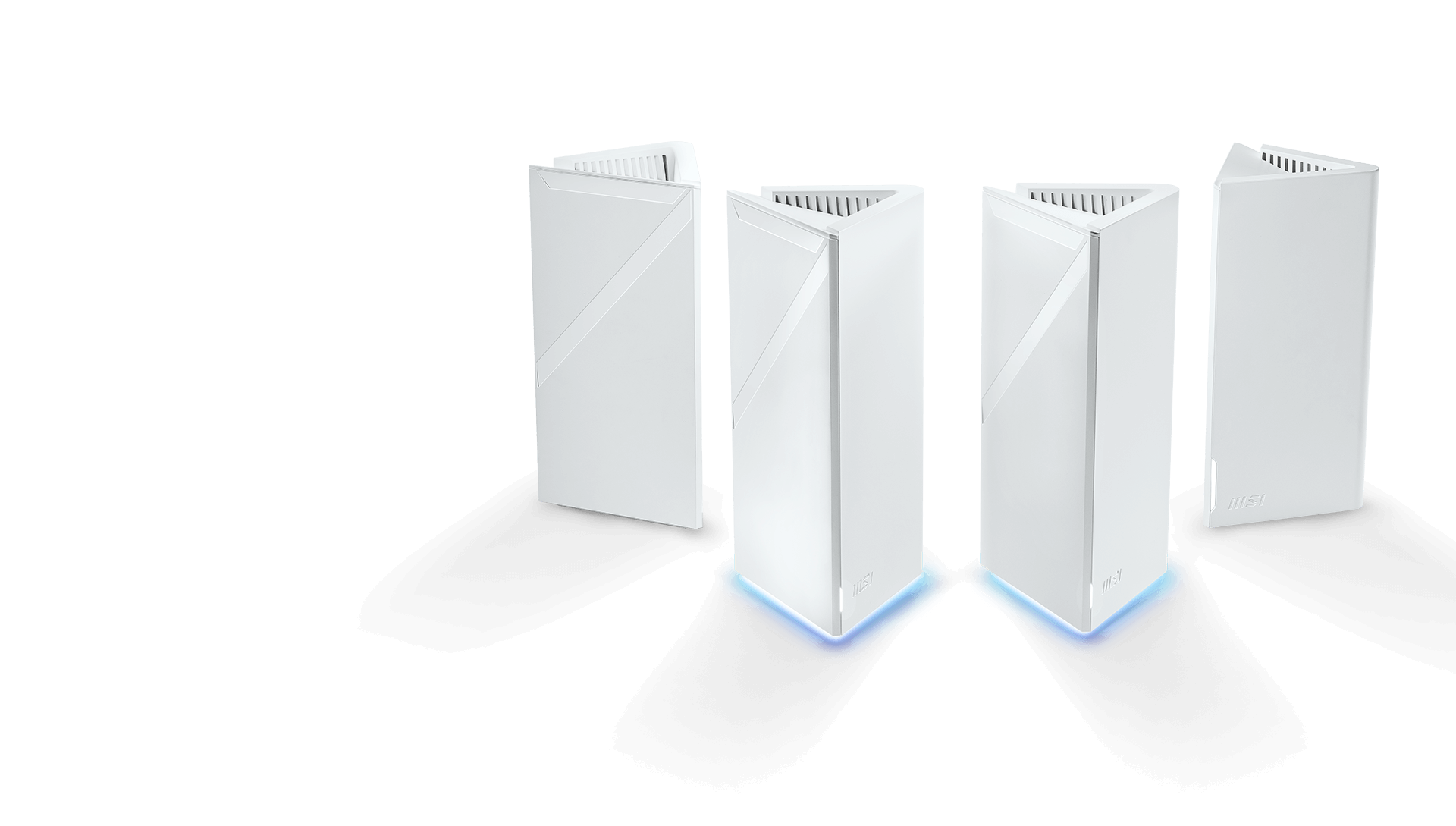

WiFi Everywhere in Your Home
Up and Roamii in minutes
The Roamii series is designed to make setup like a breeze. The MSI Router 2.0 app guides you through setup process step by step.



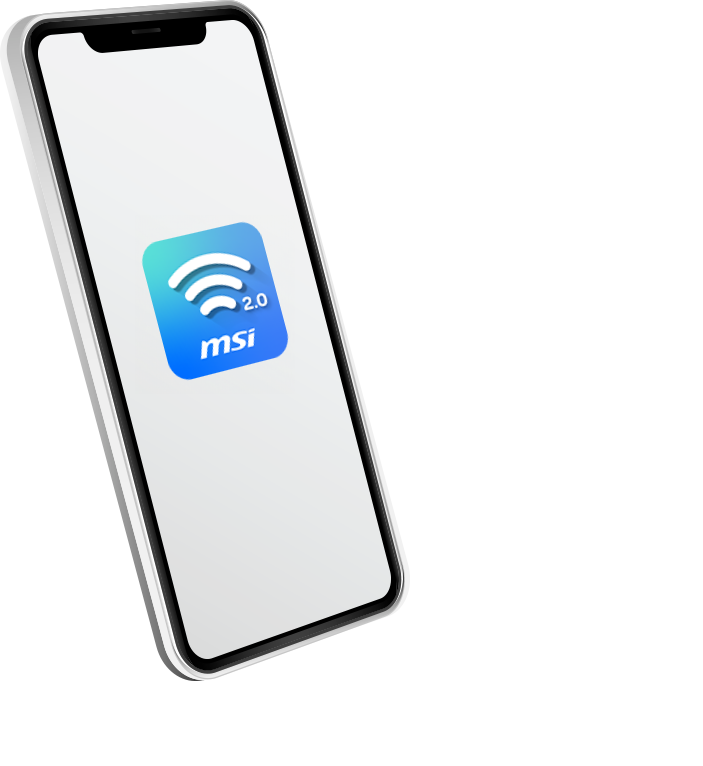


Connect the router and modem, and power them up

Launch MSI Router 2.0 app
Follow the instruction
Setup Complete!
Find WiFi Spot
With the Find WiFi Spot tool in the MSI Router 2.0 app, you can walk around your home while the app measures WiFi quality in real time. It then shows you the best areas to place your mesh nodes—so you’ll know exactly where to put them for the strongest coverage. This makes it easy for anyone to eliminate dead zones and enjoy smooth, reliable WiFi in every corner of the house.
*Note: This feature is supported on the Roamii series with firmware version v1.00 and later.
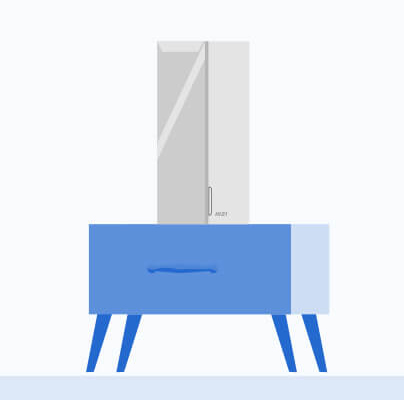
After setup the main router
Let’s find the best spot to place the mesh node

Active Find WiFi Spot in app
Walk through your living space slowly while the app maps signal strength in real time
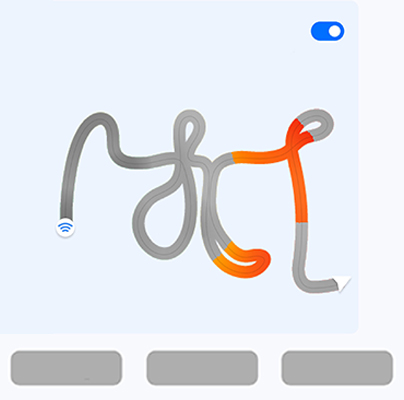
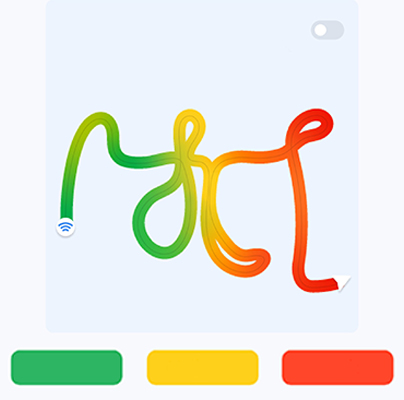
Show recommended area
Strong
Moderate
Weak
Visualize the WiFi coverage
Place the node on the suitable spot where the app suggests and power it up
LED Status
Solid blue

Starting up, may take 30 seconds
Pulsing blue

Device in setup mode and ready for setup with the Roamii app
Solid white

Running in normal operation
Pulsing green

Mesh connecting

Roamii devices are connecting to each other
Pulsing white
Mesh signal weak
The signal between Roamii devices is weak - move the satellite Roamii closer to the main Roamii
Pulsing orange

Lost connection to frontend
Main Roamii: Check your modem or internet cable
Satellite Roamii: Move the satellite Roamii closer to the main Roamii or check the Ethernet cable if the two Roamii devices are connected with a wire


Flexible deployment
The Roamii series comes with a wall mount kit, allowing you position it out of the way while extending WiFi coverage
Applicable model: Roamii BE Lite /Roamii BE Pro


FAQ
What is the WiFi coverage range of the Roamii Mesh System?

A two-unit Roamii mesh system can provide WiFi coverage of approximately 5,500 to 6,000 square feet, ensuring strong and stable connections throughout your home. However, actual coverage may vary depending on your home layout, building materials, and surrounding wireless interference.For the best performance, we recommend placing nodes in open areas and avoiding metal obstacles or corners that may weaken the signal.
How do I add a Roamii node?
Roamii devices from same package are already paired. You only need to power up the second device and it will automatically build a mesh backhaul with the main Roamii device.
If the add-on Roamii is from a different package, power it up and first, press the sync button on both the add-on and one of existing Roamii units to sync them
Can I manage Roamii from the web?
To simplify setup process, Roamii is designed to managed via MSI Router 2.0 app. But you also able to manage via web with limited functions.
Support for the Roamii app will end on December 31, 2025. We recommend switching to the MSI Router 2.0 app for continued network management.
Can Roamii replace my modem?
Roamii is not a modem, and a separate modem is required.
How many Roamii units I can add to a Roamii network?
Technically, there is no limit to the number of Roamii unit. However, we recommend placing the Roamii nodes close to the main router to minimize latency between mesh nodes.
Can Roamii work with other mesh system?
Roamii only works with other Roamii series products to build a mesh network.
How many people can manage a Roamii network?
Anyone with your Roamii admin ID/password can login to your Roamii network with the Roamii app and receive security notifications.