[How To] Set Up Windows Studio Effects and Install the Required Drivers
Answer
This article applies to MSI notebooks that support Windows Studio Effects
Windows Studio Effects is a built-in feature of Windows 11 that allows users to apply AI-powered effects such as portrait blur and eye contact correction during video calls. This article explains how to install the required drivers on MSI laptops that support Windows Studio Effects , as well as how to enable and use this feature.
Windows Studio Effects Overview
Windows Studio Effects uses AI on a compatible Neural Processing Unit (NPU) to apply special effects to the device camera (currently supports the front-facing camera only). For information on the AI performance supported by the NPU, please refer to Microsoft's official documentation.
How to Check Whether Your Notebook Supports Windows Studio Effects
1. Confirm your Windows version meets the requirement:
Windows Studio Effects is supported starting from Windows 11 22H2 (Build 22623.885 or later); updating to 23H2 or later is recommended.
You can enable「Get the latest updates as soon as they're available」under「Settings」>「Windows Update」.
2. Confirm your notebook has an NPU:
Check the MSI official product specifications page to see whether your model is equipped with an NPU that supports Windows Studio Effects.

How to Install the Required Drivers
Models that support Windows Studio Effects must have all related drivers (NPU driver, Windows Studio Effects driver, camera driver, etc.) fully installed for the feature to work correctly. There are three ways to obtain these drivers:
1. Factory preload: pre-installed at the factory, no additional action needed
2. Via Windows Update: the system automatically detects and installs the required drivers
3. Manual installation: download and install manually following the steps below
Please first confirm whether your machine has an Intel or AMD processor (you can check the product specifications page on the MSI website), and then install the driver according to the corresponding processor type below:
[Intel Processors]
Go to the MSI official Support page >「Driver」, and download/install the corresponding drivers under the following categories:
Camera:
- Windows Studio Effects
- Intel Camera Driver (required only for models with an IR 5MP camera — check the product specifications page to confirm)
- Realtek MEP Driver (if applicable)
Chipset:
- Intel NPU Driver
[AMD Processors]
Go to the MSI official Support page >「Driver」, and download/install the corresponding drivers under the following categories:
Camera:
- AMD MEP Enumerator
- Windows Studio Effects Base
- Windows Studio Effects Camera Component (if applicable)
- Realtek Camera Driver (if applicable)
Graphics:
- AMD Graphics Driver
How to Turn On Windows Studio Effects
All MSI notebooks equipped with an AMD (Hawk Point, Strix Point, or newer) or Intel (Meteor Lake or newer) processor include Windows Studio Effects by default.
Method A. Enable via the Windows Notification Center
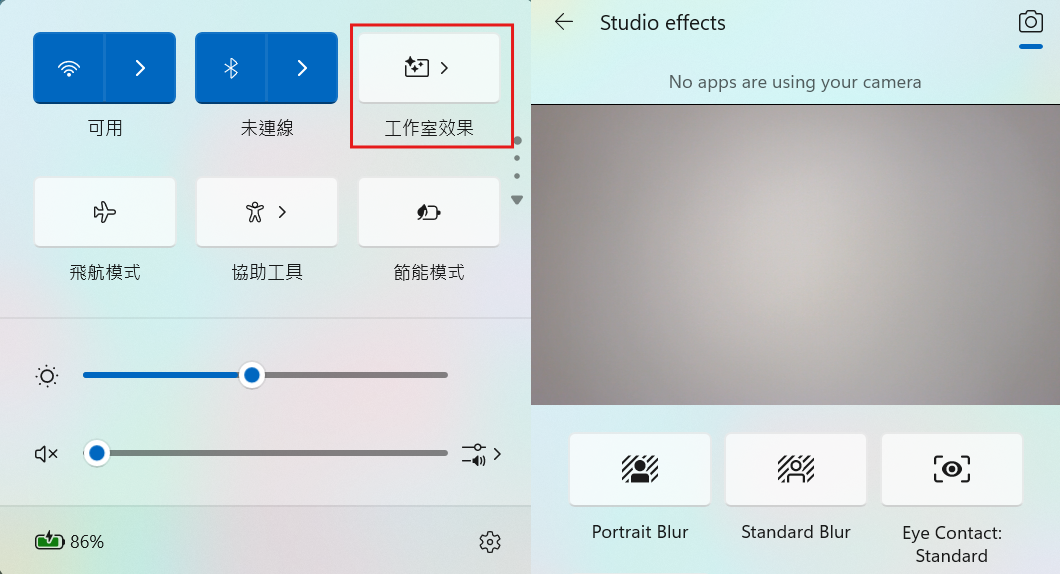
1. Click the Windows Notification Center icon (Quick Settings) in the lower-right corner of the screen, then click the「Studio Effects」tile to enable it.
2. Click the arrow icon to expand more settings, and use the live preview to check the applied effects in real time.
Method B. Enable via the Settings App
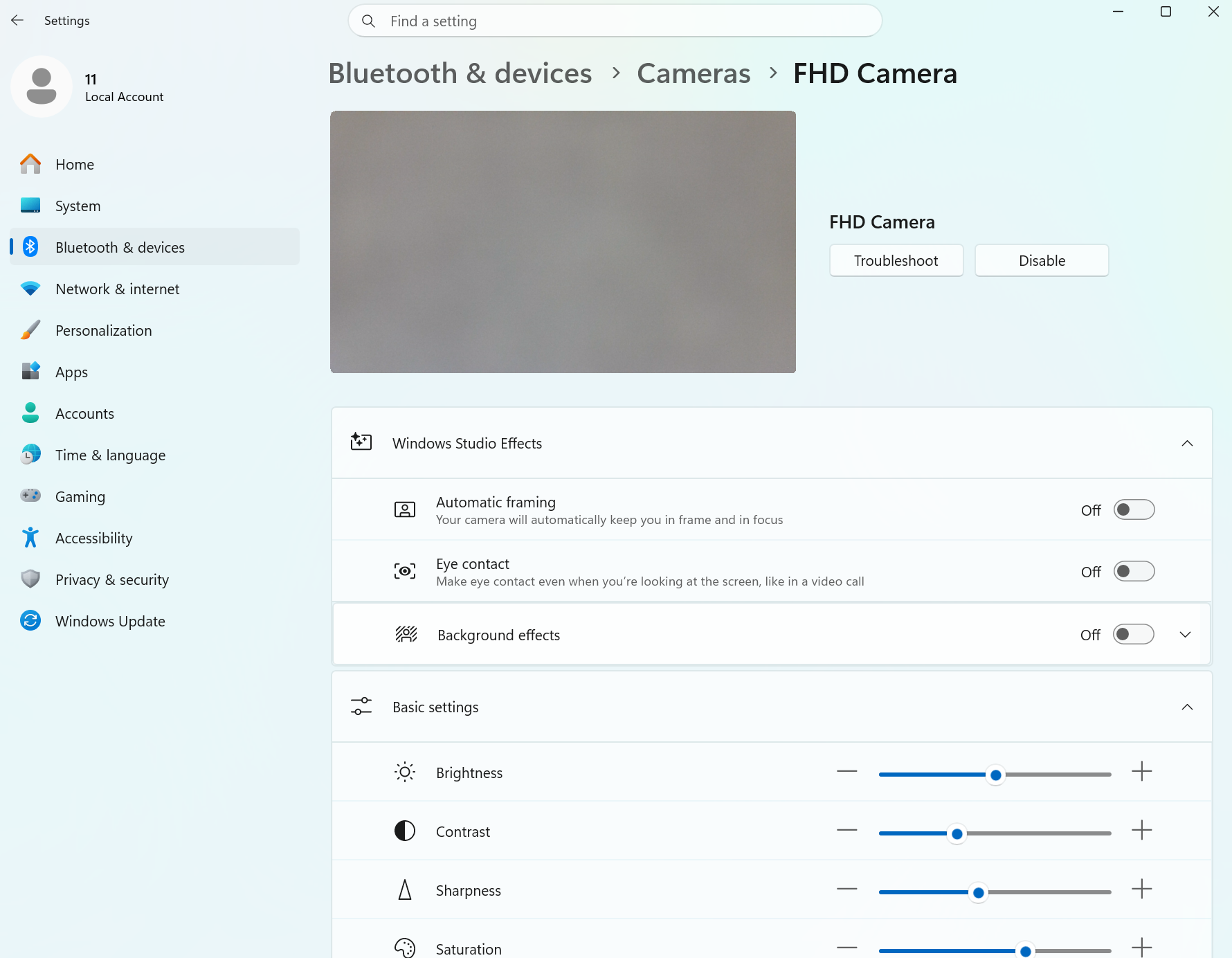
Adjust Studio Effects settings from the Settings app: go to Start > choose「Settings」> Click「Bluetooth & devices」(left sidebar) > choose「Cameras」to open the settings page.
Please note: if the system was installed by yourself (not factory-preloaded), enable Windows Studio Effects using the following steps:
1. Download the MEP Enable Tool.
2. Double-click 「RunMe」 to enable Windows Studio Effects.
3. Restart the machine.
4. After restarting, the Studio Effects option should appear on the Cameras settings page or in the Notification Center.
FAQ
Q: After updating the drivers, why can't I still see the "Teleprompter," "Portrait Light," or "Creative Filters" options?
A: These three features are only supported on models with NPU performance of 40 TOPS or higher. If your device's NPU does not meet this threshold, these options will not appear — this is expected behavior.
Q: After running the MEP Enable Tool and restarting, how do I confirm the feature was enabled successfully?
A: After restarting, check the Cameras settings page or the Windows Notification Center to see whether the Studio Effects tab/tile appears. If it appears, the feature has been enabled successfully.
Related Articles
[Product Information] Tobii Aware Features Stop Working When Windows Studio Effects Is Enabled