[Troubleshooting] Event viewer displays the error: "The embedded controller (EC) did not respond within the specified timeout period..."
Answer
When HWiNFO, HWMonitor, or other system monitoring software reads temperature, fan speed, or hardware sensor data, Windows Event Viewer may display the error message, “The embedded controller (EC) did not respond within the specified timeout period,” as shown below:
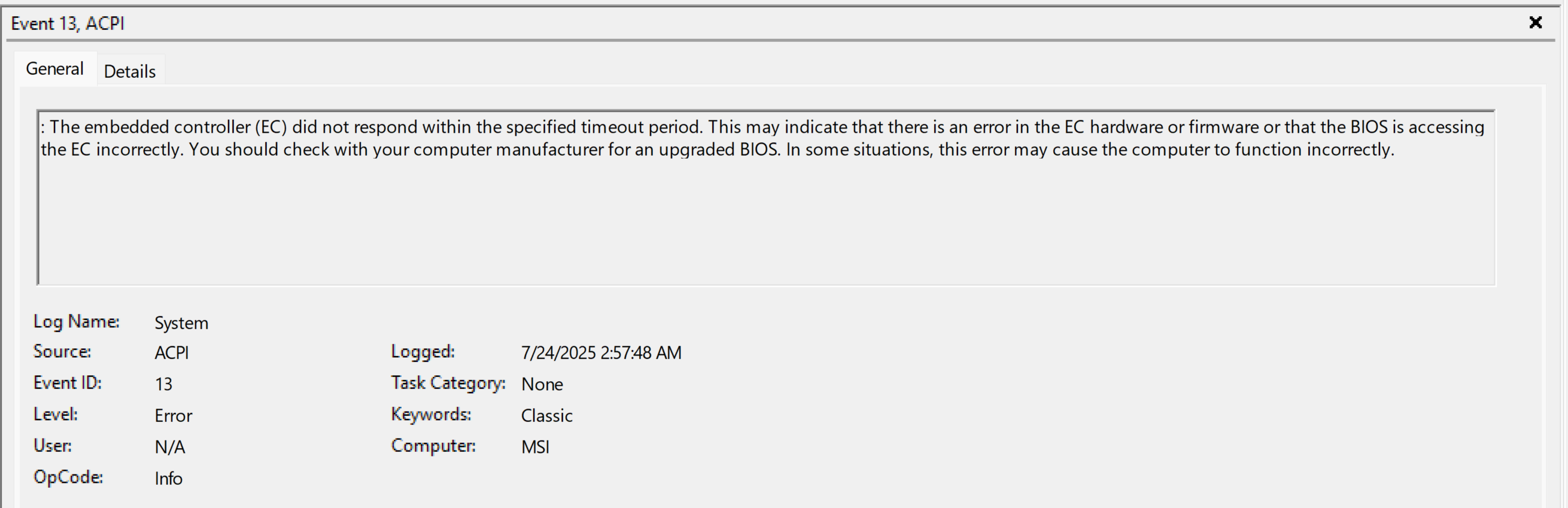
If this event occurs only while system monitoring software is running, it is usually caused by the monitoring software attempting to read sensor data that is unavailable from the EC or to which the EC is temporarily unable to respond. It does not necessarily indicate a hardware issue with the EC, BIOS, or motherboard.
This article applies to all MSI laptops.
Does this error indicate a hardware issue?
Not necessarily. If the following conditions apply, the event is usually related to monitoring software accessing EC data:
- The event occurs only while HWiNFO, HWMonitor, or another monitoring tool is running.
- The event no longer continues after the monitoring tool is closed.
- The system can start up, shut down, enter sleep mode, and wake normally.
- The fan, charging, keyboard, and system performance are functioning normally.
How to confirm whether the event is caused by the system monitoring software?
Follow the steps below:
- Close HWiNFO, HWMonitor, GamePP, or any other hardware monitoring software.
- Restart the computer.
- Do not launch any third-party monitoring tools temporarily.
- Use the computer normally for a period of time.
- Open Event Viewer again and check whether the same EC error continues to appear.
If the event no longer appears after the monitoring tool is closed or removed, it usually indicates that the event was triggered when the software attempted to read EC sensor data.
How to disable EC Monitoring in HWiNFO?
If you are using HWiNFO, try disabling EC Support to prevent the software from continuously accessing EC sensor data.
- Open HWiNFO.
- Go to Settings.
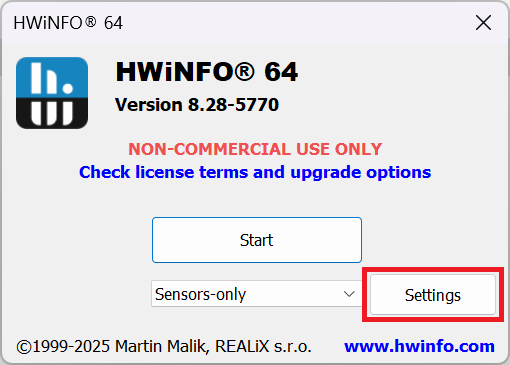
- Select Safety.
- Clear the EC Support checkbox.
- Click OK to save the settings.
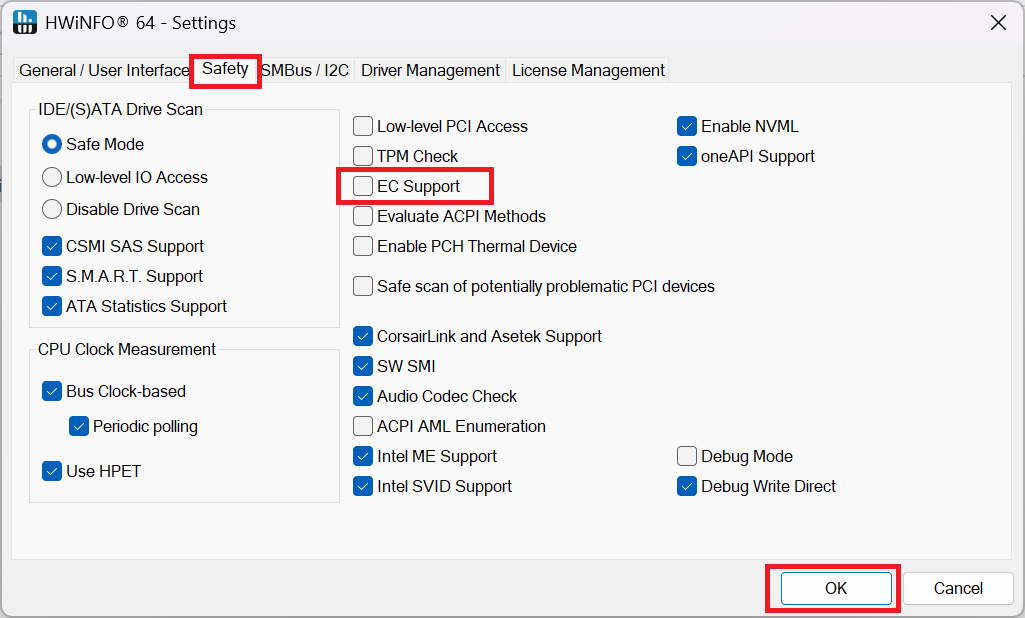
- Close and restart HWiNFO.
After this feature is disabled, some temperature, fan, or other sensor data provided by the EC may no longer be displayed.
FAQ
Q: What should I do when using another monitoring tool?
A: If the monitoring tool provides any of the following or similar options, try disabling them:
- EC Support
- Embedded Controller Monitoring
- EC Sensor
- Low-level EC Access
If the software does not provide a related setting, temporarily uninstall the tool, restart the computer, and then check whether the event stops appearing.
Q: Will disabling EC Support in HWiNFO affect the laptop's functions?
A: No. It will not affect the laptop's fan control, charging, or power management. This setting only prevents HWiNFO from reading some sensor data provided by the EC. As a result, certain temperature, fan speed, or other monitoring items may no longer be displayed.