[Product Information] How to Disable the Camera on an MSI Notebook
Answer
Depending on the model design, MSI notebooks may use a Camera Shutter, Camera Switch, camera function key, or Windows system settings to control the camera.
We recommend referring to the product user manual first to confirm whether the notebook is equipped with a Camera Shutter, Camera Switch, or camera function key.
If the notebook has a physical camera control, you can directly use it to enable or disable the camera.
If the notebook does not have a Camera Shutter, Camera Switch, or camera function key, you can manage camera access through Windows Settings by following the steps below.
This article applies to all MSI notebooks.
How to Check the Camera Control Method
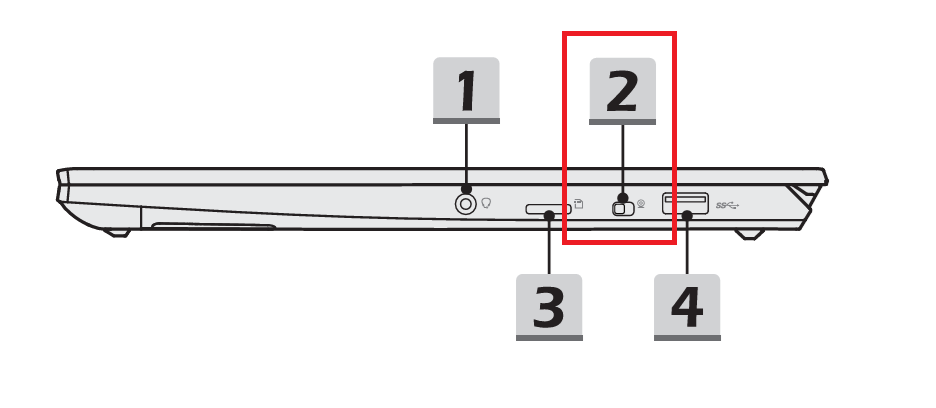
Go to the MSI official website, search for your notebook model, and download the product user manual. Check whether the notebook is equipped with any of the following camera control features:
- Camera Shutter: Physically covers the camera lens.
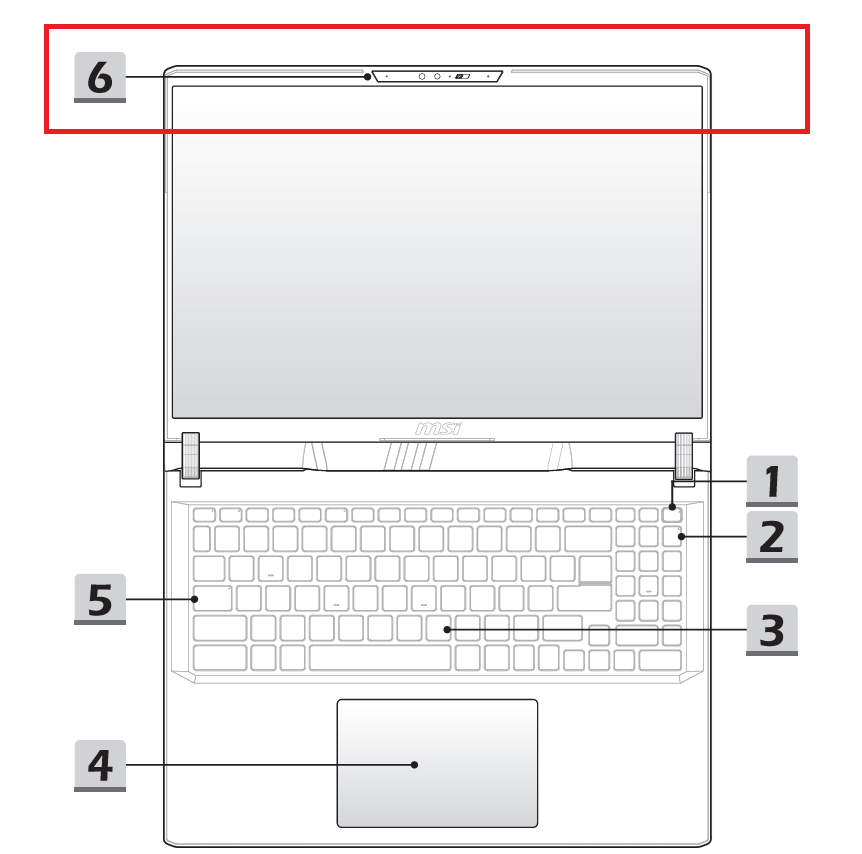
- Camera Switch: Uses a physical switch on the notebook to control the camera.
- Camera Function Key: Uses the camera function key on the keyboard to enable or disable the camera.

If the notebook is equipped with any of the above features, please use the camera control provided on the notebook. If none of these features are available, follow the Windows settings below.
How to Disable the Camera Through Windows Settings
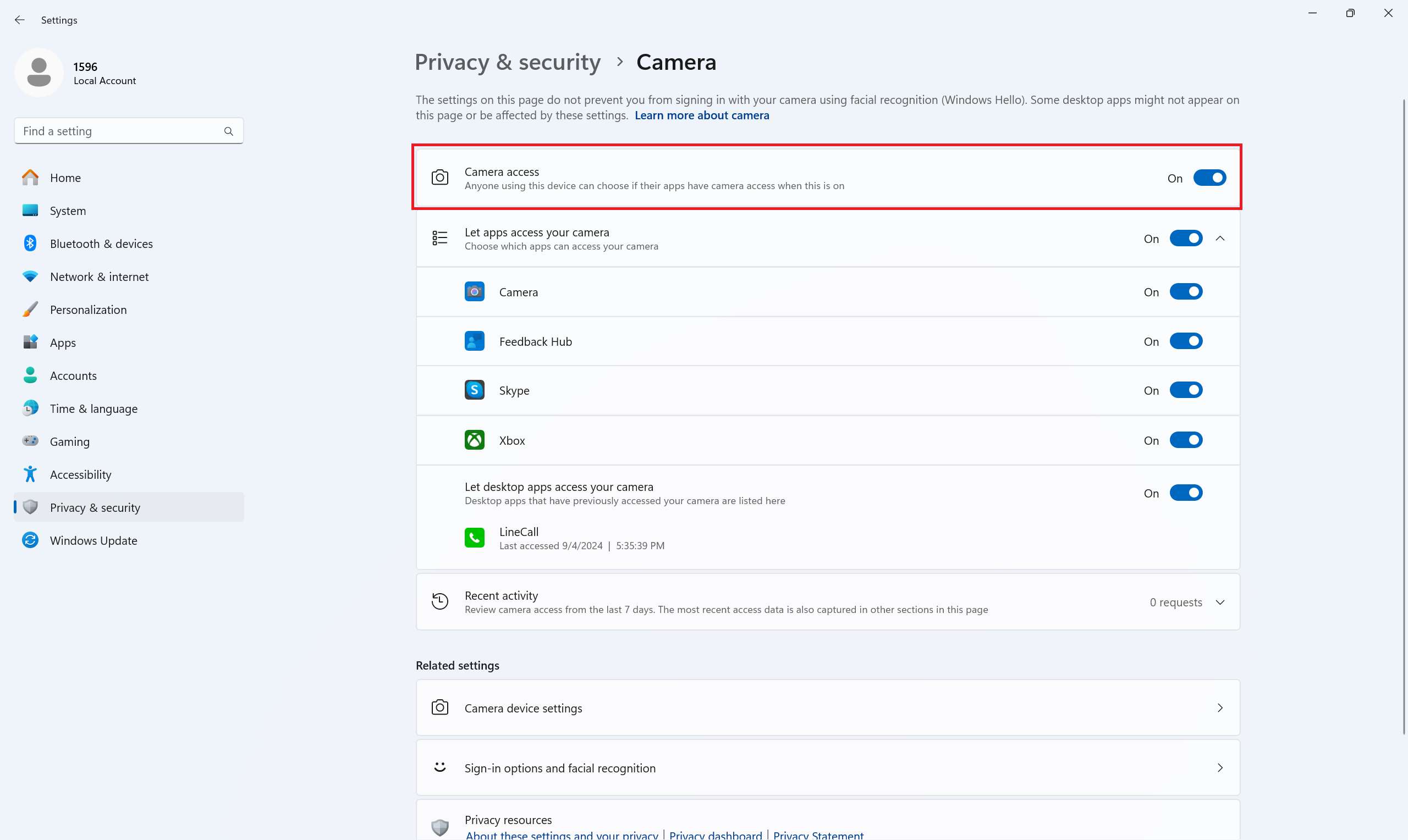
- Press Windows + I to open Settings.
- Select Privacy & security.
- Select Camera.
- Set Camera access to Off.
After this setting is disabled, Windows and applications will no longer be able to access the camera.
If you need to use the camera again, return to the same settings page and set Camera access to On.
FAQ
Q: Can the camera still be used after Camera access is turned off?
A: No. When Camera access is set to Off, Windows and applications cannot access the camera. To use the camera again, follow the steps above and set Camera access to On.
Q: Does this setting disable the camera hardware?
A: No. This setting only controls camera access through Windows and does not physically disable the camera hardware.