[Troubleshooting] Unable to Power On or Black Screens after Pressing the Power Button
Answer
If pressing the power button results in the laptop failing to power on, a black screen, or the inability to enter the operating system, please follow the instructions below to troubleshoot the issue.
This article applies to all MSI laptops
Before starting, please ensure your laptop is prepared as follows:
1. Charge your laptop using the MSI original AC power adapter included in the box for at least thirty minutes.
2. Remove all external devices, including but not limited to USB drives, external microphones, speakers, headphones, mice, and external SSDs.
3. If hardware was recently upgraded (e.g.RAM or SSD) around the time the issue occurred, restore the hardware configuration to its factory default.
After completing the above preparations, please attempt each of the following steps based on the actual condition of your laptop.
Scenario 1: After pressing the power button, there is no display from either the power LED or the screen, or the power button LED lights up but the screen remains black
1. Please perform an EC Reset.
<1> Shut down the system.
<2> Disconnect the AC power.
<3> Press and hold the power button for more than 25 seconds.
<4> Connect the AC power and power on the laptop again.
(Note: During the process of pressing and holding the power button, you may observe the system briefly powering on and off through the power indicator LED.)
2. If the MSI Logo still does not appear after performing the EC Reset, please contact your local MSI official service center for further assistance with checking the laptop hardware.
Scenario 2: After pressing the power button, the MSI logo appears, but Windows cannot be entered
1. Please perform an EC Reset.
<1> Shut down the system.
<2> Disconnect the AC power.
<3> Press and hold the power button for more than 25 seconds.
<4> Connect the AC power and power on the notebook again.
(Note: During the process of pressing and holding the power button, you may observe the system briefly powering on and off through the power indicator LED.)
2. Restore the BIOS settings.
a. Restart the laptop and repeatedly press the “Delete” key when the MSI logo appears to enter the BIOS menu.
b. After entering the BIOS menu, go to the “Save & Exit” menu and select “Load Optimized Defaults”. Select “Yes”to restore all BIOS settings to their default values.
c. Then select “Save changes and Reset”and select “Yes”to save the changes and restart the notebook.
*Note: If you previously adjusted the RAID settings (Intel IRST & Intel VMD Setting) on your notebook, after selecting “Load Optimized Defaults”, please restore the settings according to the original configuration. Then select “Save & Exit” to save and exit the BIOS, and restart the notebook to apply the settings.
3. Update/re-flash the BIOS.
Please refer to the FAQ to update or reflash the BIOS to the latest version available on the MSI official website: [Notebook] How to Update BIOS
4. If the issue persists, please contact your local MSI service center for further assistance.
Scenario 3: After pressing the power button, the MSI logo and Windows welcome screen appear, but there is no display after entering the desktop
1.Press Windows + Ctrl + Shift + B simultaneously to try to reinitialize the Windows graphics driver. After performing this operation, the screen may briefly flicker and you may hear a notification sound. Wait for a few seconds and check whether the display returns to normal.
2. Enter Safe Mode and reinstall the graphics driver.
a. When the MSI brand logo appears, press "F3" to enter the menu.
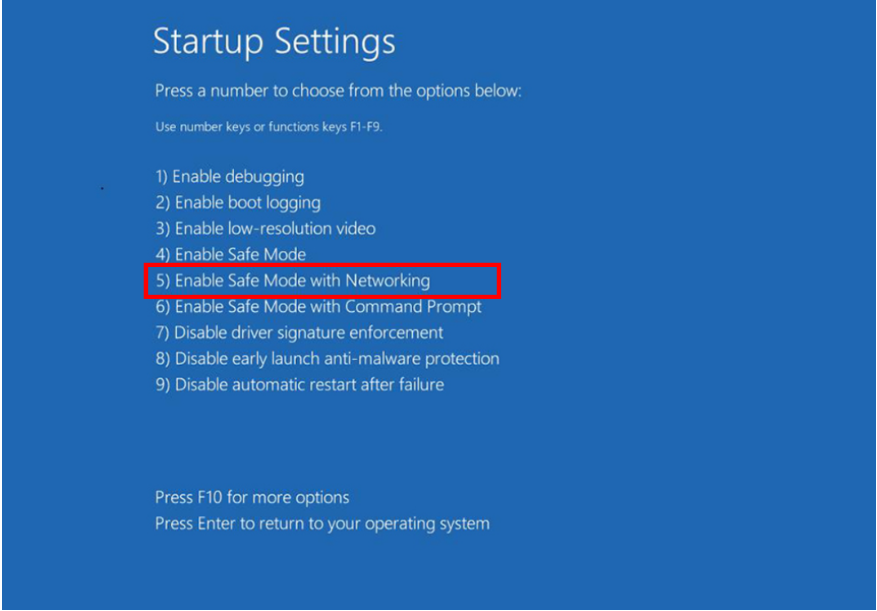
b. Select Troubleshoot > Advanced options > Startup Settings > Restart.
c. Press the number "5" to enter Safe Mode (with networking).
d. After entering Safe Mode, follow the FAQs below to perform a clean installation of the graphics driver to the version released on the MSI official website.
[How To] Intel graphics driver Clean Install/Update
[How To] Complete Uninstall and Reinstall of NVIDIA Graphics Driver
3. If the issue cannot be resolved after following the above steps, please contact MSI Customer Service Technical Support for further assistance.