[How To] Enter Safe Mode on Windows
Answer
When the Windows system fails to operate normally due to driver conflicts, software errors, or update issues, entering "Safe Mode" or the "Recovery Environment" is the primary step in diagnosing the issue. The following instructions explain how to correctly enter the Windows Recovery Environment and adjust startup settings via system settings or hardware hotkeys.
This article applies to all MSI laptop products.
Entering Windows Recovery Environment
You can use either of the following methods:
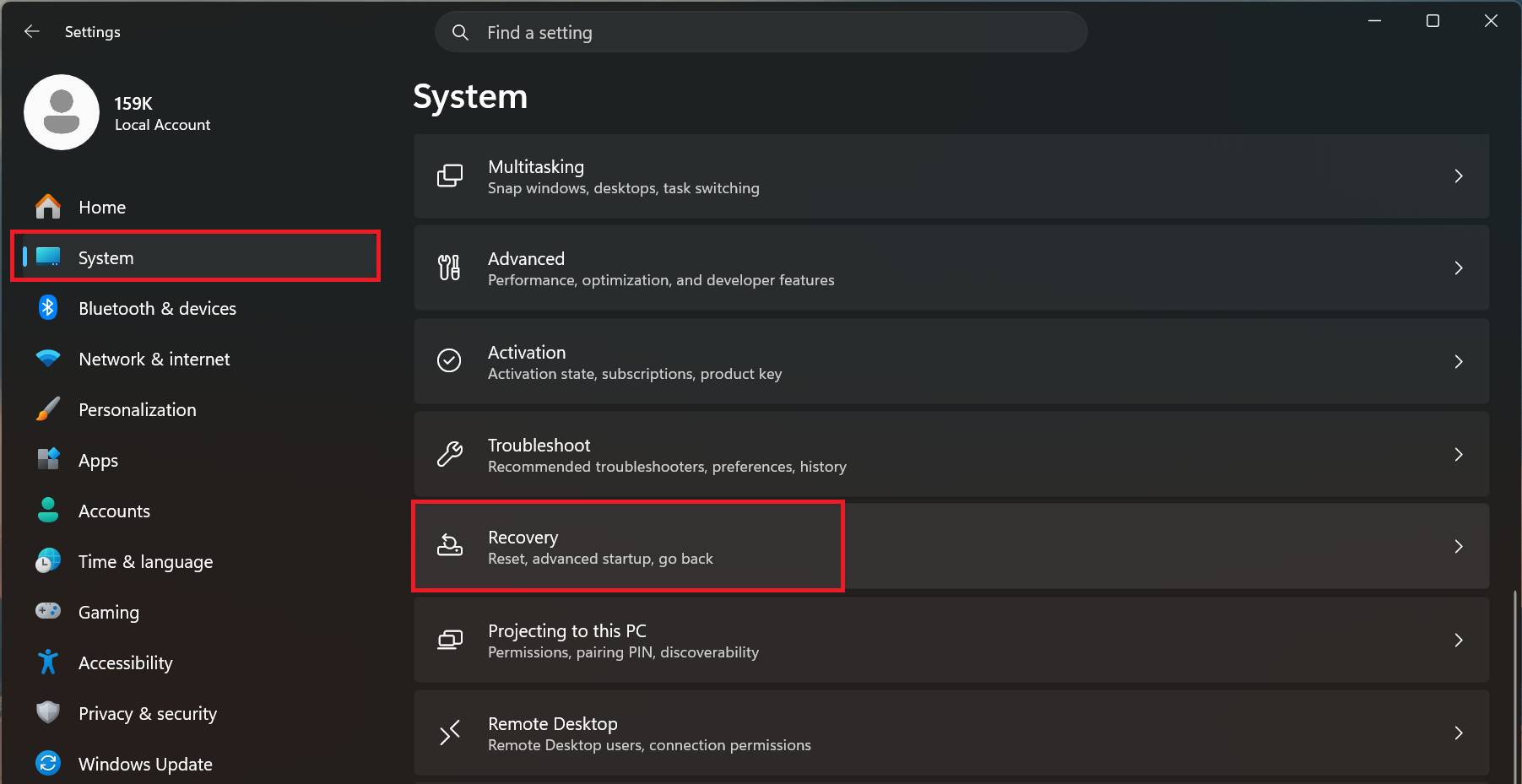
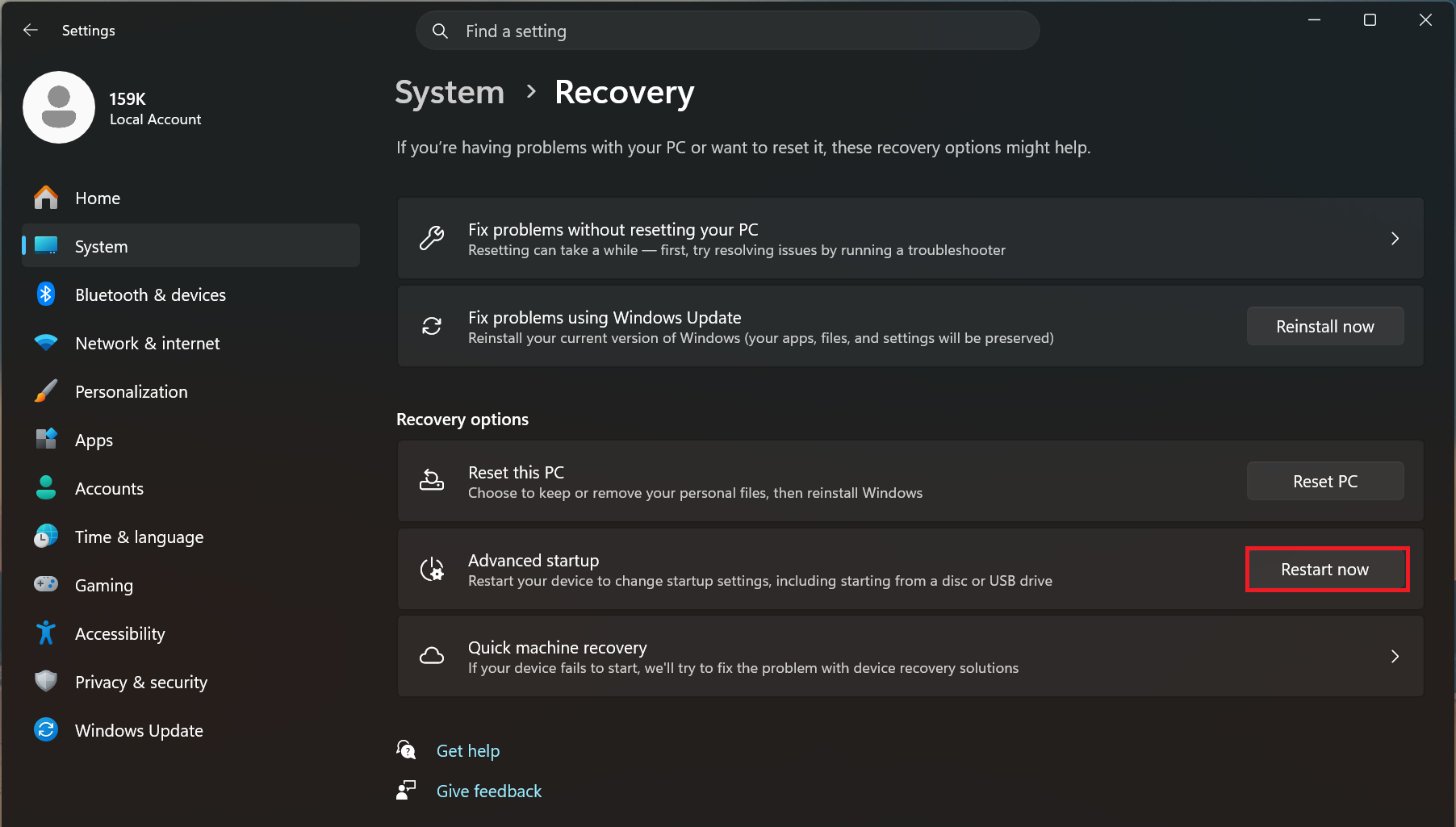
Method 1: Via Windows Settings to enter Windows recovery environment:
- Open Settings > System > Recovery.
- Under "Advanced startup," click "Restart now".
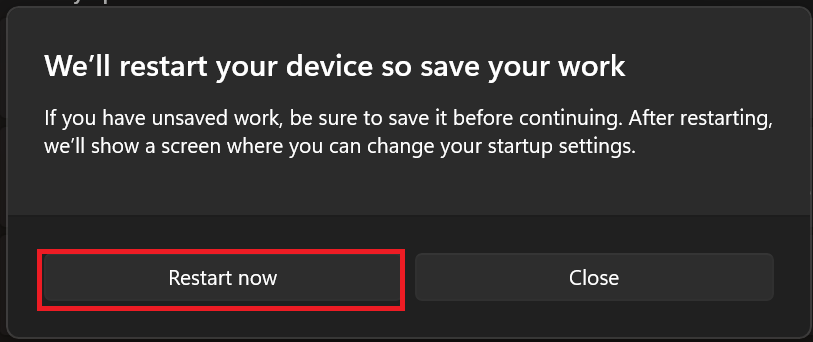
- Click "Restart now"
Method 2: Via F3 Hotkey to enter Windows recovery environment:
Restart the computer and press the F3 key on the keyboard when the MSI logo appears.
Selecting Startup Settings
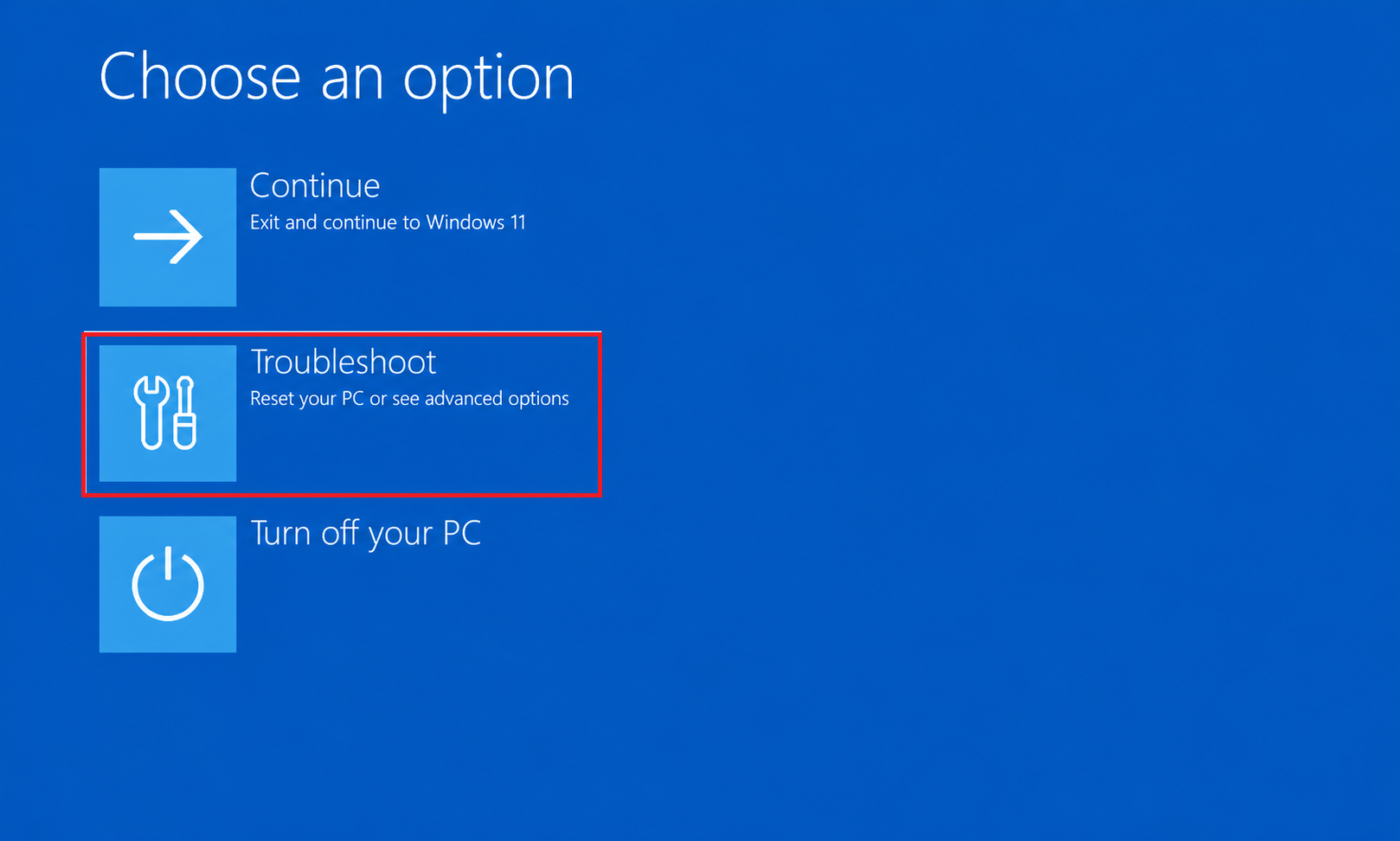
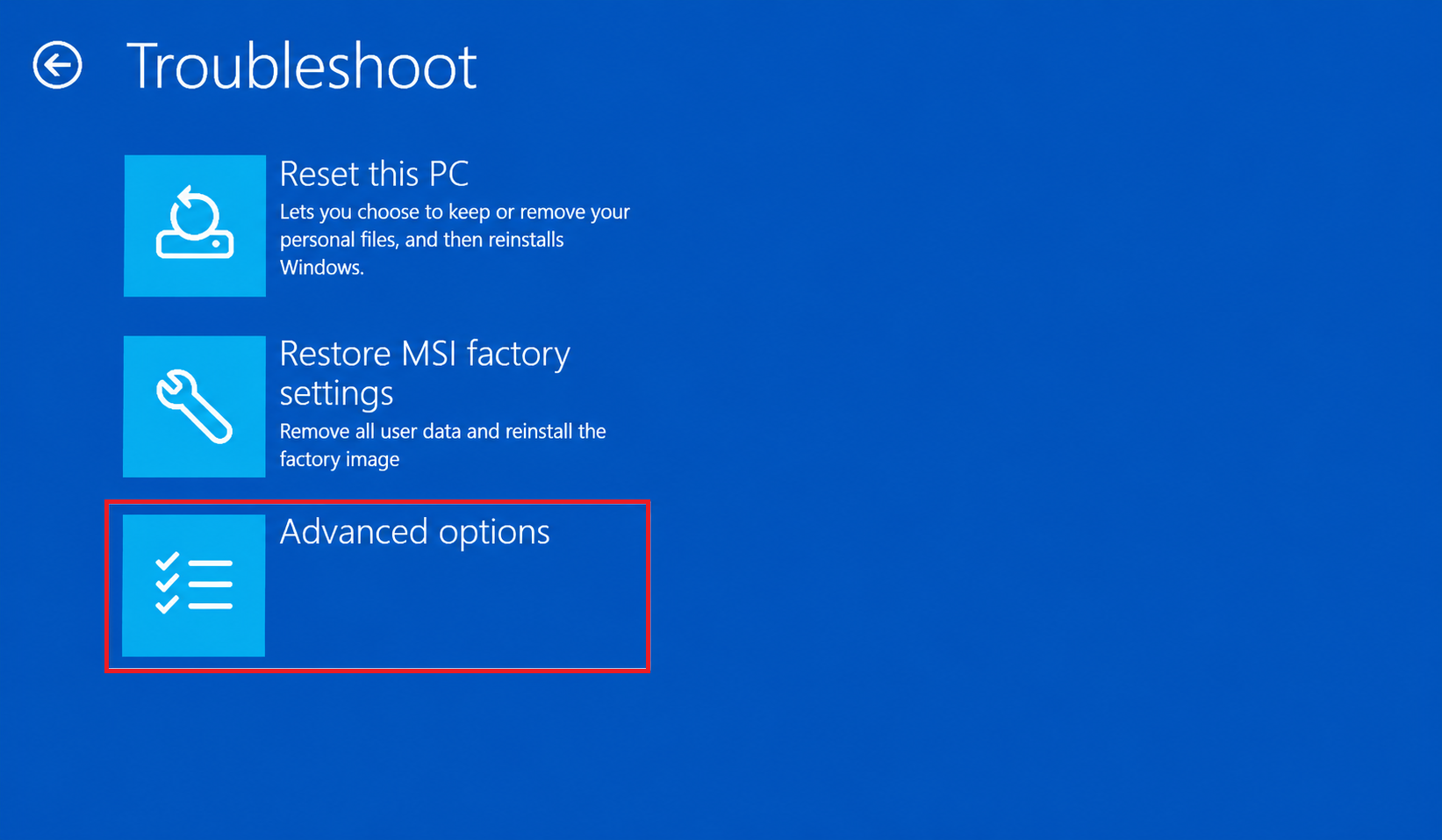
- Once in the Windows Recovery Environment, select "Troubleshoot".
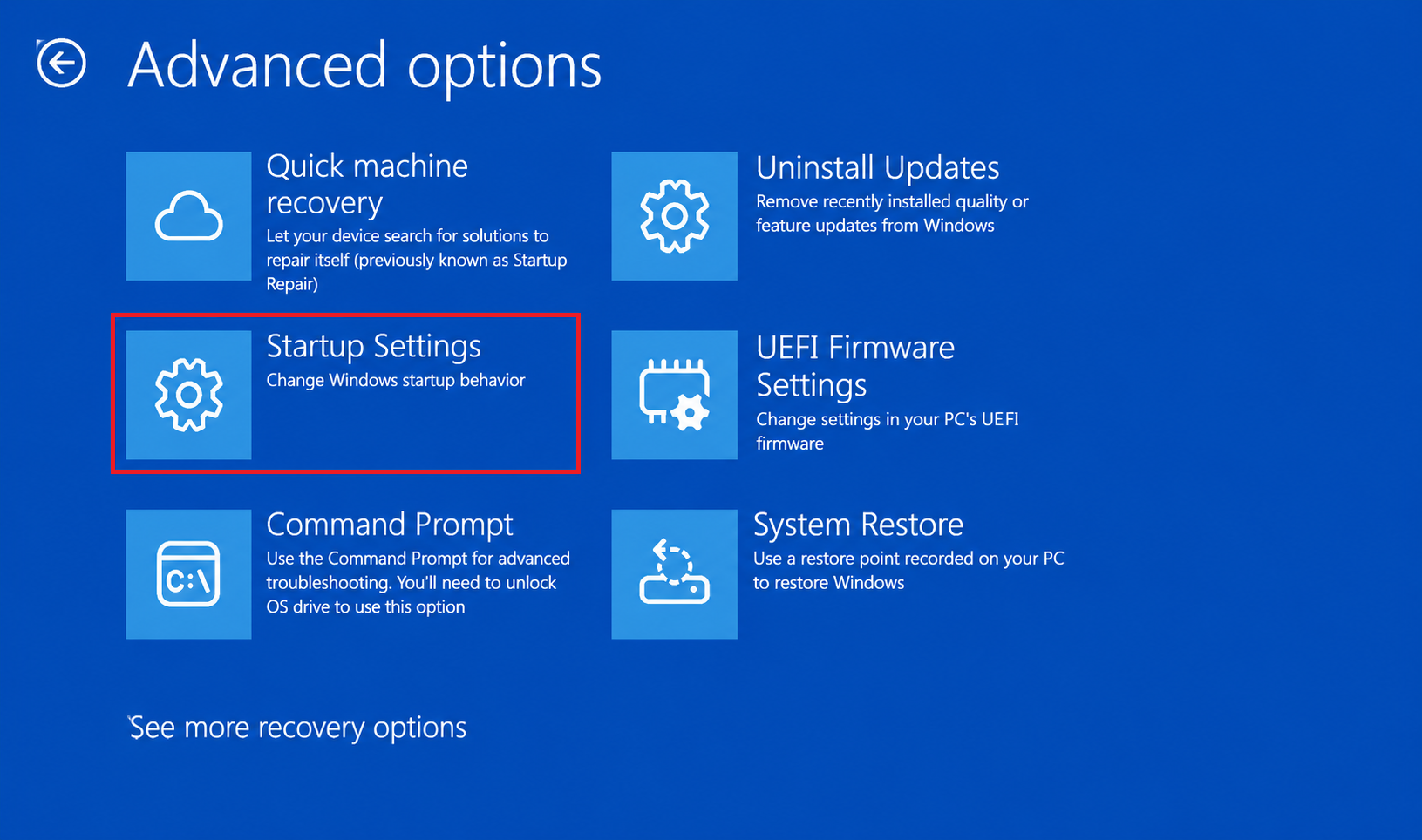
- Select "Advanced options".
- Select "Startup Settings".
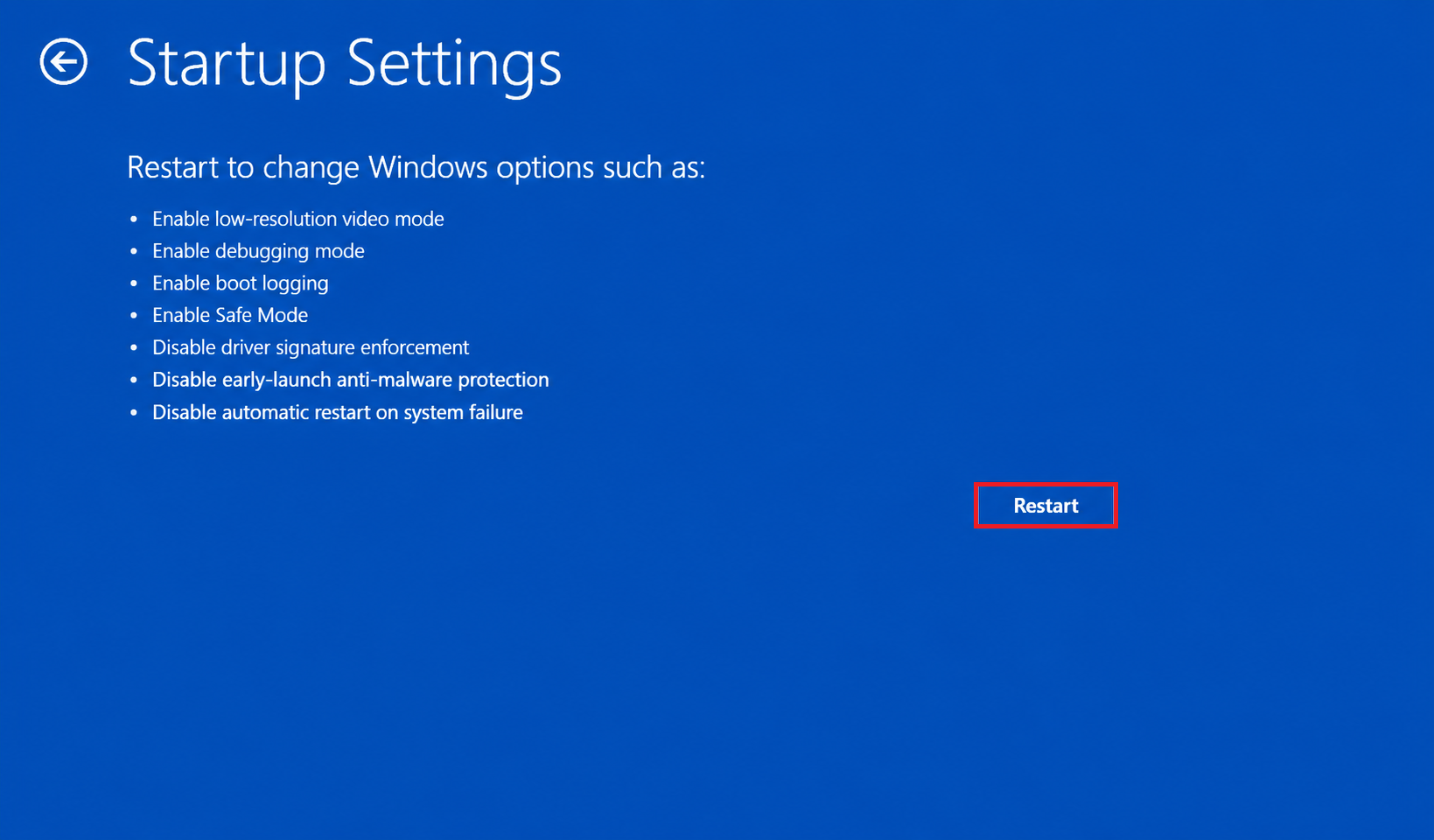
- Select "Restart".
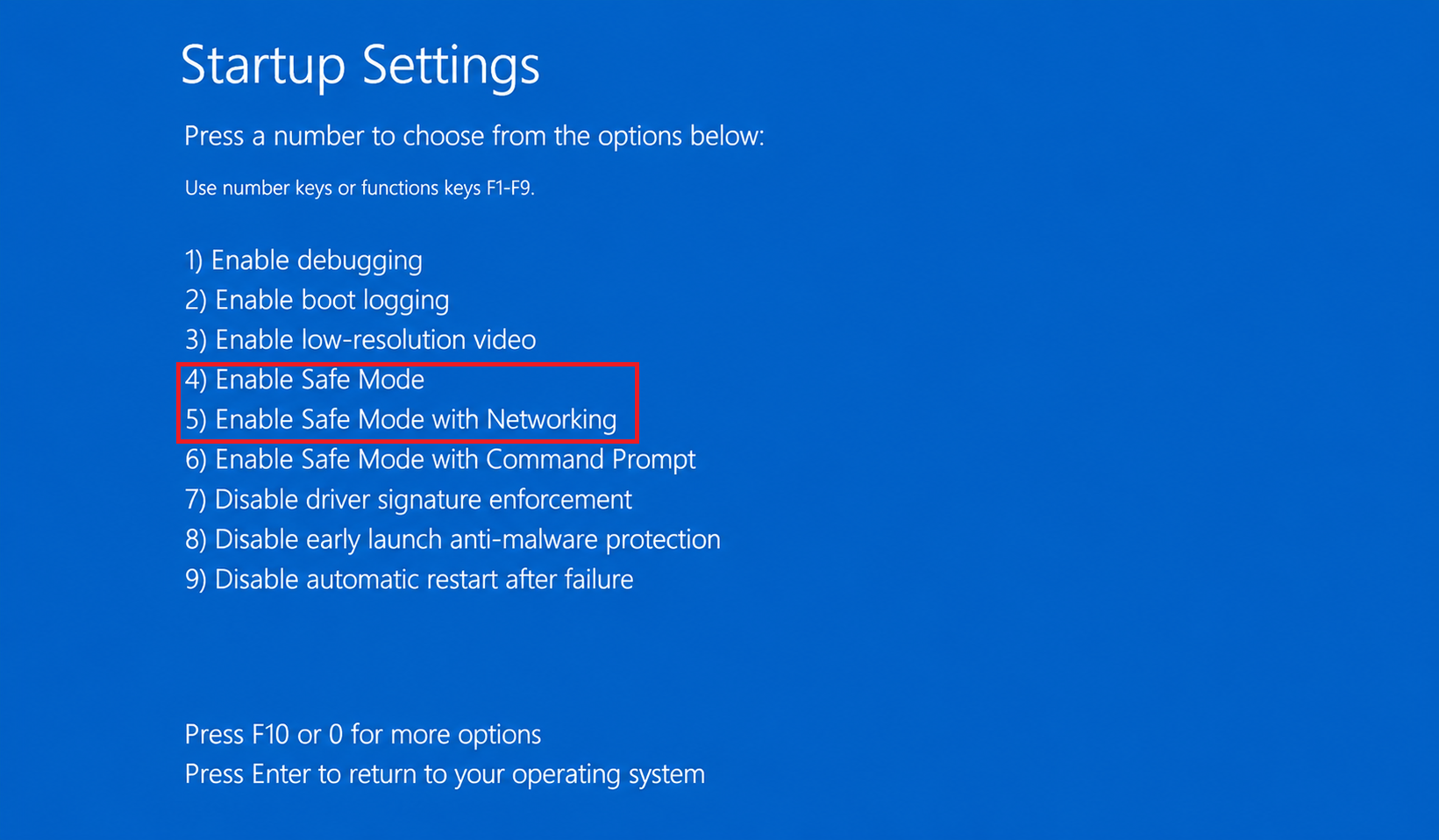
- After restarting, press the number key 4 or 5 to enter Safe Mode. The device will then enter Safe Mode, and the words "Safe Mode" will appear in the corners of the screen.
FAQ
Q: Which device users is this operation guide applicable to?
A: This guide is applicable to users of all MSI laptop products when you need to troubleshoot issues yourself.
Q: What are the Windows Recovery Environment (WinRE) and Startup Settings?
A: This is an interface specifically designed for diagnosing and repairing system issues. Through "Startup Settings," users can choose to enter "Safe Mode," a mode that loads only the most basic drivers and software services.
Q: When should I perform these operations?
A: When your computer experiences a blue screen (BSOD), continuous reboot loops, or when specific software/driver updates cause system instability that requires uninstallation or repair.