[How To] Check Whether the Laptop is Running on iGPU or dGPU
Answer
For high-performance laptops, the system may automatically switch between the integrated graphics processor (iGPU) and the discrete graphics processor (dGPU) based on system workload. Understanding the current GPU activity status can help users confirm whether games or professional applications are properly using the graphics resources. It can also help manage power consumption and extend battery life.
To learn how to check the current GPU operating status in real time, please refer to the information below.
This article applies to MSI laptop products equipped with a discrete graphics processor (dGPU).
Check by the Power Button Indicator know the system is running on iGPU or dGPU.
For models with an indicator light on the power button, users can identify the current GPU status by checking the indicator color. For detailed information, please refer to the model manual.

Check from NVIDIA Control Panel to identify which applications are using dGPU.
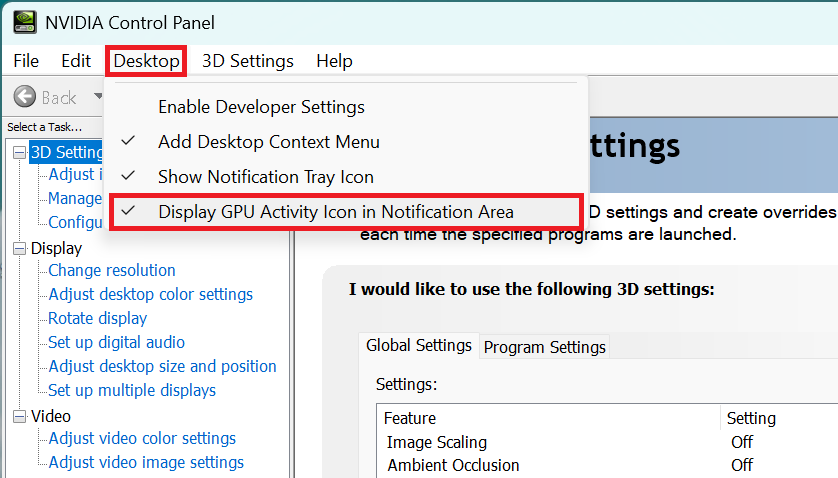
- Open NVIDIA Control Panel > Desktop > Check“Display GPU Activity Icon in Notification Area”.
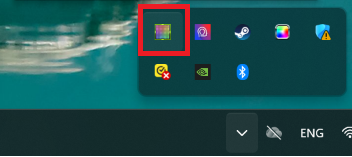
- Click the "Show hidden" icon in the notification area, then select the GPU Activity icon to view the applications currently using the dGPU.
FAQ
Q: Who is this identification guide intended for?
A: This guide is intended for users of MSI laptops equipped with an NVIDIA discrete graphics processor who want to confirm which GPU the system is currently using.
Q: Why do I need to check the GPU activity status?
A: Checking the GPU status helps users determine whether the discrete graphics processor is currently active. This is useful for confirming that high-performance applications, such as games, are using the proper GPU resources, or for checking whether any background applications are unnecessarily using the discrete GPU and increasing power consumption while on battery power.
Q: When should I check the GPU status?
A: You should check the GPU status when running high-load software and want to confirm whether performance is optimized, or when you notice faster battery drain and want to check whether any background process is unexpectedly using the discrete GPU.