


[Desktop] How to troubleshoot abnormal display appears (flashing screen, blurred screen, black screen), or the refresh rate and resolution are below expectations after connecting to an external monitor using an HDMI/DP/Type C cable?
- Verify that the monitor is correctly connected to the computer
- Check video cables and the monitor
- Update BIOS and the graphics card driver
- System restore
Verify that the monitor is correctly connected to the computer
If your external monitor shows a blank screen as if no signal is detected, please first ensure that your monitor is correctly connected to the computer.

If your CPU does not have a built-in graphics card, when connected to the "Integrated GPU Output (IGPU Output)" as shown in the image above, the external monitor will not display any image. Instead, please connect to the "Dedicated Graphics Card Output (DGPU Output)".
Check video cables and the monitor
1. Perform a cross-test: You can try connecting other devices to the same monitor for a cross-test. If there is still no display or the same issues occur, it indicates that the monitor itself may have a problem.
2. Verify the connections: Ensure that the power cable and signal cable (such as HDMI, DP, VGA, DVI, etc.) are correctly and securely connected. Sometimes, improper or loose connections can cause display issues.
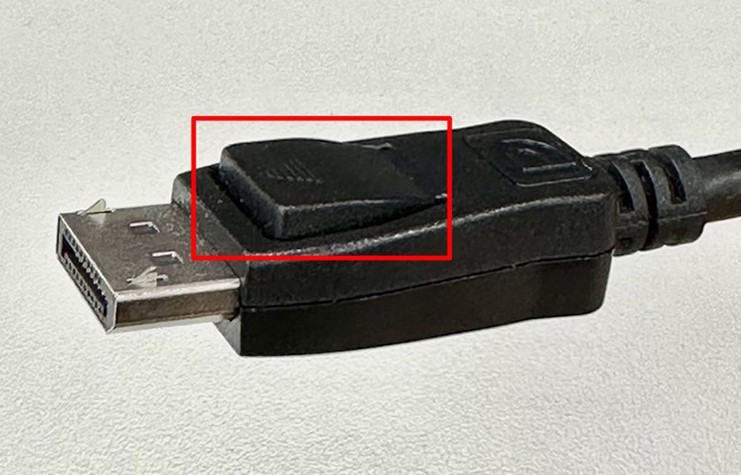
Some cables have a design to prevent detachment. When connecting the cables, you will need to press down the button highlighted in the red box in the image below to securely insert the cables.
3. Verify the input source: Taking MSI’s monitor as an example. Within the monitor's OSD (On-Screen Display) menu, select the correct input source under the "Input Source" option.

Update BIOS and the graphics card driver
Software updates usually help improve system stability and resolve known issues. If your external monitor has a display but exhibits abnormalities, you can refer to the following articles to update the BIOS and graphics card drivers. After updating, please check if the issue is resolved.
[Graphics Card] How to update the graphics card driver?
Restore System
If you have tried the above troubleshooting steps and ruled out issues with the monitor and cables, but the problem still persists, it is recommended to refer to [Desktop] How to restore the default factory system through F3 Recovery to restore the system to its factory settings. After doing this, please check if the issue is resolved.
If the problem persists after following the above steps, please contact MSI customer service center for further assistance.
Reference Information and Related Articles
[Graphics Card] How to update the graphics card driver?
[Desktop] How to restore the default factory system through F3 Recovery