

[Desktop] How to Use Mystic Light
Mystic Light is an application that allows you to control the RGB lighting effects of MSI products and partner products.
Install Mystic Light
1. Open MSI Center and check if Mystic Light lighting effects are available on the feature page.
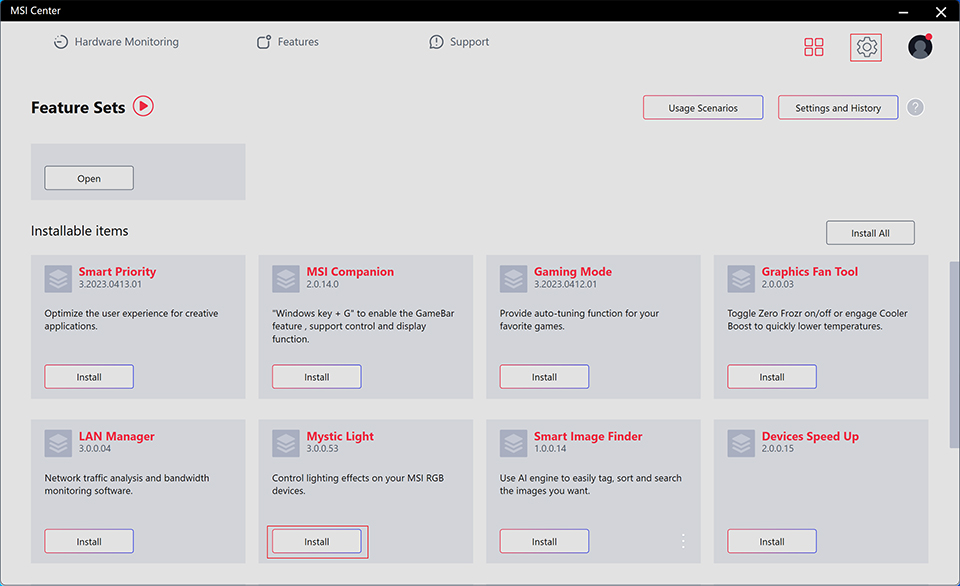
2. If Mystic Light lighting effects are not available, open the feature set in the upper right corner, find Mystic Light lighting effects, and click “Install”, as shown in the figure below:
Introduction to Mystic Light features
Note: The adjustable lighting modes and colors depend on whether the device itself supports them.
Mystic Light supports up to 3 profiles, allowing customers to switch as needed.
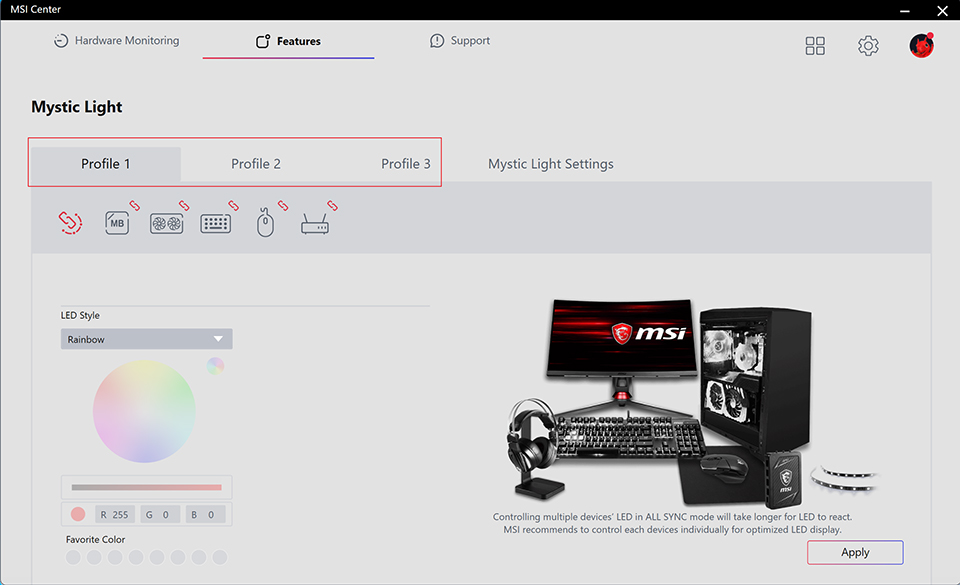
Open "Profile 1"; ALL SYNC means setting all lights simultaneously. Select the desired lighting mode and color, and apply it.
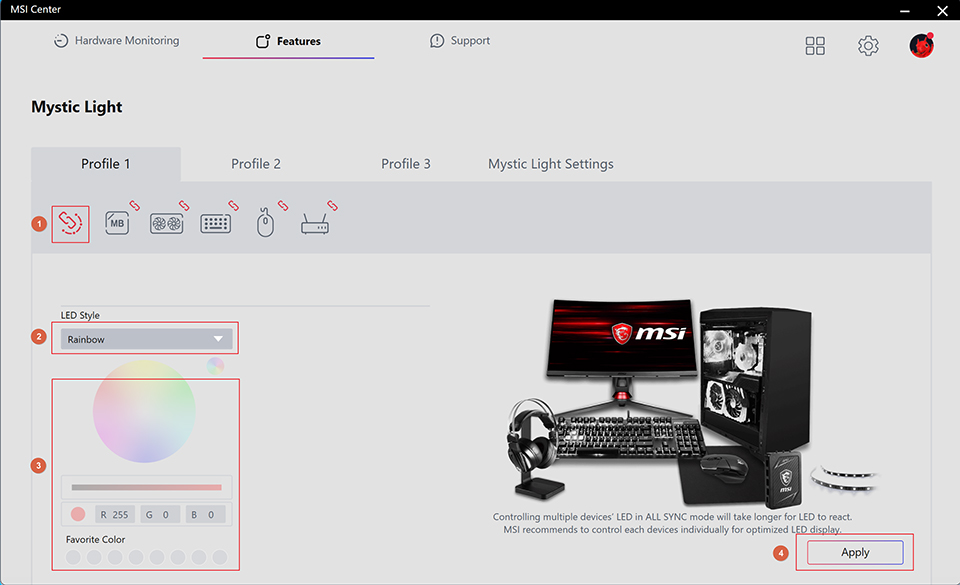
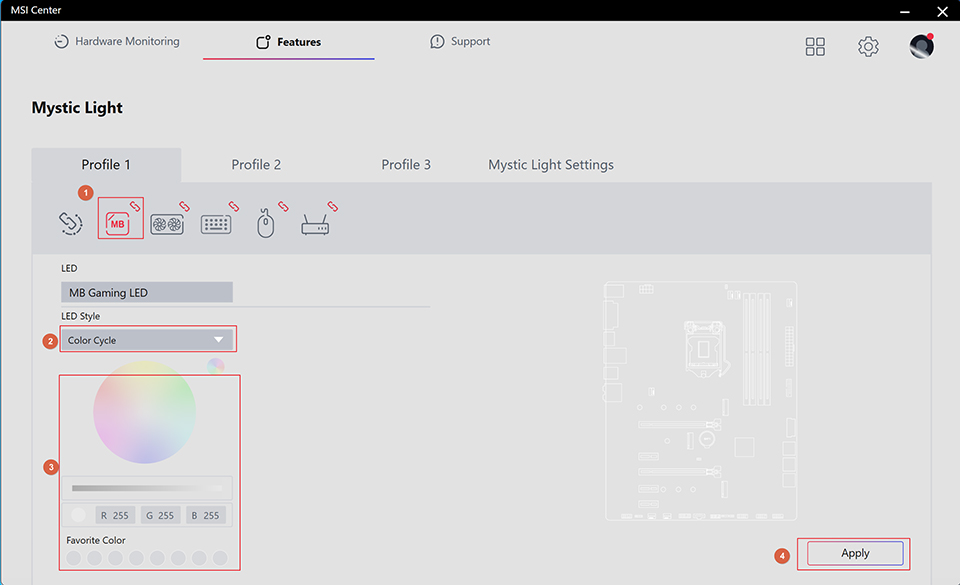
• Motherboard lighting settings
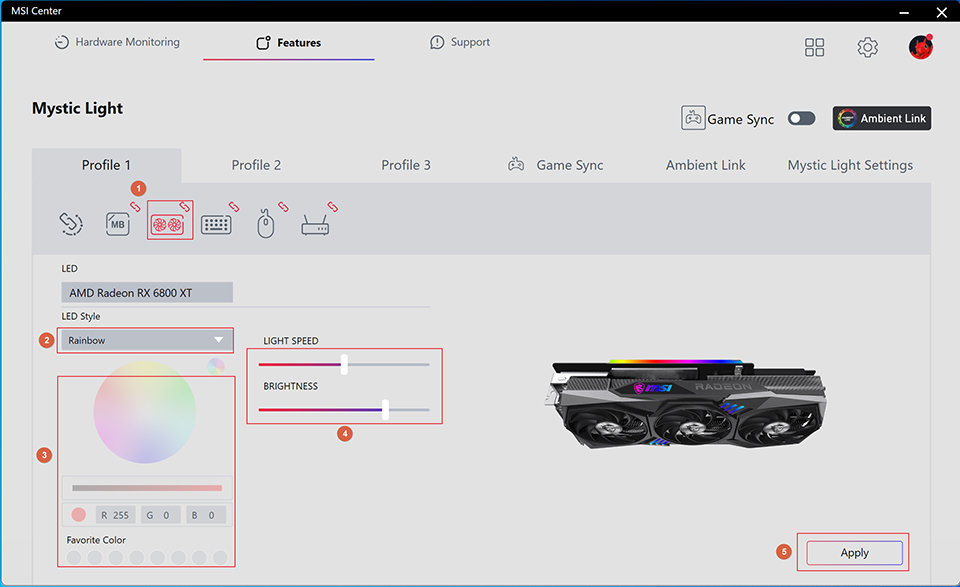
• Graphics card lighting settings
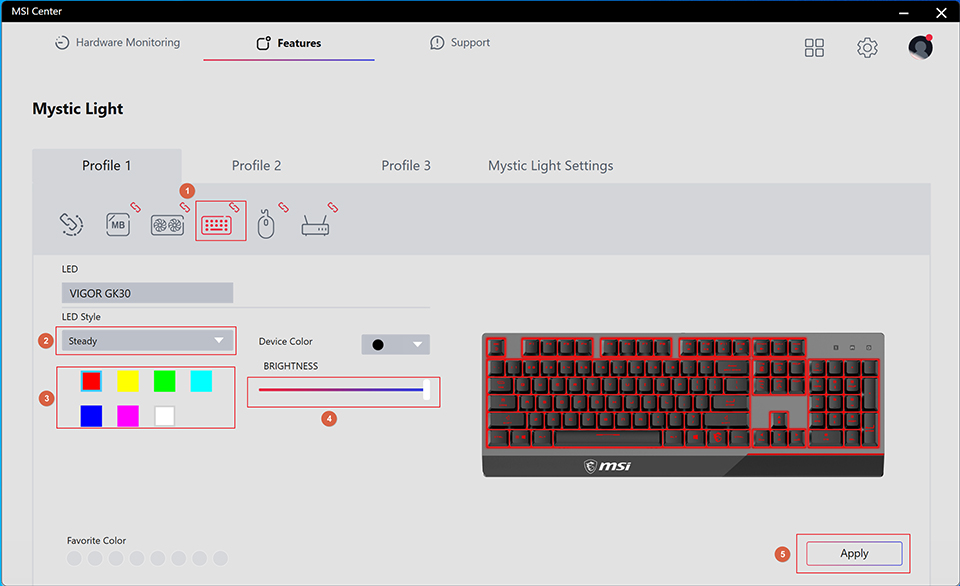
• Keyboard lighting settings
• Mouse lighting settings
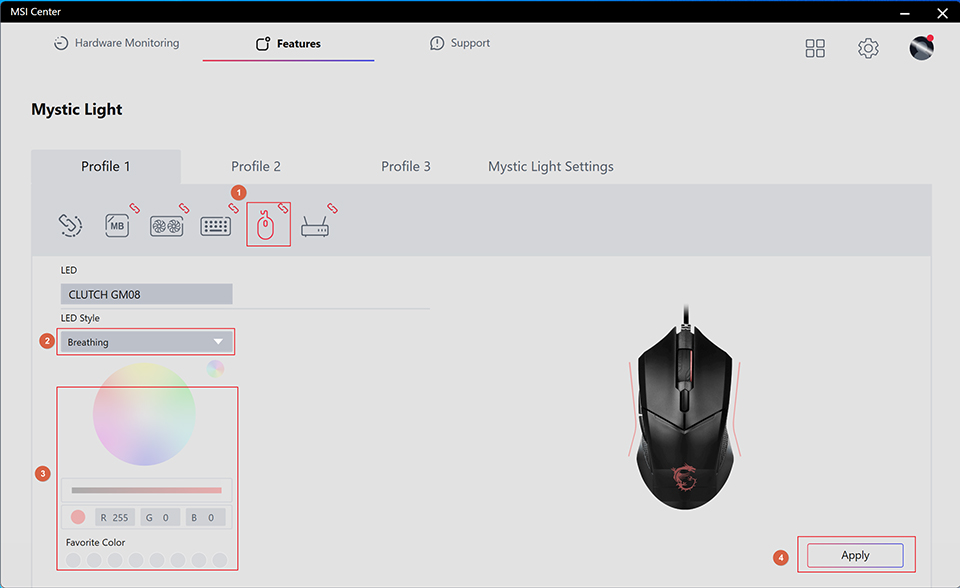
• Router lighting settings
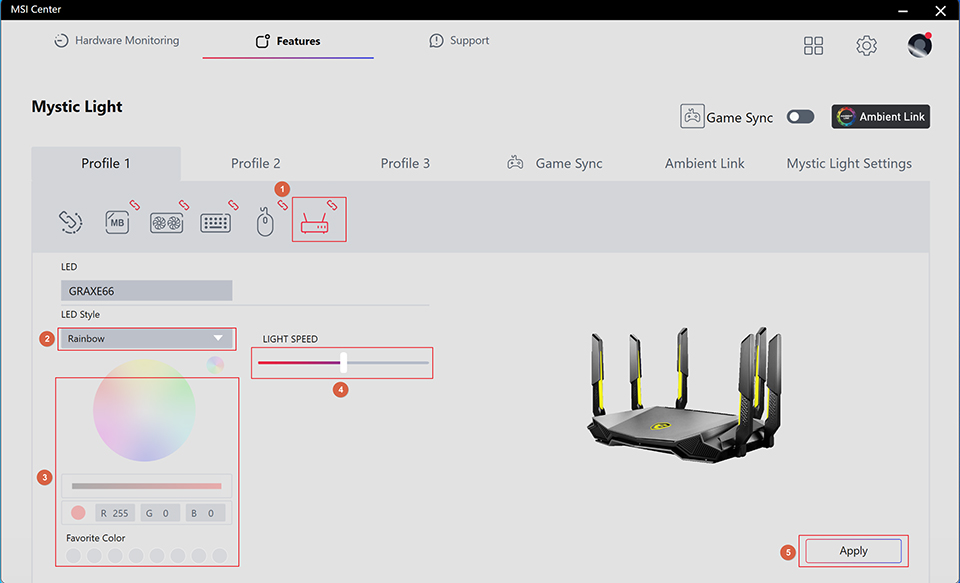
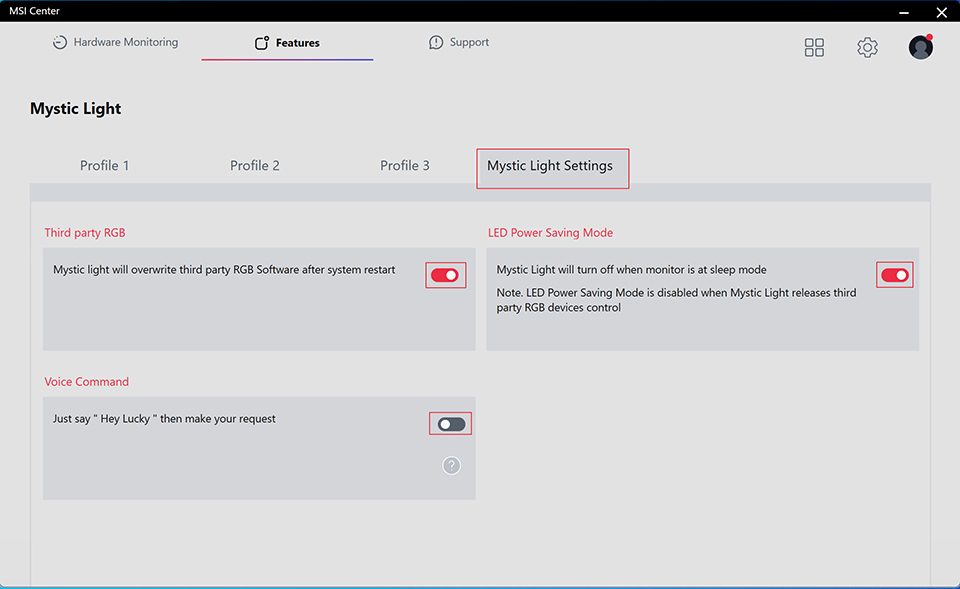
Mystic Light Configuration: Users can decide whether to overwrite the third-party RGB software, whether to enter LED power-saving mode, and whether to enable voice control based on their needs.