


How to fix screen flickering after the computer is turned on
In case of screen flickering, first inspect if there is a display hardware or graphics card hardware malfunction.
Please refer to the following troubleshooting approaches:
- Enter the display OSD menu and restore the factory default settings
- Cross-test HDMI, DP, and other video cables and interfaces
- Test with another display device
- Test with internal display
Enter the display OSD menu and restore the factory default settings
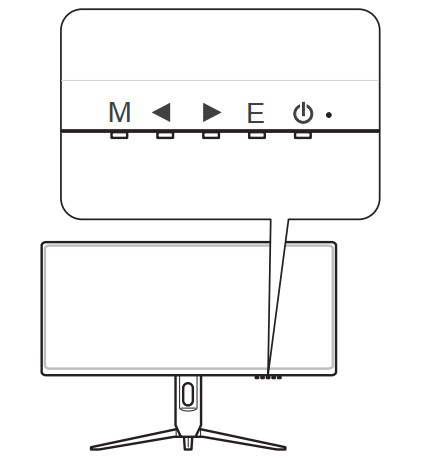
1. Press the “Menu” function key under the display.
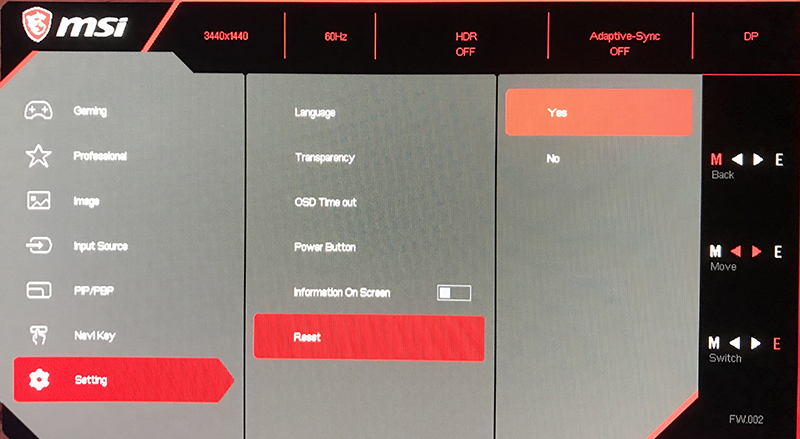
2. Find the “Reset” option under “Setting” and press “Yes” to restore the display to factory default settings.
Cross-test HDMI, DP, and other video cables and interfaces
Rule out if the issue is caused by cable or interface malfunction through a cross test on cables and interfaces.

Test with another display device
If video cable or display interface issues are ruled out, test with another display device to rule out that the issue is caused by the display itself.
Test with internal display
If the current CPU supports internal display output, you may switch to internal display testing. Rule out that screen flickering is caused by malfunction of the independent graphics card.
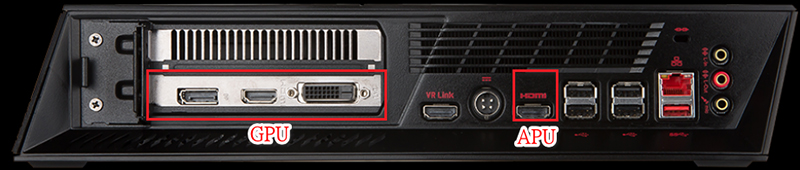
If you find that the issue is caused by independent graphic cards, refer to the following article for troubleshooting:
How to fix blurred screen/lines