[Monitor] PIP (Picture-in-Picture) / PBP (Picture-by-Picture) Function Settings
MSI monitors come equipped with various advanced features, including PIP (Picture-in-Picture) and PBP (Picture-by-Picture), which are essential tools for multitasking and productivity enhancement. This article introduces the concepts of these two functions and provides step-by-step setup instructions.
Note: Not all MSI monitors support PIP/PBP functionality. Please refer to the product manual or check the specifications on the MSI website.
OSD Menu Settings for PIP/PBP
PIP (Picture-in-Picture)
PIP allows users to add a secondary screen (small window) within the main screen (large window), similar to the picture-in-picture function on televisions. For example, you can play a game on the main screen(large window) while monitoring another device’s output (such as a laptop, gaming console, or surveillance feed) in the secondary screen (small window.)
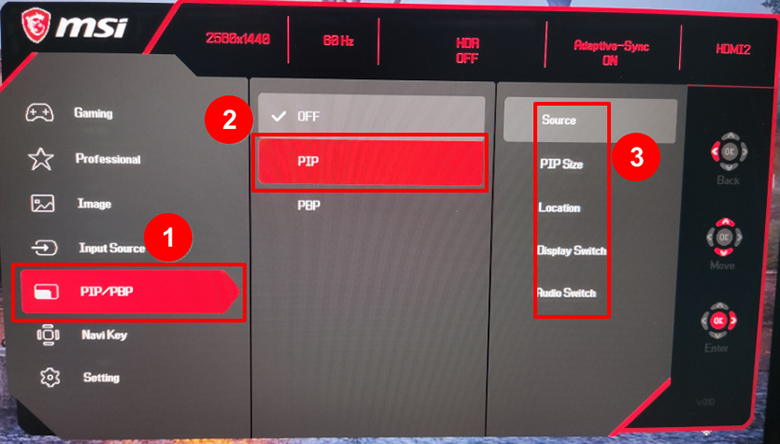
After you press the OSD button and navigate to the menu, select "PIP/PBP" from the options. Choose "PIP" and select the input sources for the main and sub-screen. Then, adjust the size and position of the sub-screen as needed.
PBP (Picture-by-Picture)
PBP allows users to split the monitor into two sections, displaying content from different input sources side by side. For example, you can simultaneously view two computers on the same screen to improve work efficiency.
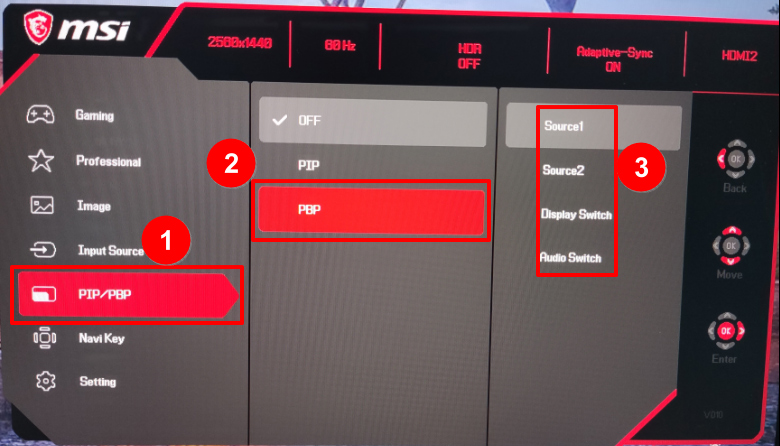
After you press the OSD button, select "PIP/PBP" from the options. Choose "PBP” and select two input sources for display. Then, choose the desired screen layout.
Setting Up PIP/PBP via Gaming Intelligence
Gaming Intelligence is an MSI software that allows users to adjust monitor settings using a mouse instead of physical OSD buttons, providing a more responsive experience.
Note: If Gaming Intelligence is not available on your monitor’s product download page, your monitor does not support this feature.
This article uses the PIP (Picture-in-Picture) setup as an example:
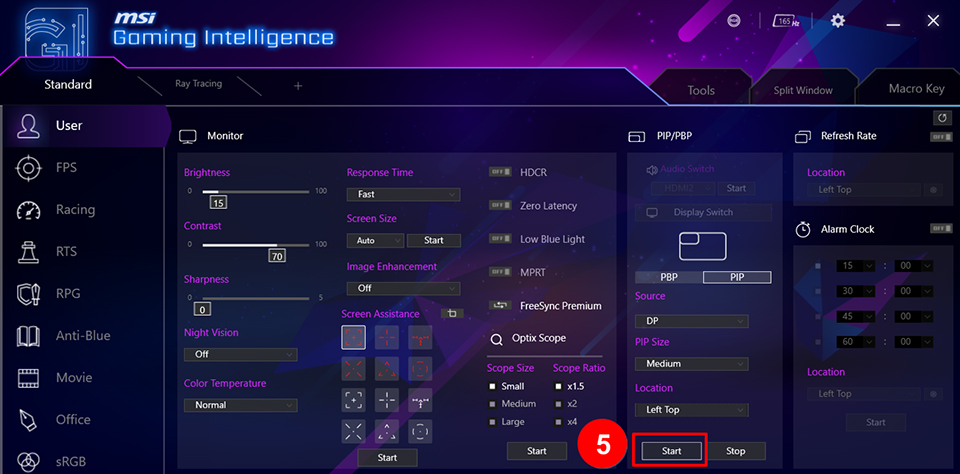
1. Open the Gaming Intelligence menu. Navigate to the Display Switch section and locate "PBP" and "PIP" options.
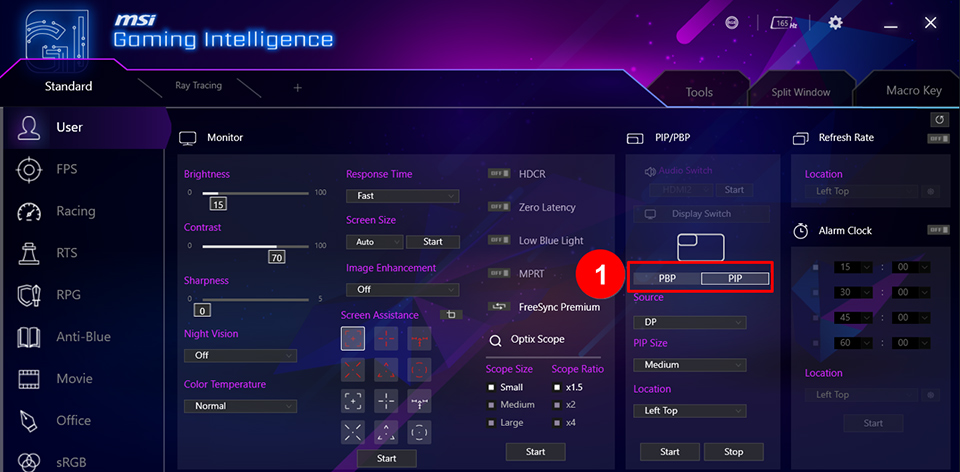
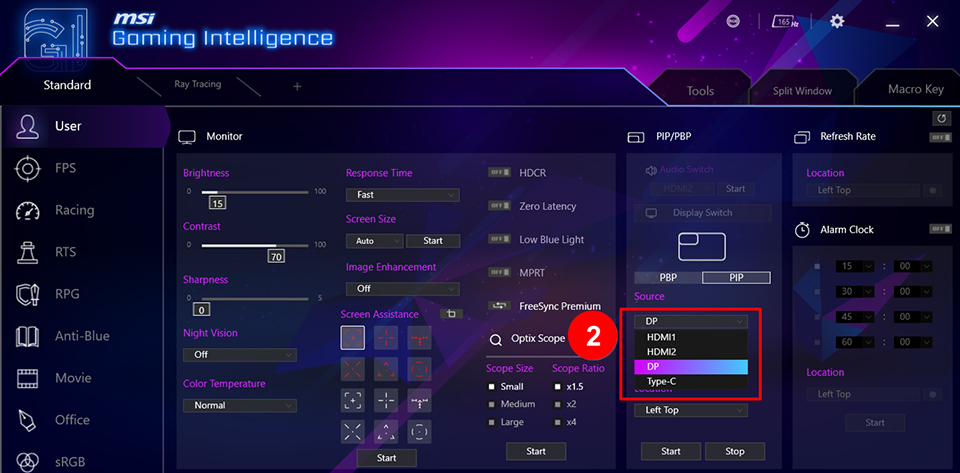
2. Select "PIP" and choose the input source you want to connect.
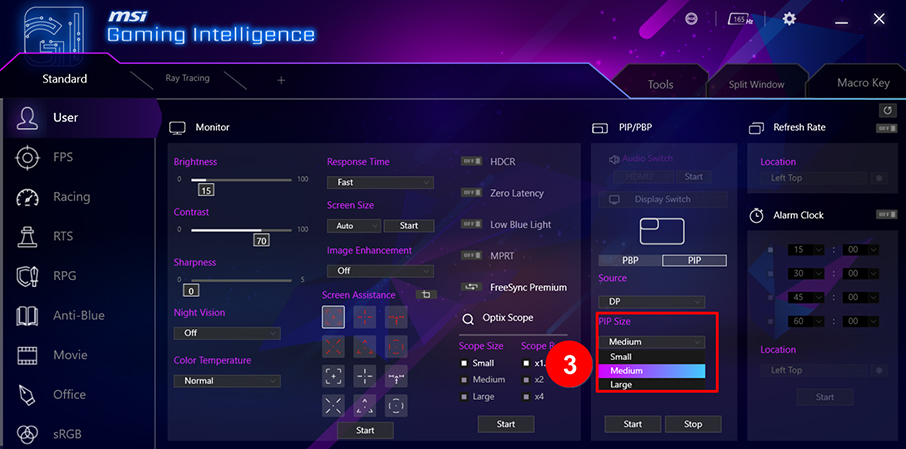
3. The sub-screen size can be adjusted based on personal preference, with three options available in the menu: Large, Medium, and Small.
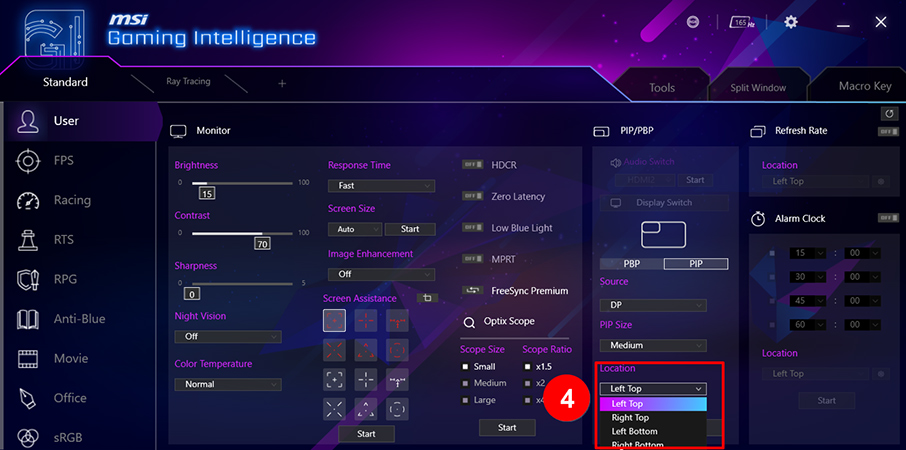
4. The sub-screen position can also be customized, with four options in the menu: Left Top, Left Bottom, Right Top, and Right Bottom.
5. Click "Start" to apply the settings.