

[Notebook] Bluetooth Function Abnormalities (Unable to Connect, Unstable, Icon Disappears)
If your computer is experiencing issues with Bluetooth functionality (such as inability to connect, frequent disconnections, Bluetooth icon disappearance, or a Wi-Fi exclamation mark in Device Manager), please refer to the following steps for troubleshooting.
Note: Wireless signals between the computer and Bluetooth devices are susceptible to interference. It is recommended to keep the Bluetooth device close to the computer without any objects or interference in between.
- Confirm Bluetooth is enabled in Windows settings
- Check for Bluetooth driver updates
- Uninstall the Bluetooth driver and download/install the driver from the MSI official website.
- Run Bluetooth troubleshooter
- Perform EC reset
- Update BIOS
- Restore system
- Bluetooth functionality is normal, but the icon is missing
Confirm Bluetooth is enabled in Windows settings
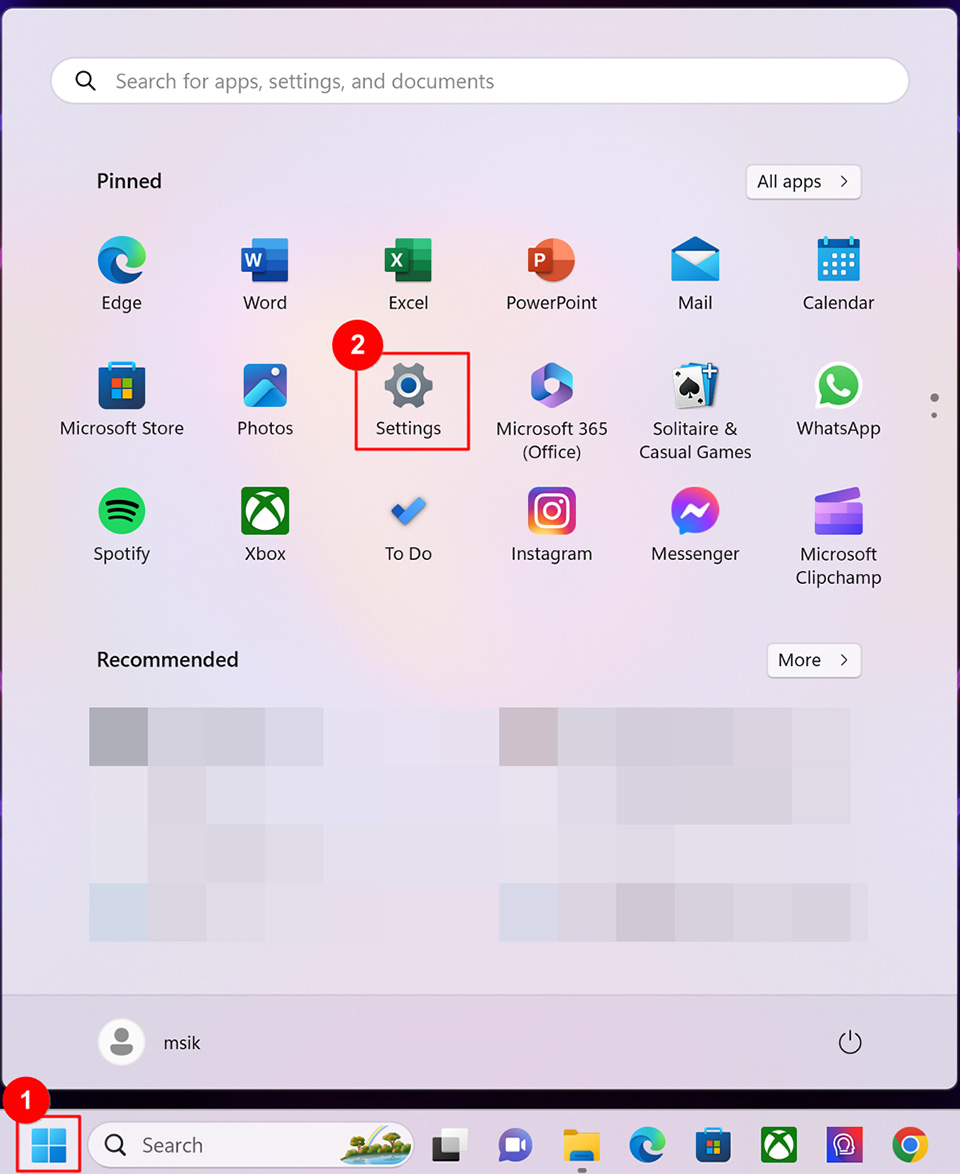
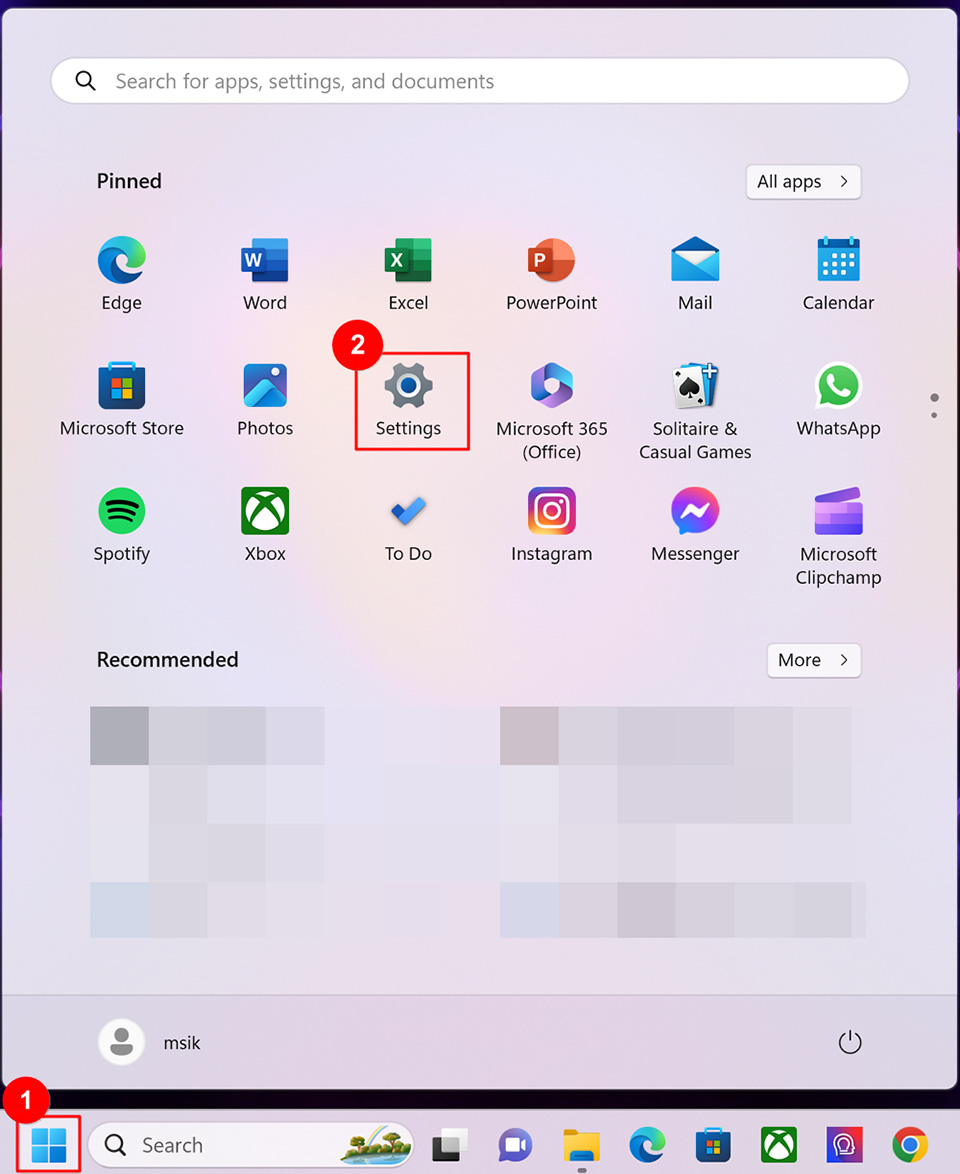
1. Click on "Start" in the taskbar, then select "Settings."
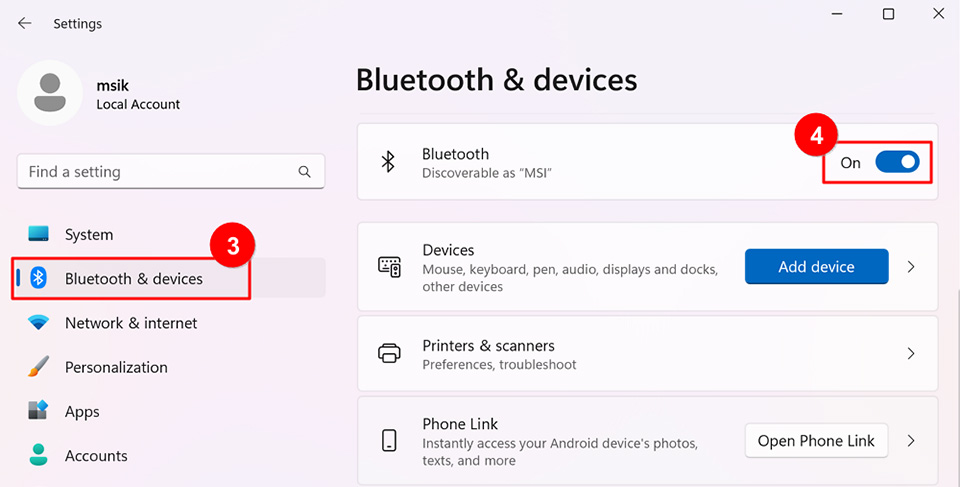
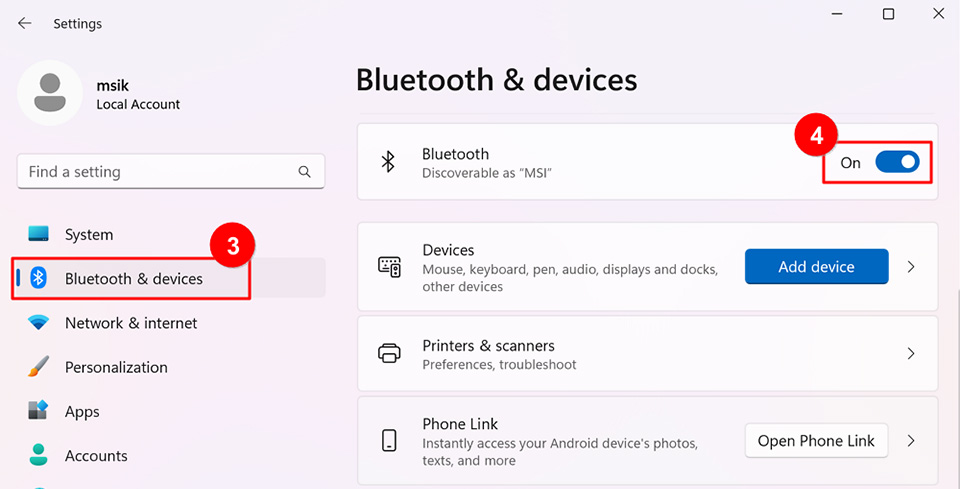
2. Click on "Bluetooth & devices" and verify if the "Bluetooth" functionality is enabled.
3. If the issue persists, please proceed with the following steps.
Check for Bluetooth driver updates
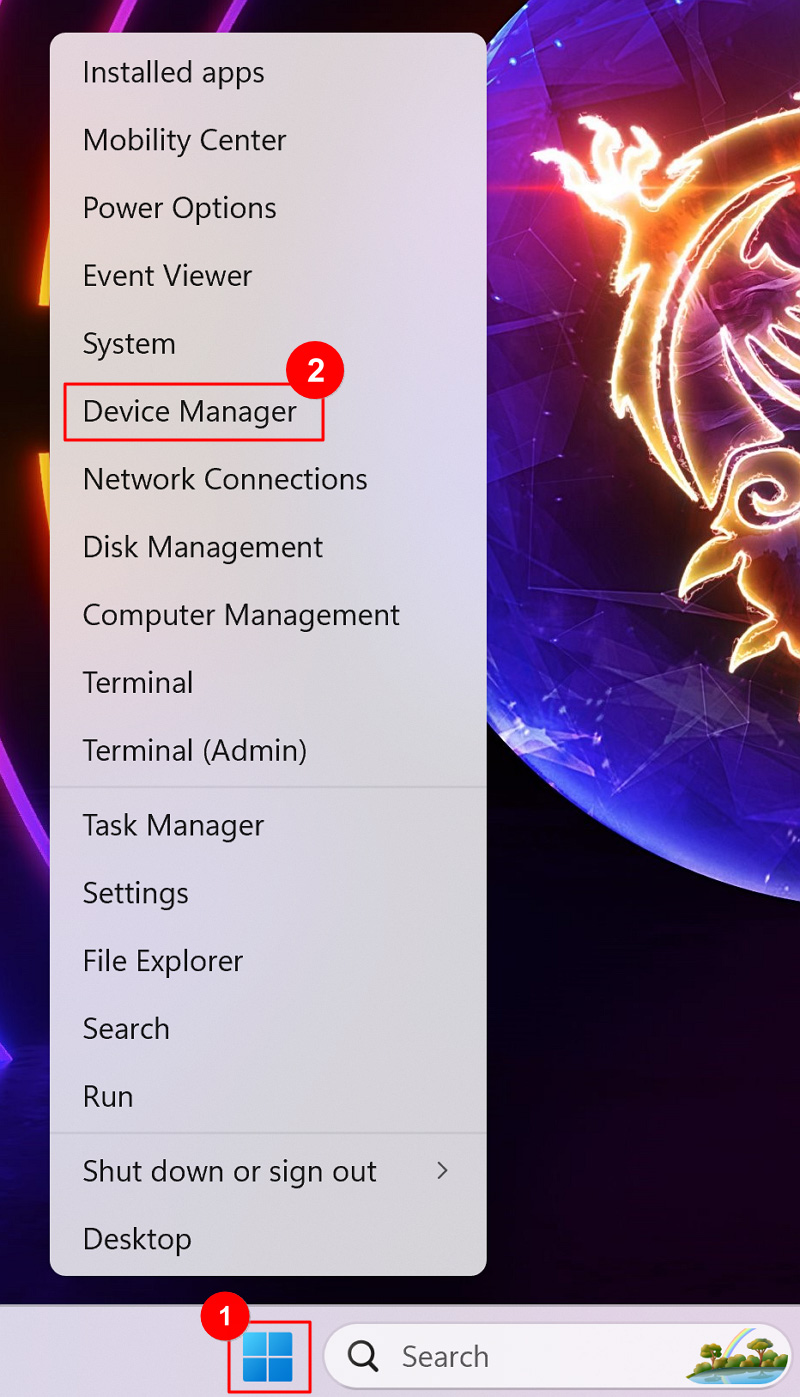
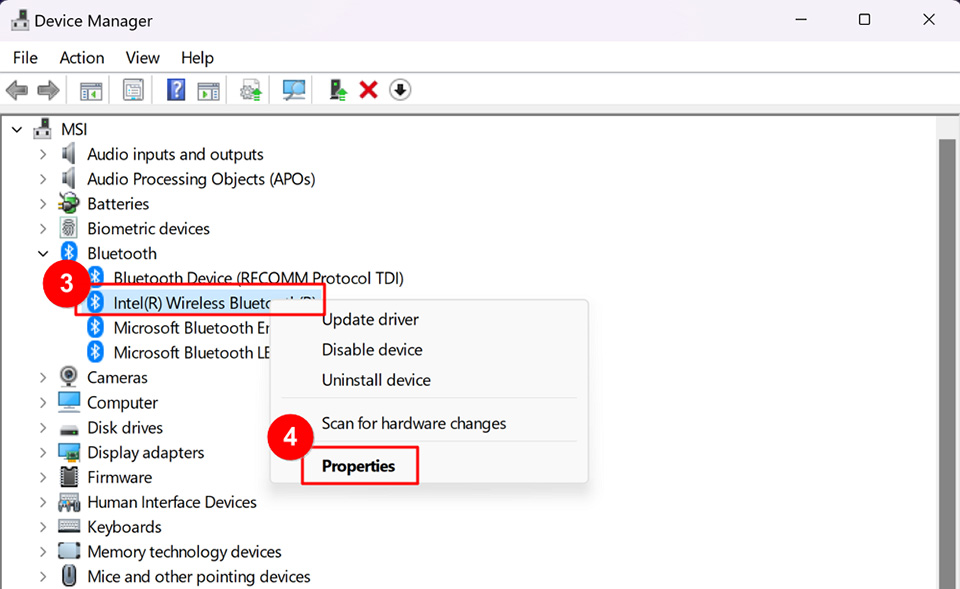
1. Open "Device Manager," right-click the Bluetooth device under "Intel(R) Wireless Bluetooth(R)," and choose "Update Driver."
Note: The Bluetooth device name may vary for different computer models.
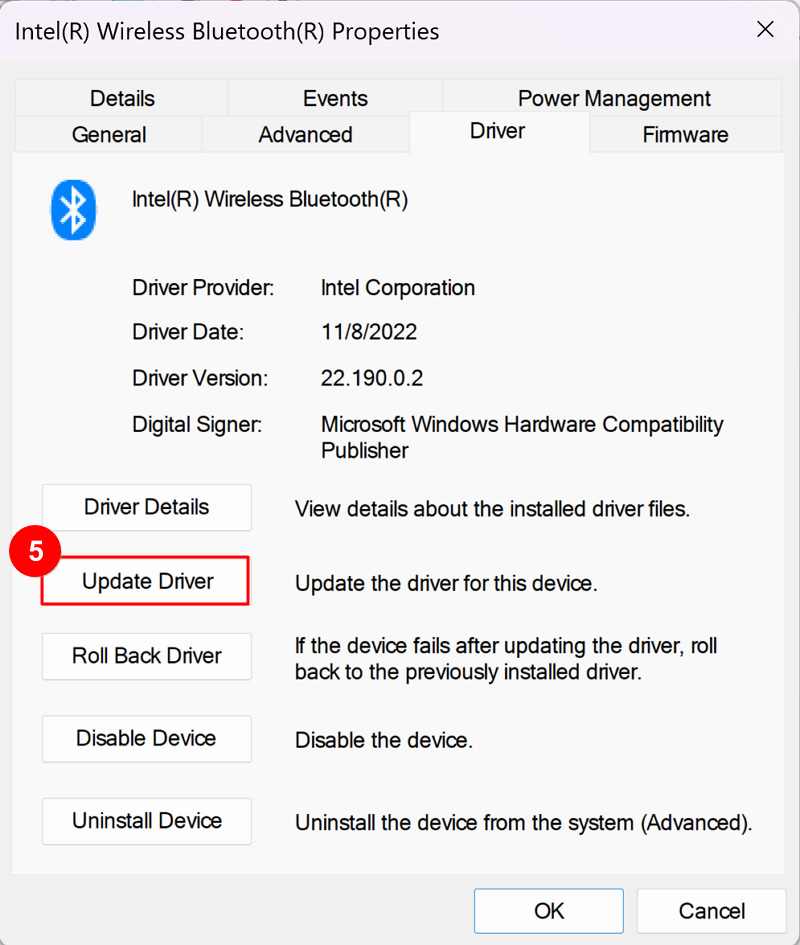
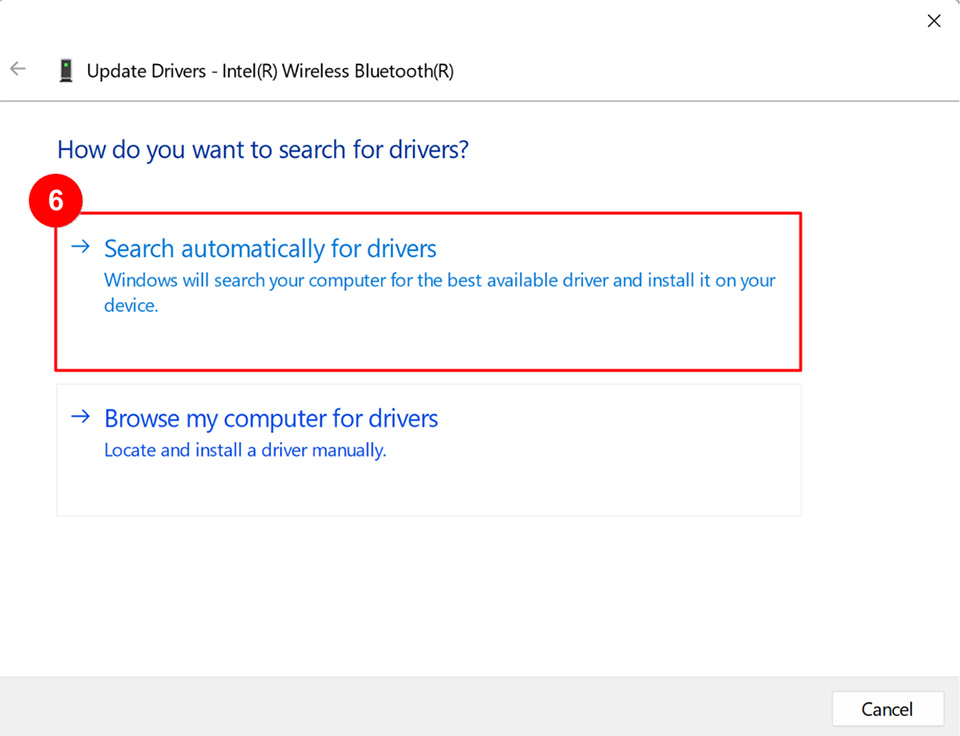
2. Click on "Search automatically for drivers."
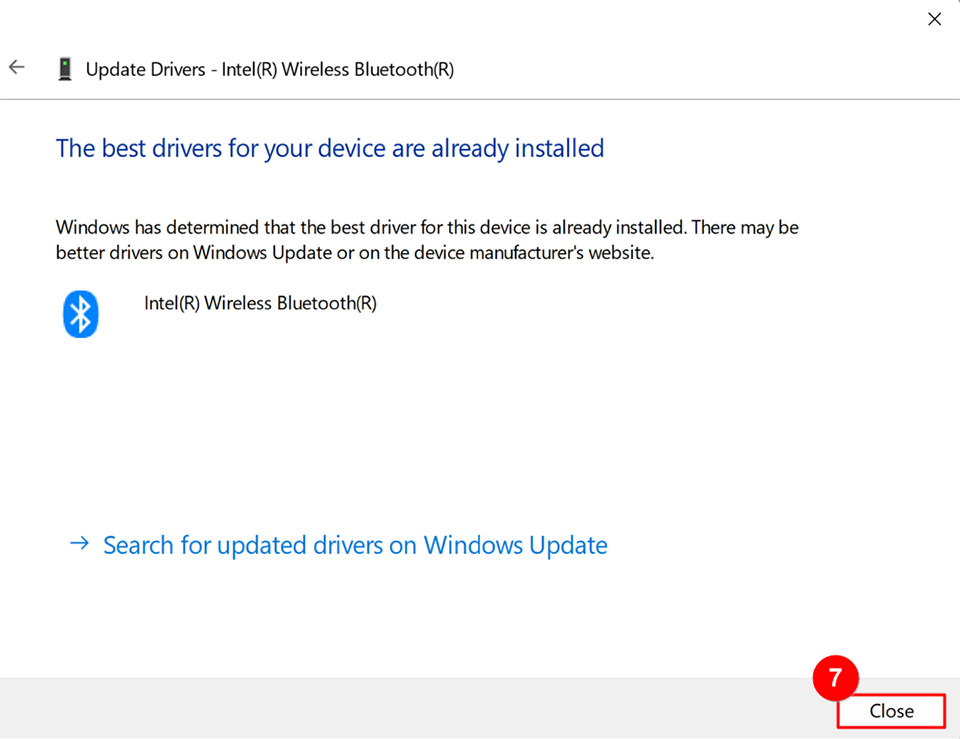
3. The computer will start automatically search online and install the driver.
If no updates are available or the issue persists after the automatic driver update, click "Close" and continue with the following steps.
Uninstall the Bluetooth driver and download/install the driver from the MSI official website.
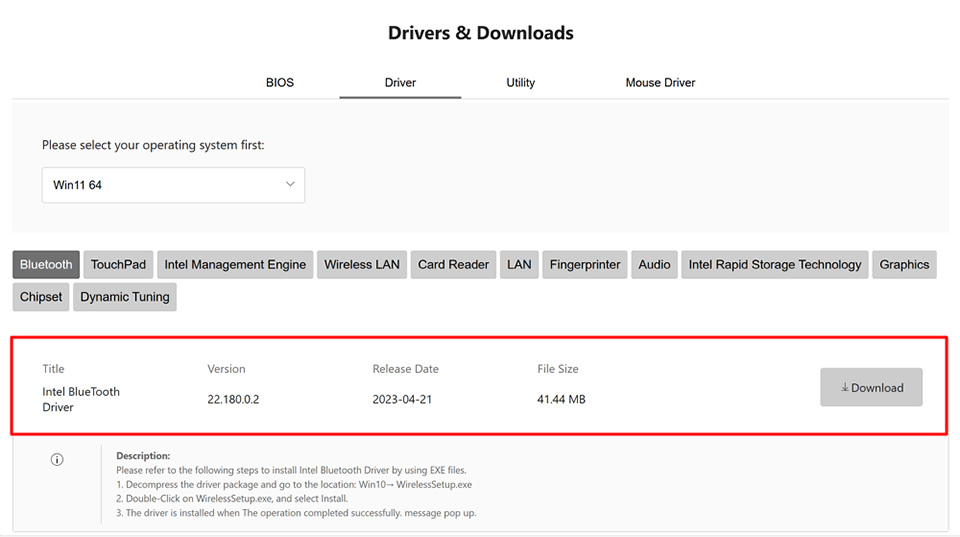
Note: Bluetooth devices on computers of the same model may have different manufacturer names. Please record the manufacturer name accurately to download the corresponding driver from the MSI official website. (In this example, the Bluetooth device manufacturer is "Intel.")
1. Open "Device Manager," right-click the Bluetooth device under "Intel(R) Wireless Bluetooth(R)," and choose "Uninstall device."
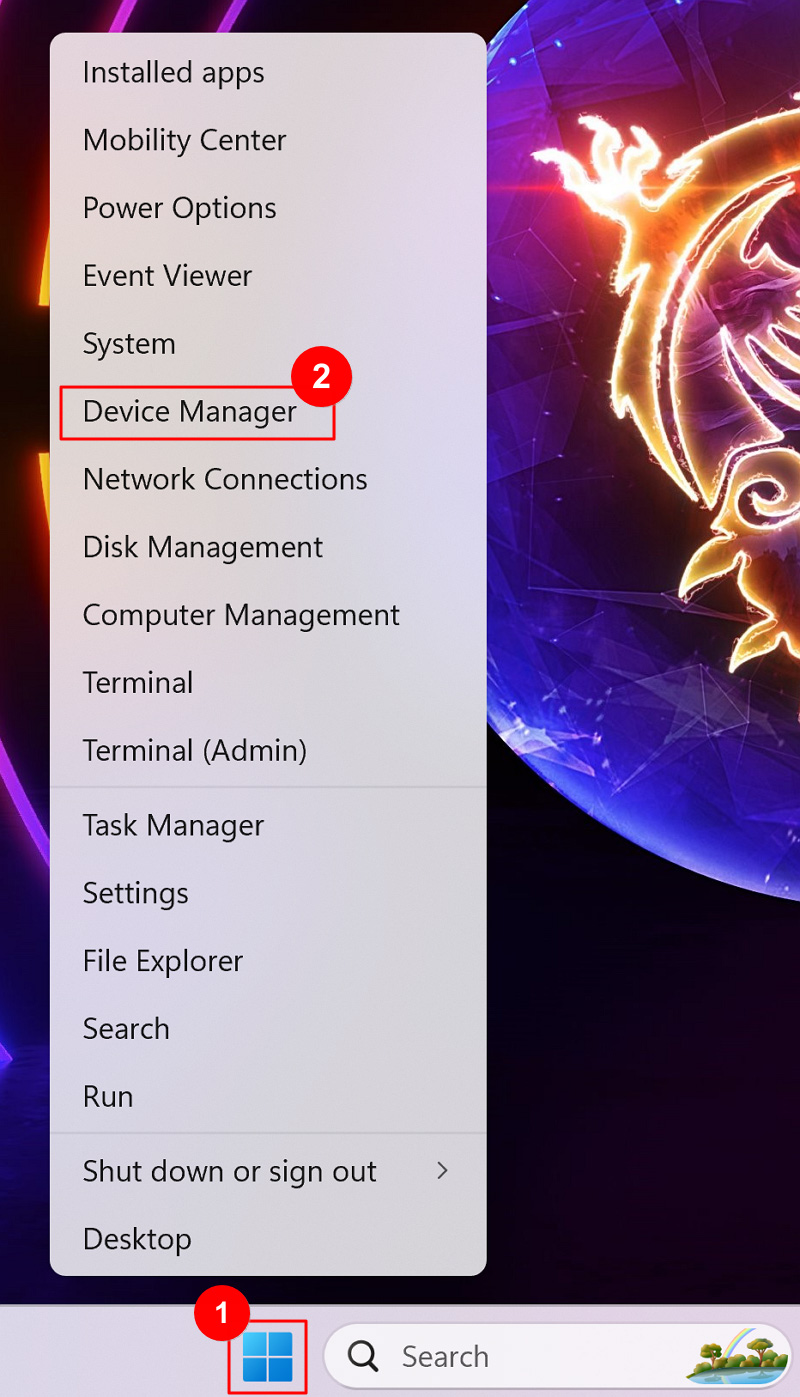
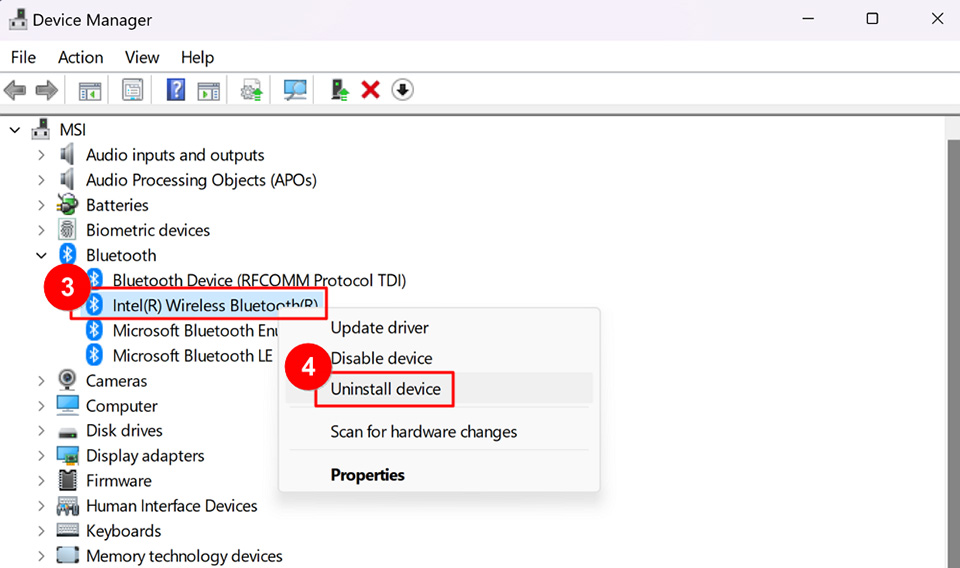
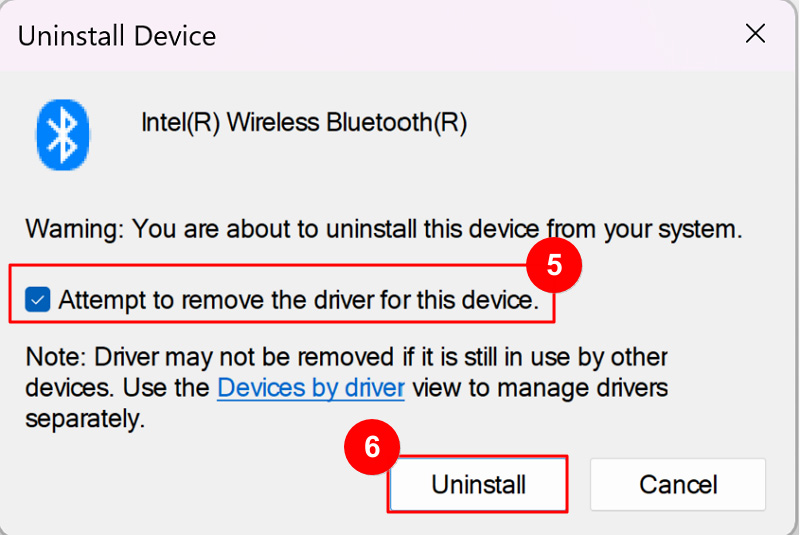
2. Check "Attempt to remove the driver for this device." and click "Uninstall."
3. Download the Bluetooth driver from the MSI official website and install.
4. After installation, restart the computer and try pairing the Bluetooth device. If the issue persists, please proceed with the following troubleshooting steps.
Run Bluetooth troubleshooter
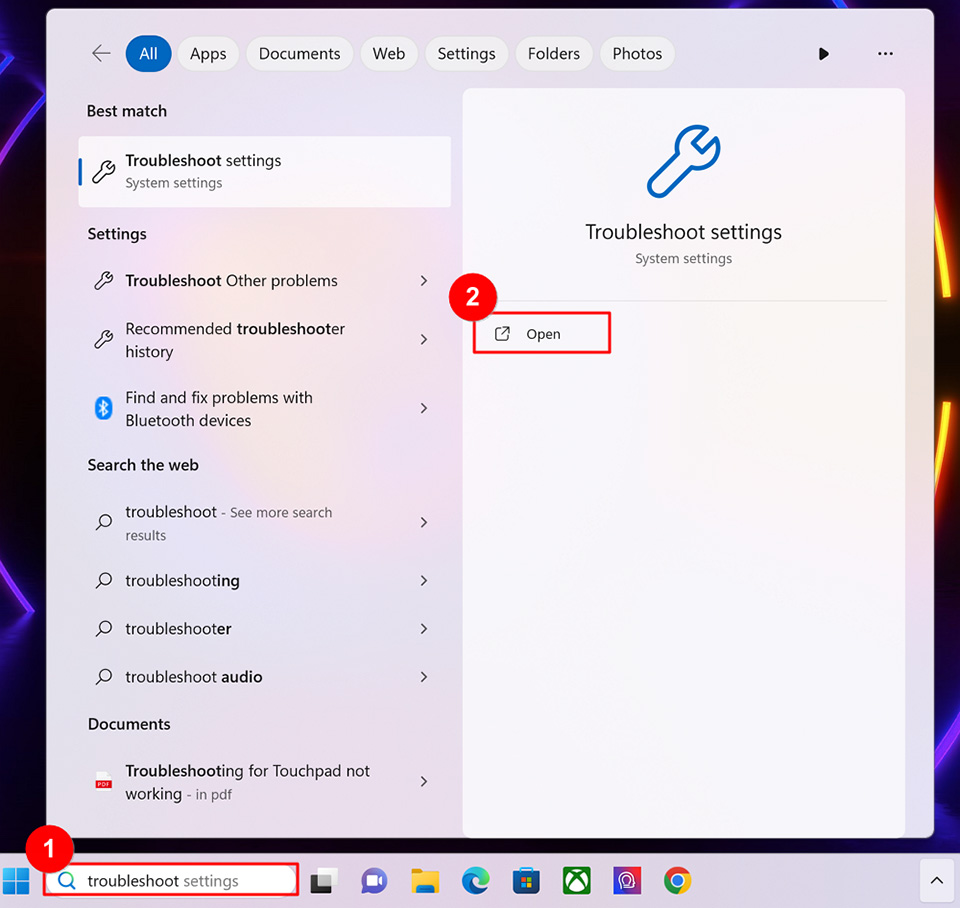
1. In the Windows search bar, enter "Troubleshoot settings" and click "Open."
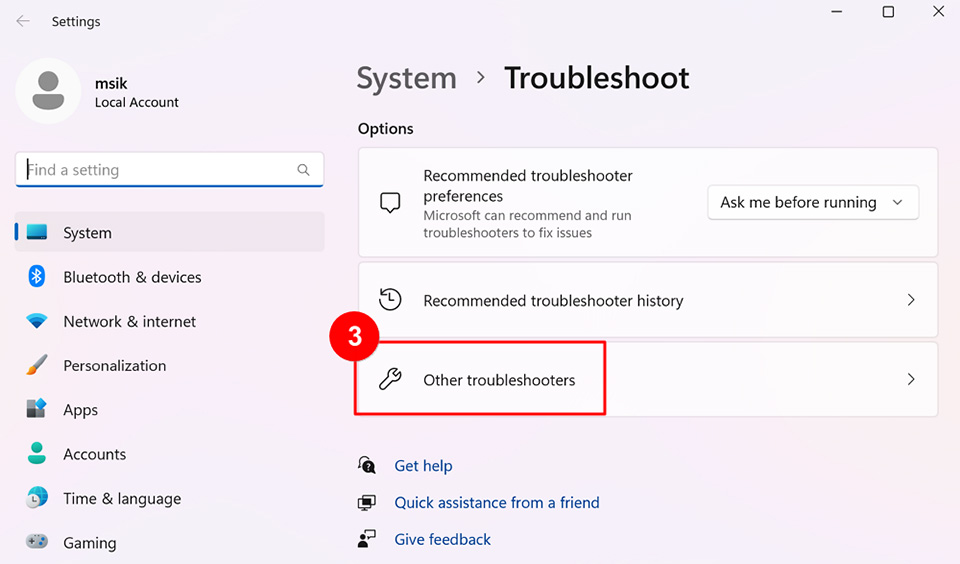
2. Click on "Other troubleshooters."
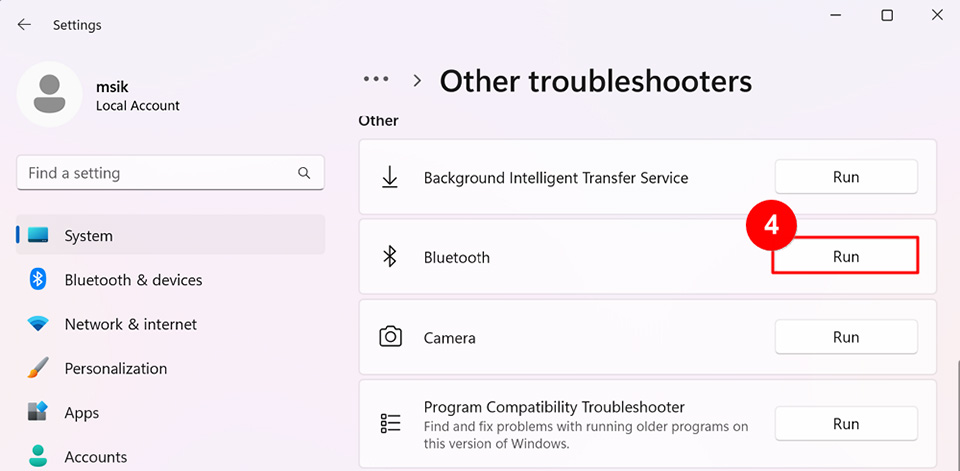
3. Find Bluetooth and click "Run."
4. Follow the on-screen prompts and attempt to resolve the issue. If the problem persists, please continue with the following steps.
Perform EC reset
Please refer to [Notebook] How to reset the EC (Embedded Controller) to reset the EC and verify if the issue is resolved.
Update BIOS
Please refer to [Notebook] How to update BIOS? to update the BIOS to the latest version, and then confirm whether the problem has been solved.
Restore system
If the problem still persists, please refer to the guide [Notebook] How to restore the default factory system through F3 Recovery? to restore the system to its factory settings.
Bluetooth functionality is normal, but the icon is missing
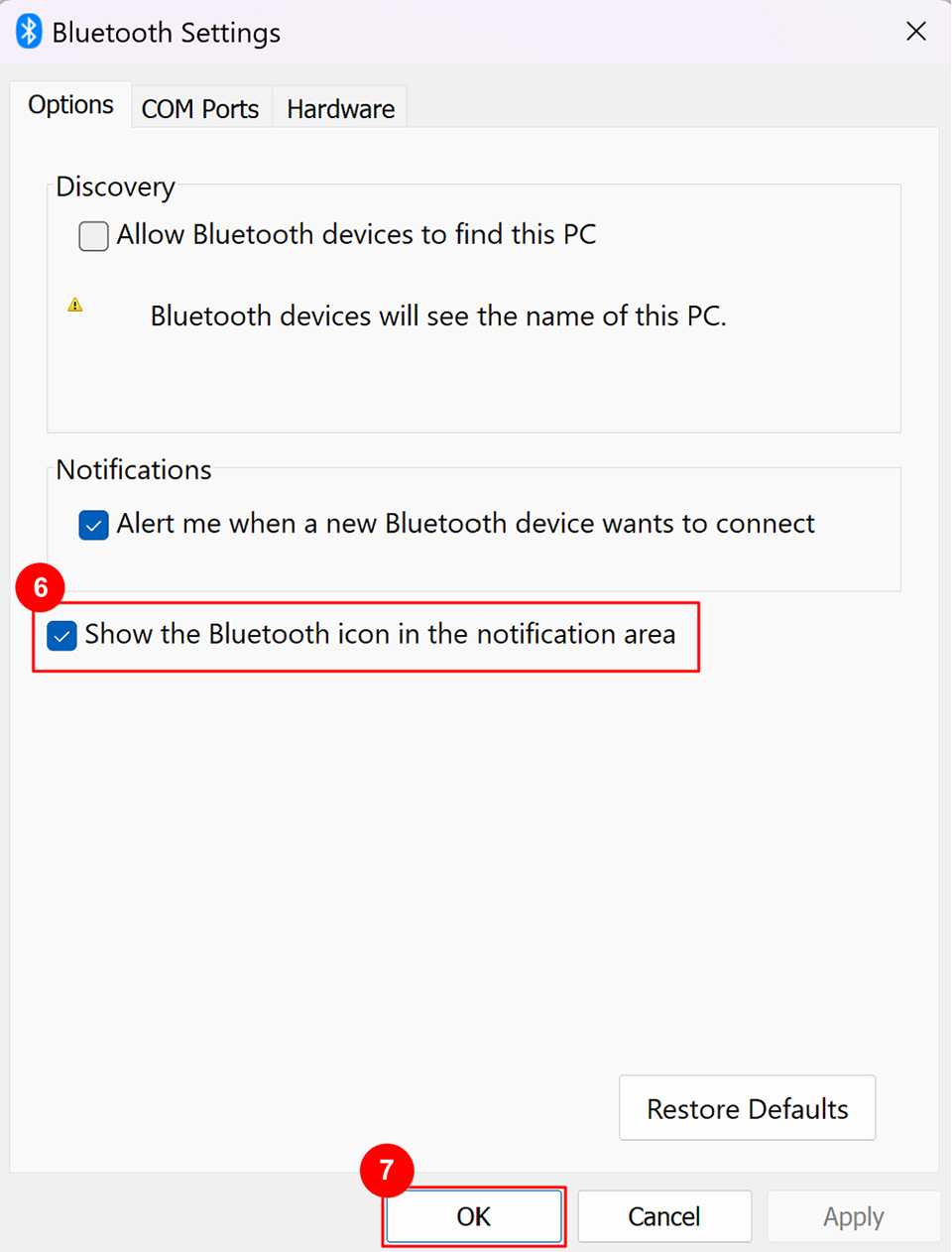
Please follow the steps below to display the Bluetooth icon on the taskbar.
1. Click on "Start" in the taskbar, then select "Settings." Click on "Bluetooth & devices" and enable Bluetooth functionality.
If you are unable to enable Bluetooth or experience other Bluetooth issues, please refer to the troubleshooting steps mentioned above.
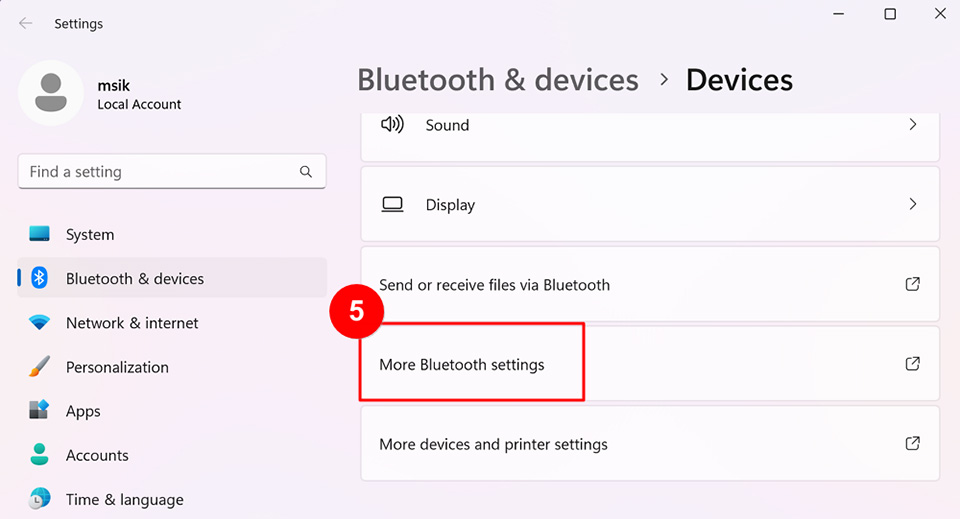
2. Scroll down to the bottom of the page and click on "More Bluetooth settings."
3. Check "Show the Bluetooth icon in the notification area" and click "OK" to display the Bluetooth icon on the taskbar.
If the problem persists after the troubleshooting methods above, it is recommended to contact MSI customer service center nearby for further troubleshooting.
Reference Information and Related Articles
[Notebook] How to reset the EC (Embedded Controller)
[Notebook] How to update BIOS?
[Notebook] How to restore the default factory system through F3 Recovery?