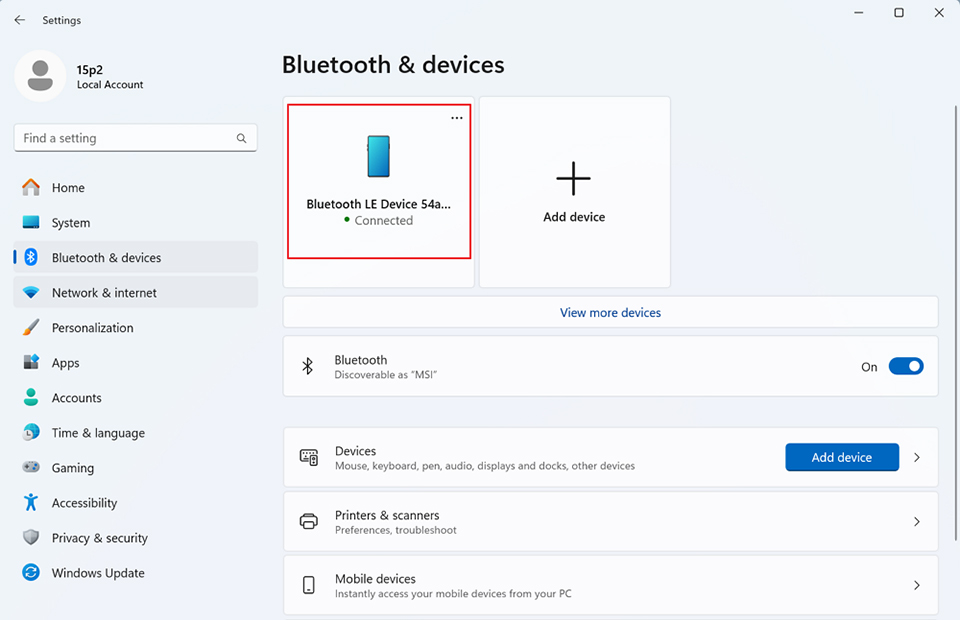
[Notebook] How to Use Bluetooth to Pair with Devices?
Please follow the steps below to enable Bluetooth on your laptop and pair it with a device.
Enable Bluetooth
1. Enable from Settings
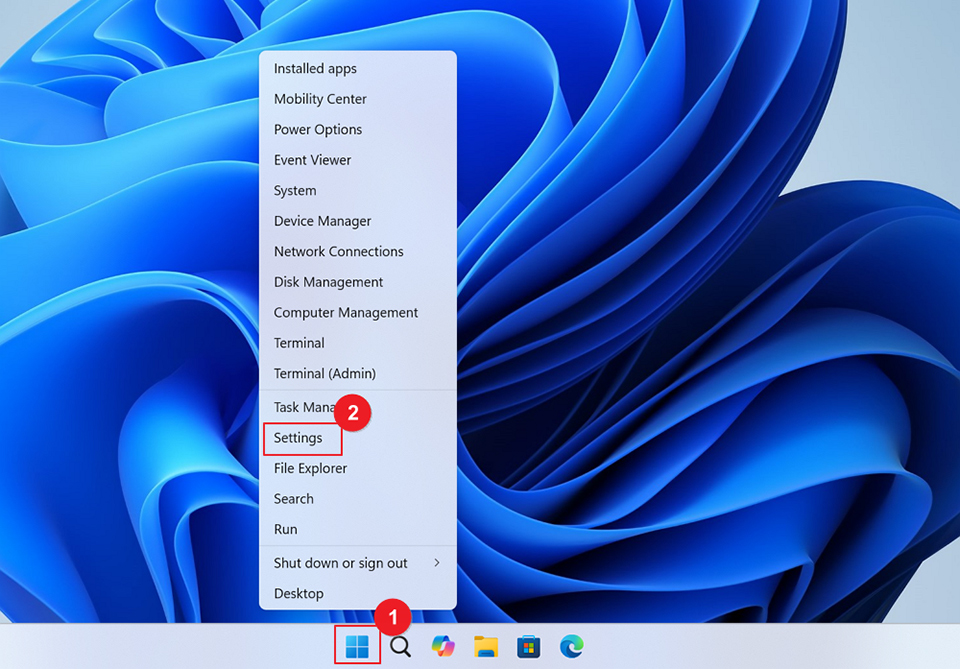
1-1. On the desktop, right-click the "Start" button on the taskbar. In the "Start" menu, find and click the "Settings" option to open the Windows Settings Center.
1-2. In the Windows Settings Center, click "Bluetooth & devices" and enable Bluetooth within the section.

2. Enable from Notification Center
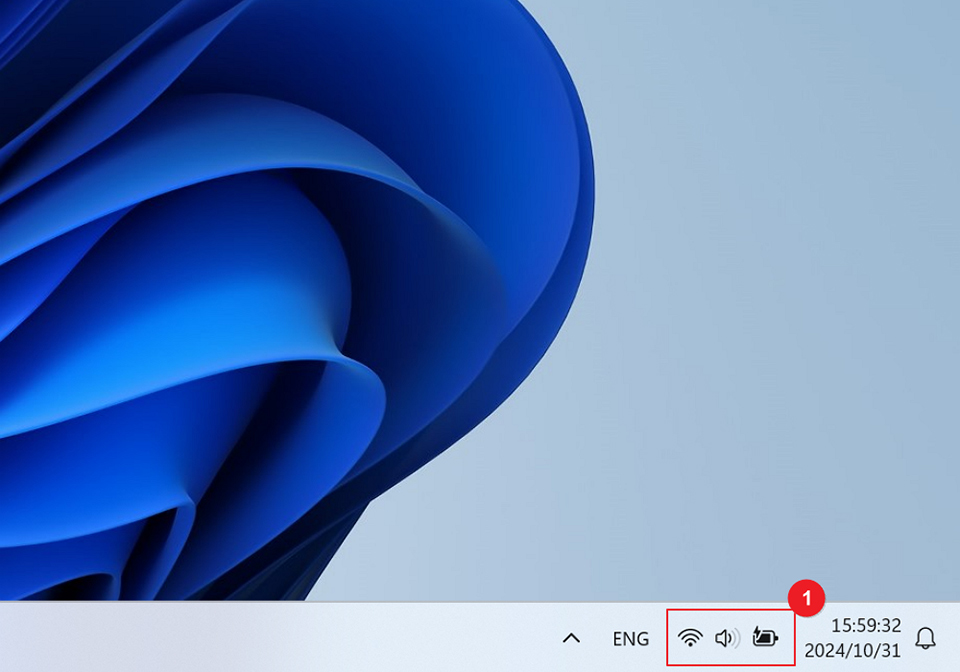
2-1. Click the “Notifications” option in Menu on the lower right of the desktop.
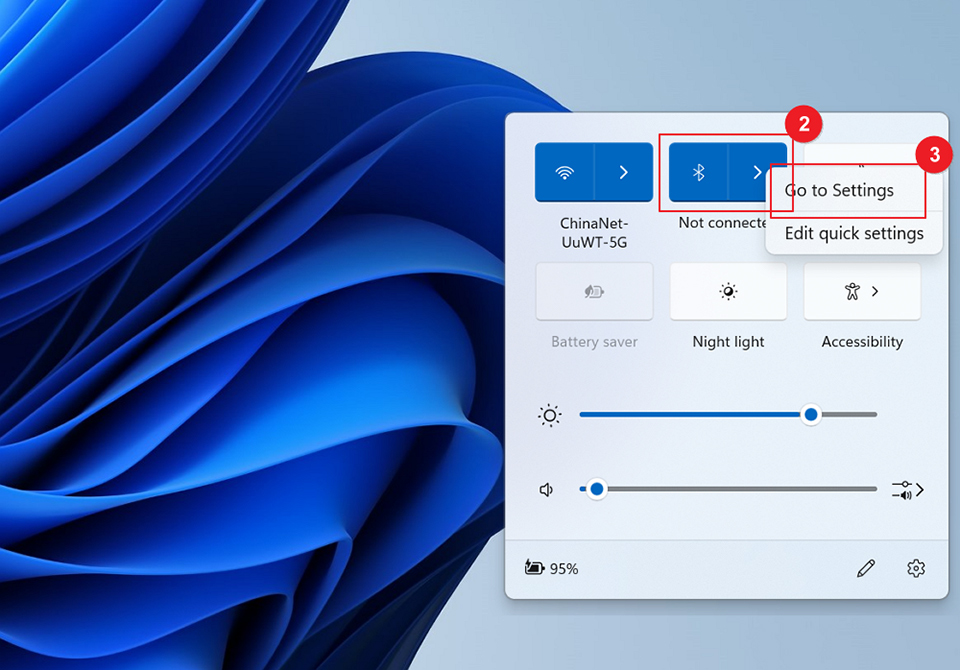
2-2. In the "Notification" area, locate the "Bluetooth" option, click on it, then right-click and select "Go to Settings."
Bluetooth Connection
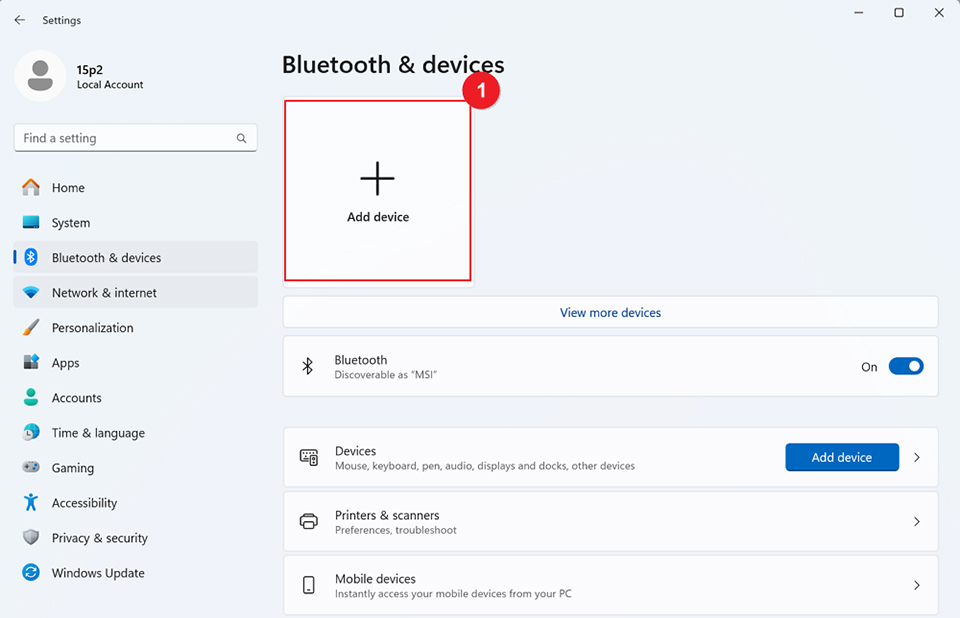
1. On the Bluetooth settings page, click "Add device."
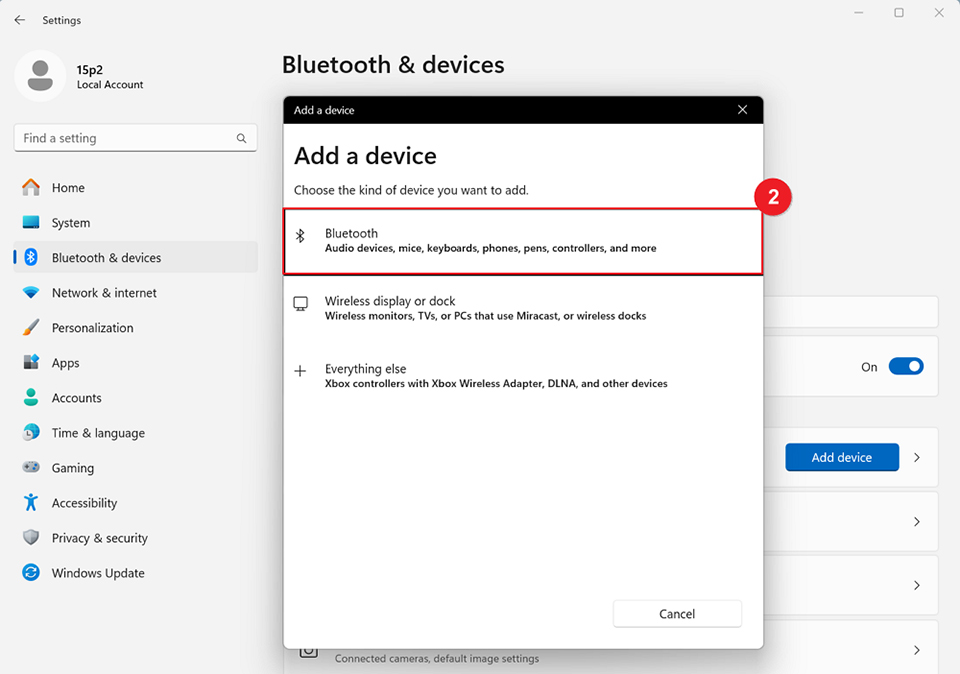
2. On the "Add a device" page, click "Bluetooth."
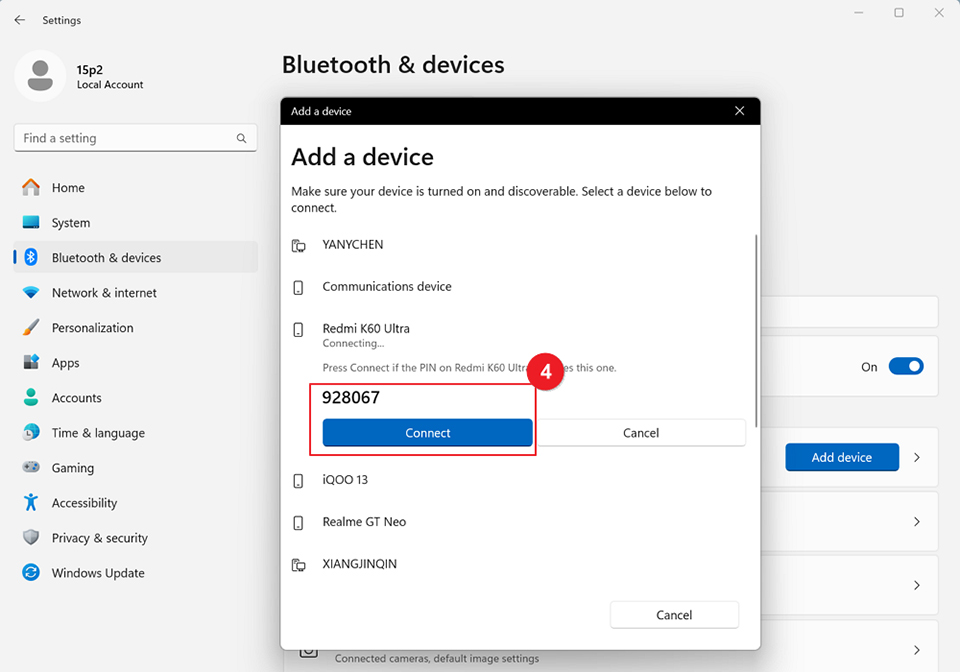
3. Select the Bluetooth device you wish to pair with. For example, if pairing with the "Redmi K60 Ultra" Bluetooth device:

4. Click on the "Redmi K60 Ultra" device, and a PIN code for the Bluetooth device will appear. Click "Connect" to complete the pairing.
5. The image below shows a successful pairing between the computer and the Bluetooth device.