


[Notebook] Notebook Continuously Restarts After Powering On
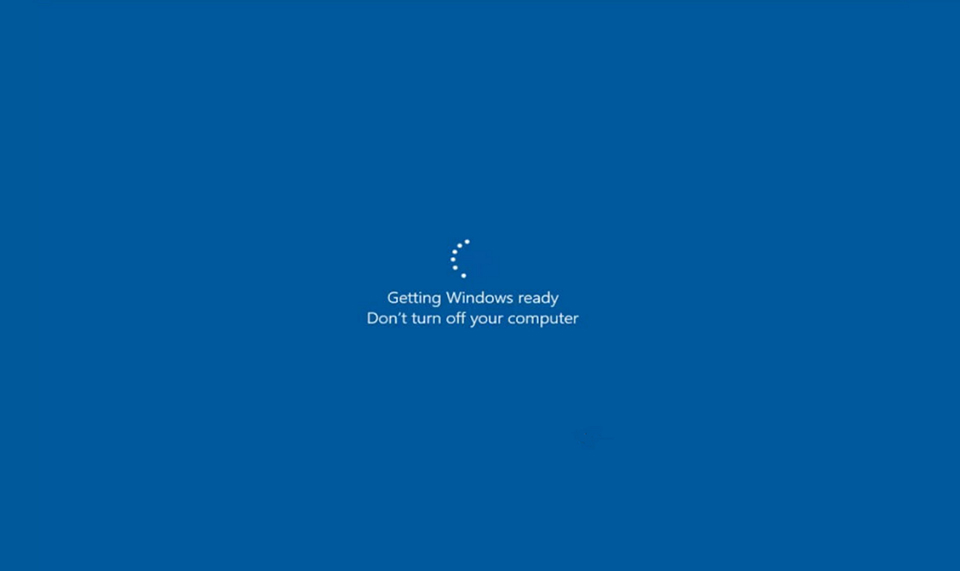
If the notebook keeps restarting after powering on and shows Preparing Windows, please don’t turn off your computer, please refer to the following steps to troubleshoot the issue:
- Restore the hardware to the original factory state and perform an EC reset.
- Uninstall the latest Windows Update.
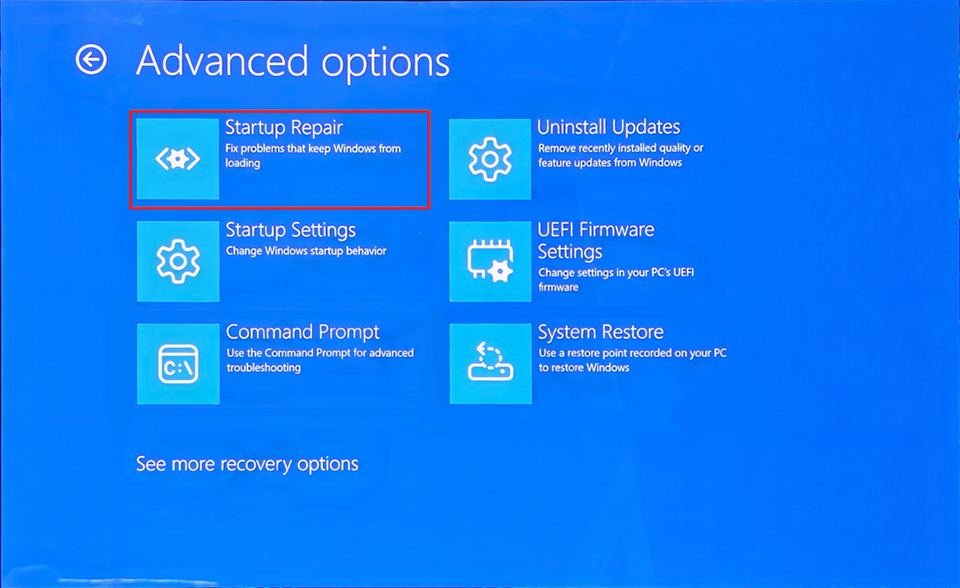
- Start Startup Repair.
- Check and repair corrupted system files and bad sectors on the C: drive.
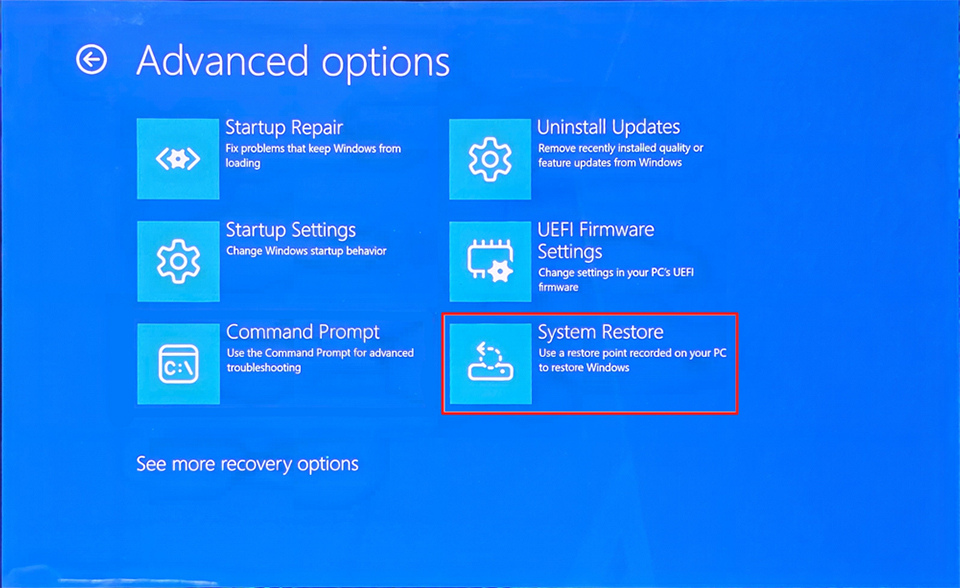
- Restore the device
- Reset the device.
- Restore factory settings.
Restore the hardware to the original factory state and perform an EC reset.
If the issue occurred after a hardware upgrade, please replace the components with the original factory-installed parts to check whether the issue is resolved. If no hardware upgrade has been performed, please disconnect all external devices, including but not limited to the mouse, keyboard, external monitor, and USB devices. Then perform an EC reset by referring to [Notebook] How to Reset Embedded Controller (EC reset) and restart the device.
Uninstall the latest Windows Update.
If the device has recently performed a Windows Update before the issue occurred, please refer to [How To] Upgrade to or Downgrade from the recent Windows 11 Build and go to Troubleshoot → Advanced options → Uninstall Updates to remove the update.
Start Startup Repair.
1. Restart the device and press F3 when the MSI logo appears to enter WinRE
2. Go to Troubleshoot→ Advanced options→ Startup repair
Check and repair system file errors and bad sectors on the C: drive.
1. Go to Troubleshoot→ Advanced options→ Command prompt
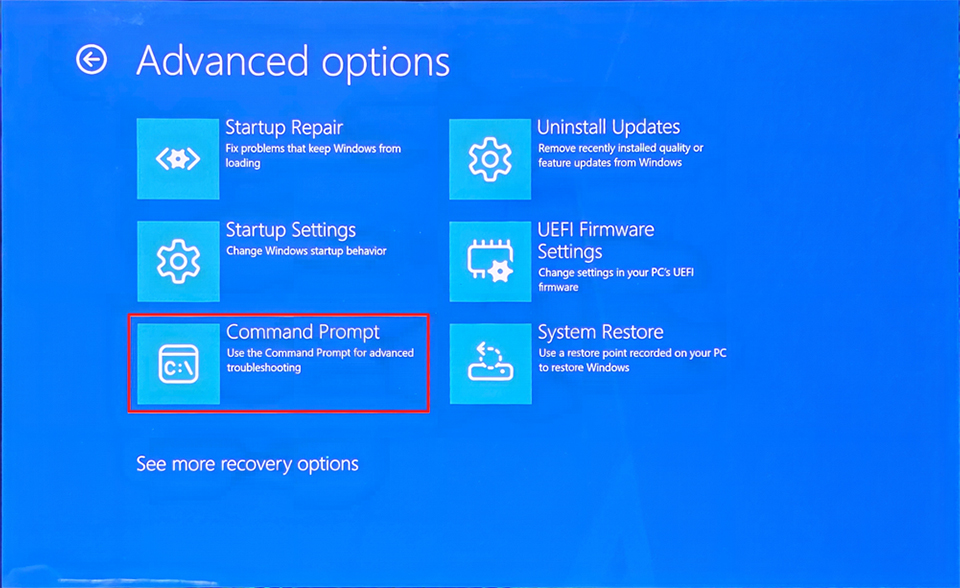
2. Enter the command “chkdsk /r c:”
3. After the repair is completed, enter the command “sfc /scannow”
4. After the scan is completed, enter “Exit” and select “Continue” to boot into the system.
Restore the device
If you have previously created a restore point, please follow the steps below to restore the device:
1. Go to Troubleshoot→ Advanced options→ System Restore
2. Select the Windows account you want to sign in to and enter the password to log in.
3. Select the restore point you want to use, and follow the on-screen instructions to start the system restore.
Reset the device.
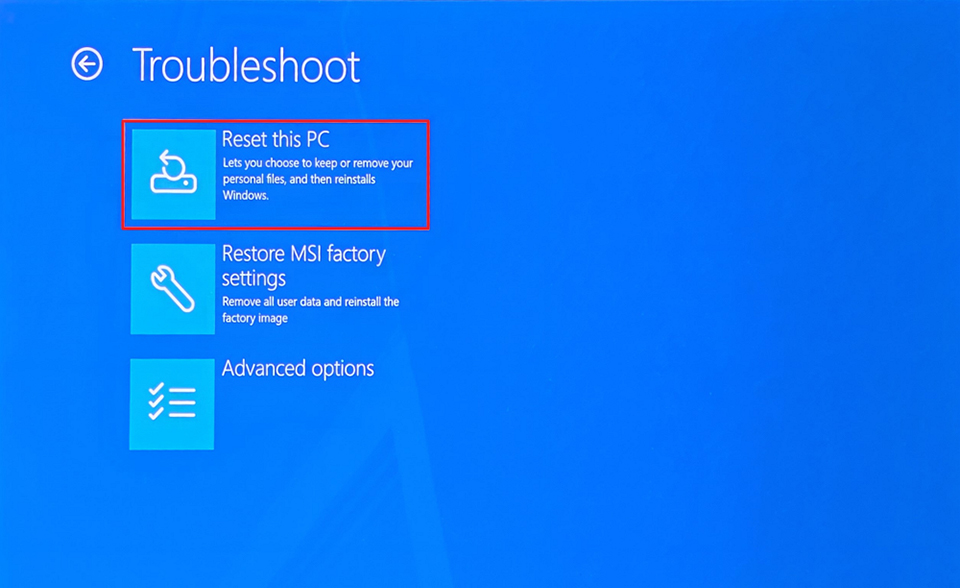
1. Go to Troubleshoot→ Reset this PC
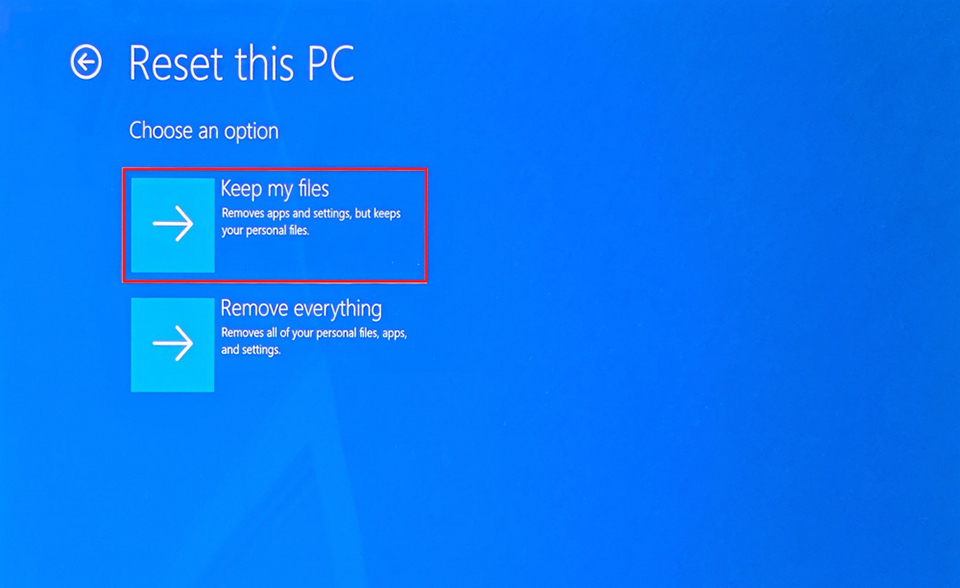
2. Select “Keep my files” to remove all apps and settings while keeping your personal files.
3. Select Cloud download or Local reinstall to begin resetting this device.
Restore factory settings.
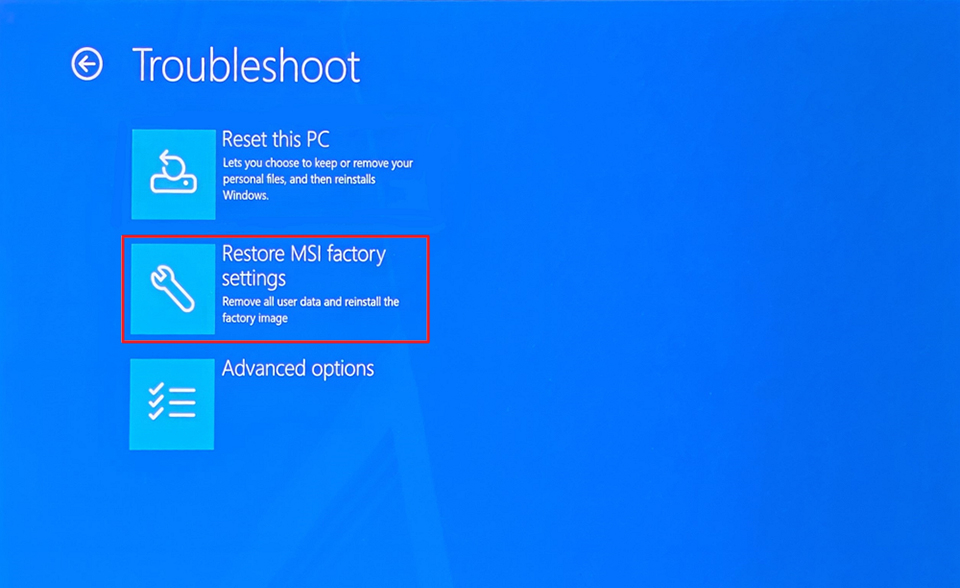
If the issue persists after following the steps above, please go to Troubleshoot → Restore MSI factory settings and follow the on-screen instructions to restore factory settings.
If the issue persists after trying the troubleshooting steps above, please contact the MSI service center for further assistance.