

[Notebook] High CPU Temperature While Gaming
Note: This article applies only to notebook models that support the DTT and IPF drivers. If your notebook model does not support these features, please refer to [Notebook] How to Troubleshoot Overheating Issues?.
Regarding high CPU temperatures while gaming, the issue may be caused by a mismatch between the installed DTT/IPF drivers and the versions provided on the official website. Please check the following items:
- Verify and compare the DTT driver version
- Verify and compare the IPF driver version
- Uninstall the DTT and IPF drivers and reinstall the official versions from the MSI website
Verify and compare the DTT driver version
1. Right-click the Windows icon on the taskbar and select “Device Manager.”
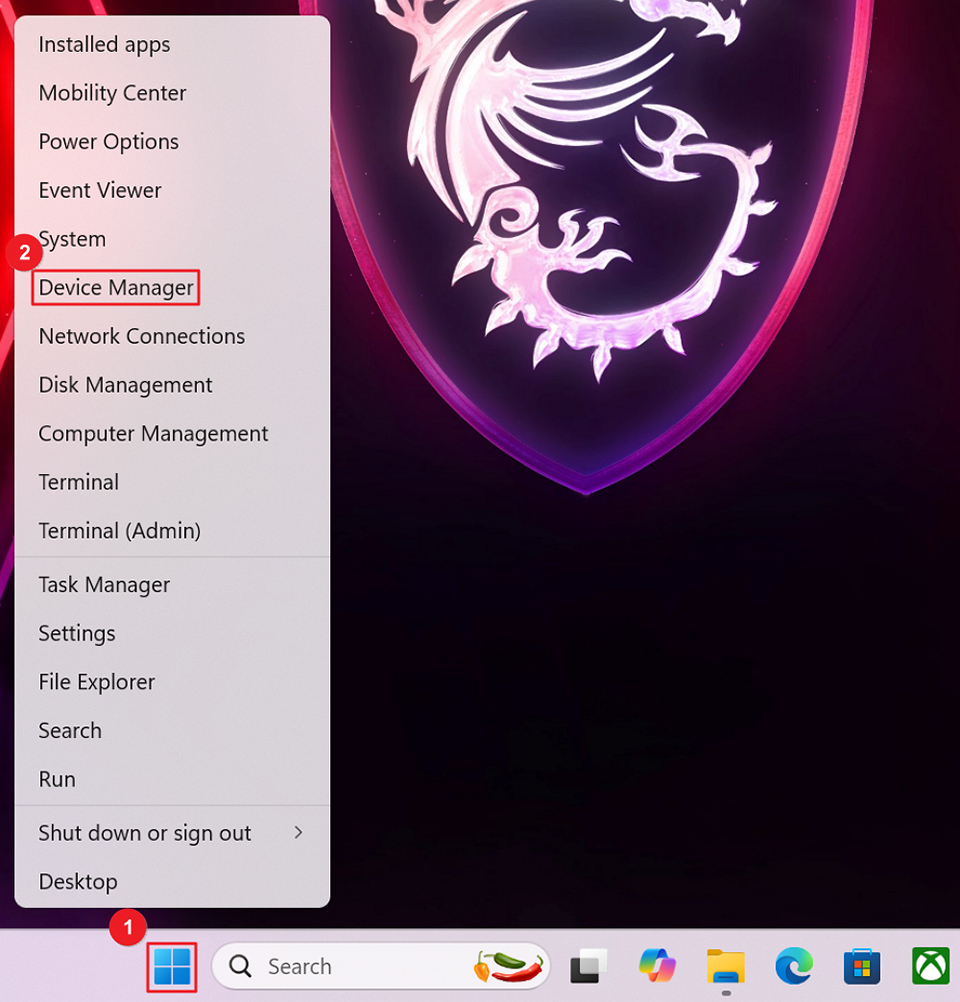
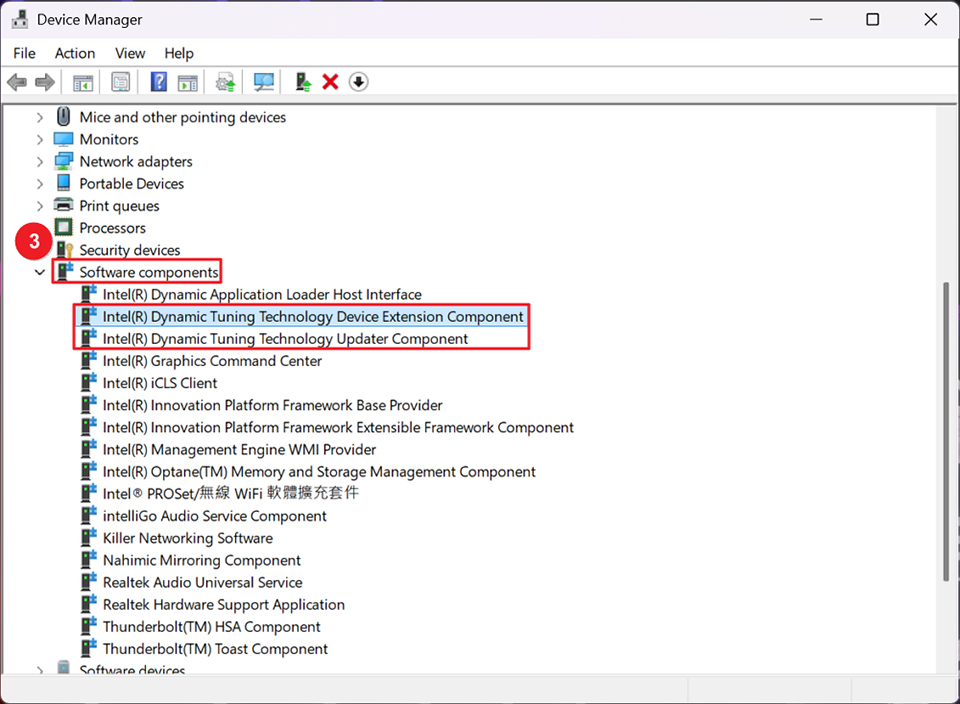
2. Click “Software components”, then locate “Intel(R)Dynamic Tuning Technology Device Extension Component” and “Intel(R)Dynamic Tuning Technology Updater Component.”
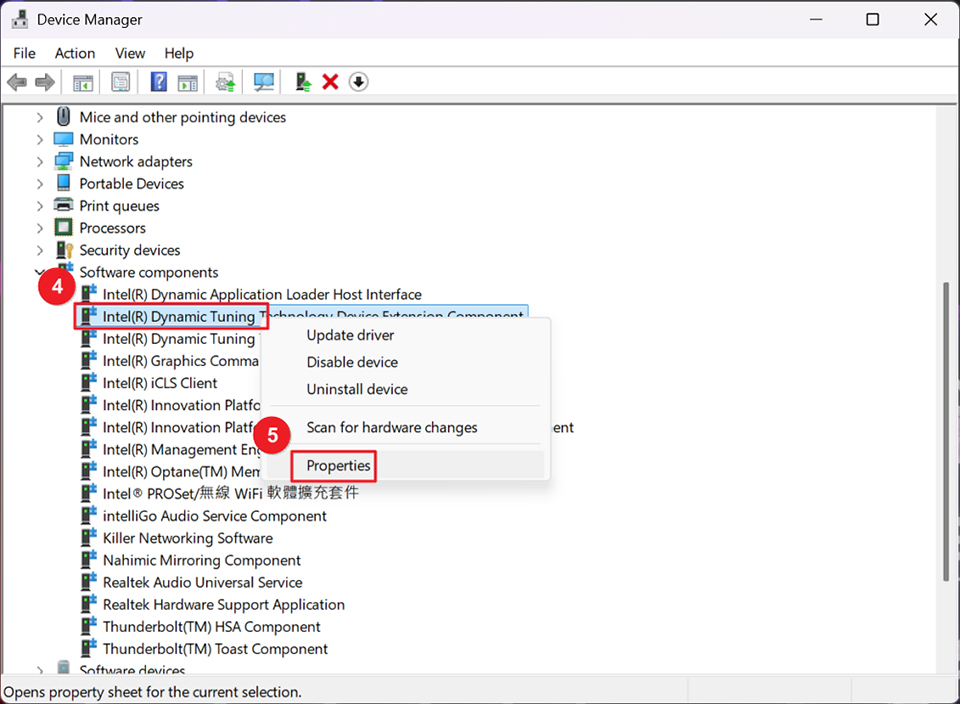
3. Right-click “Intel(R)Dynamic Tuning Technology Device Extension Component” and select “Properties”.
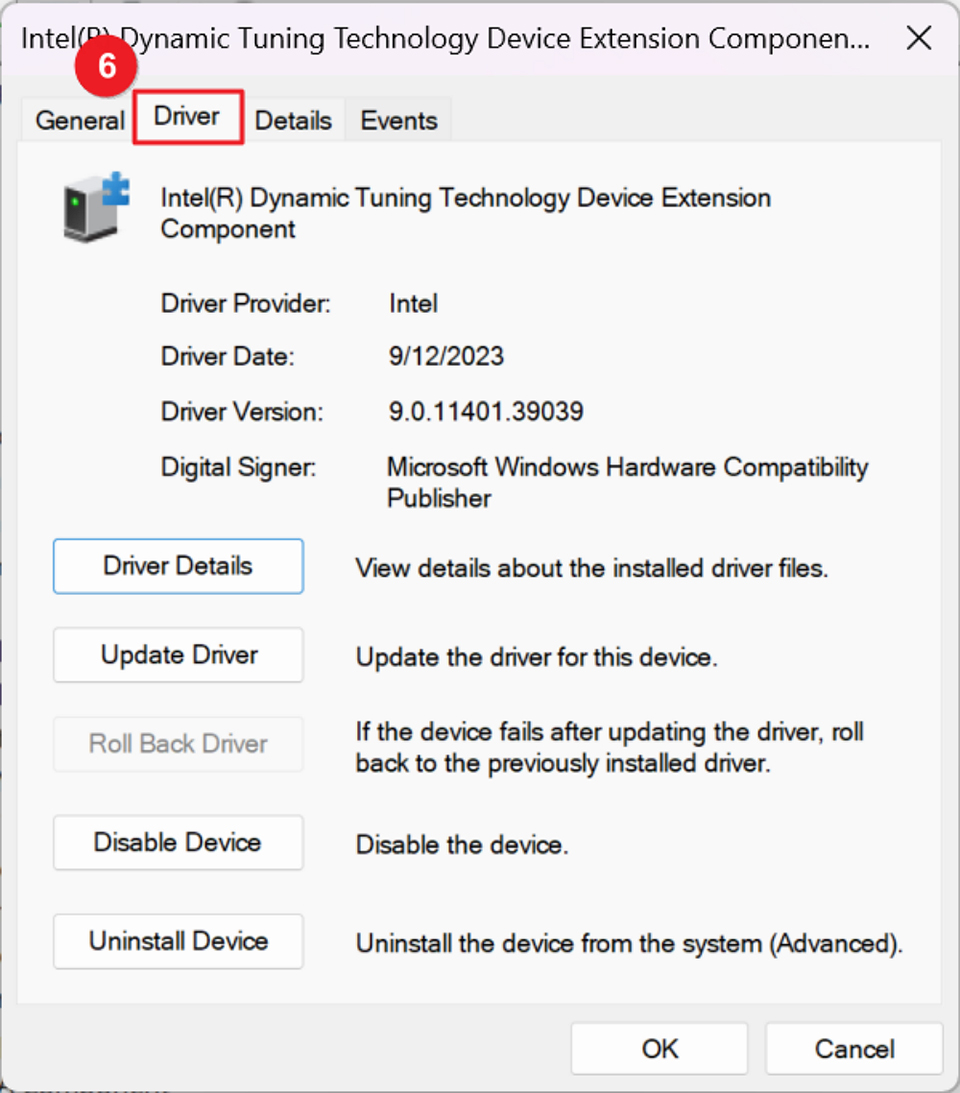
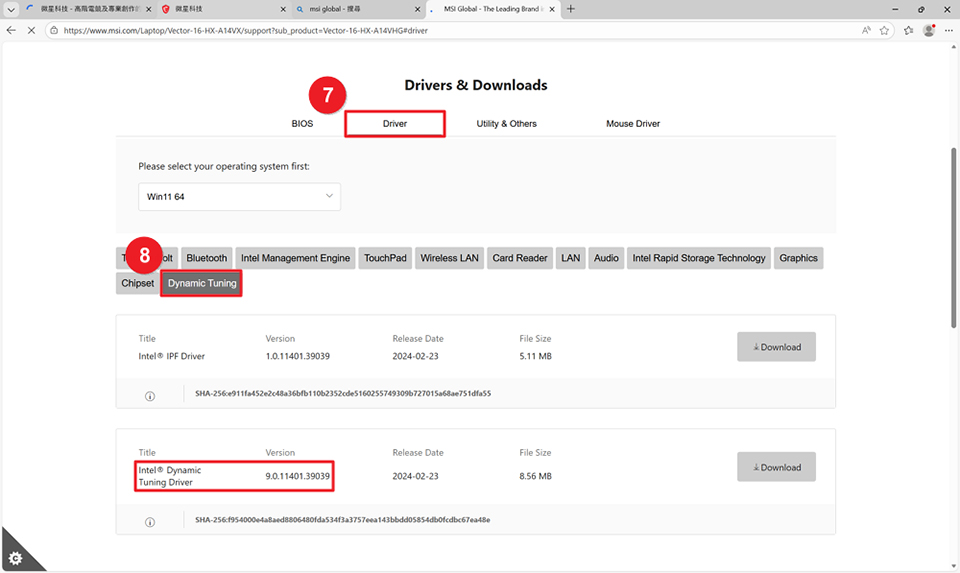
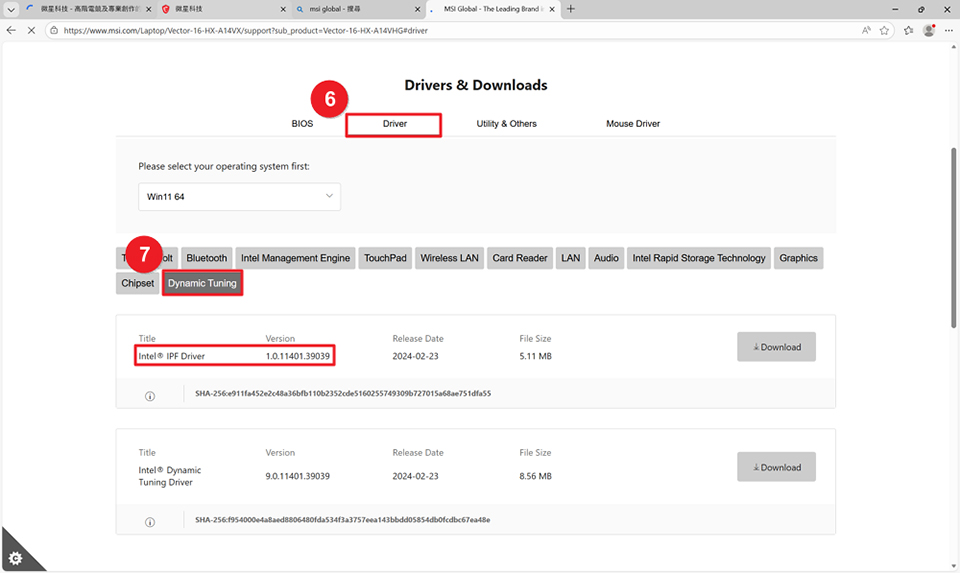
4. Click the “Driver” tab to check the driver version, and then visit the official MSI website to verify whether the driver version installed on the notebook matches the version provided on the website.
Verify and compare the IPF driver version
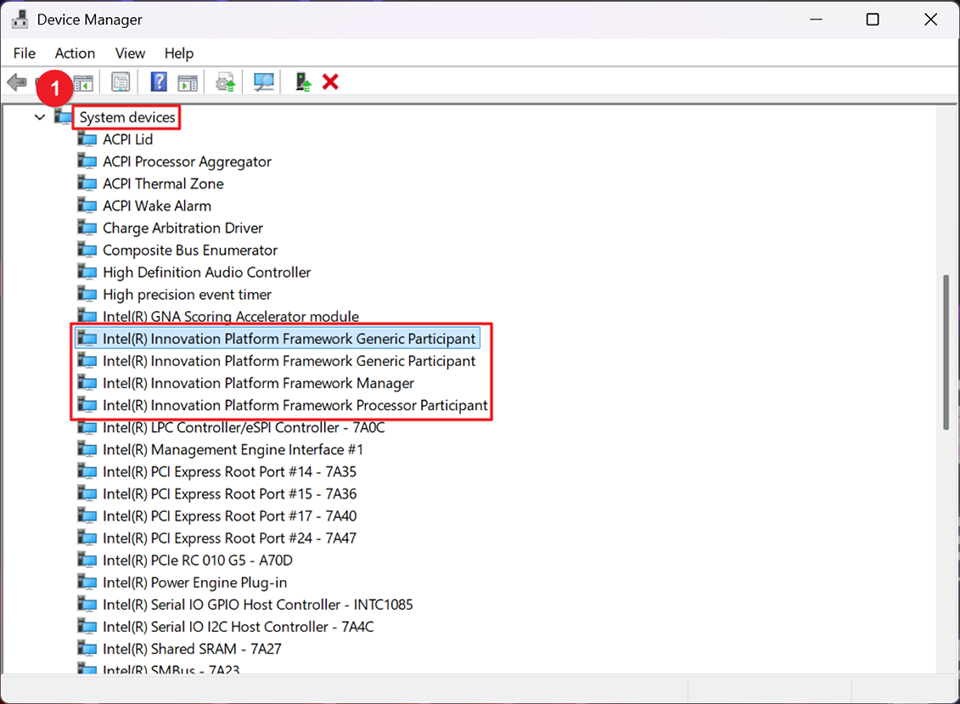
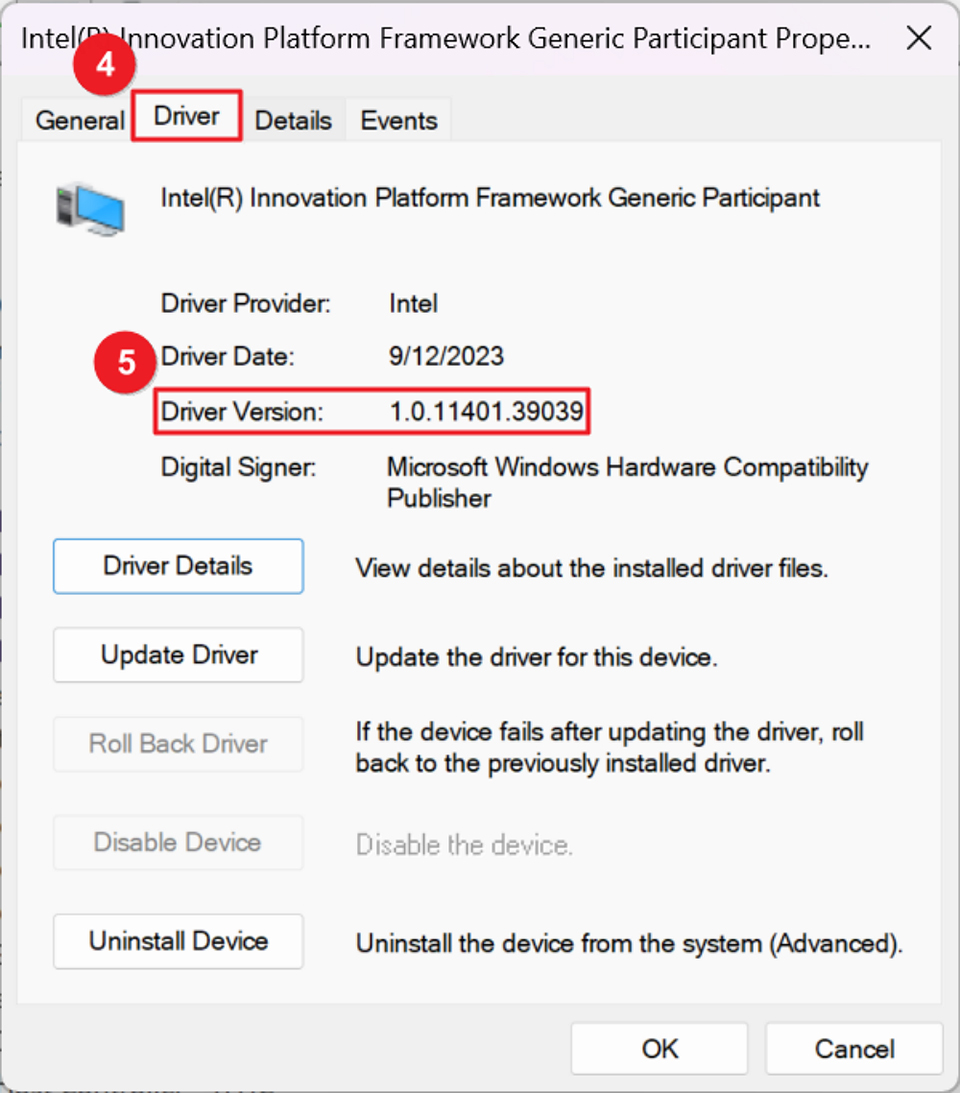
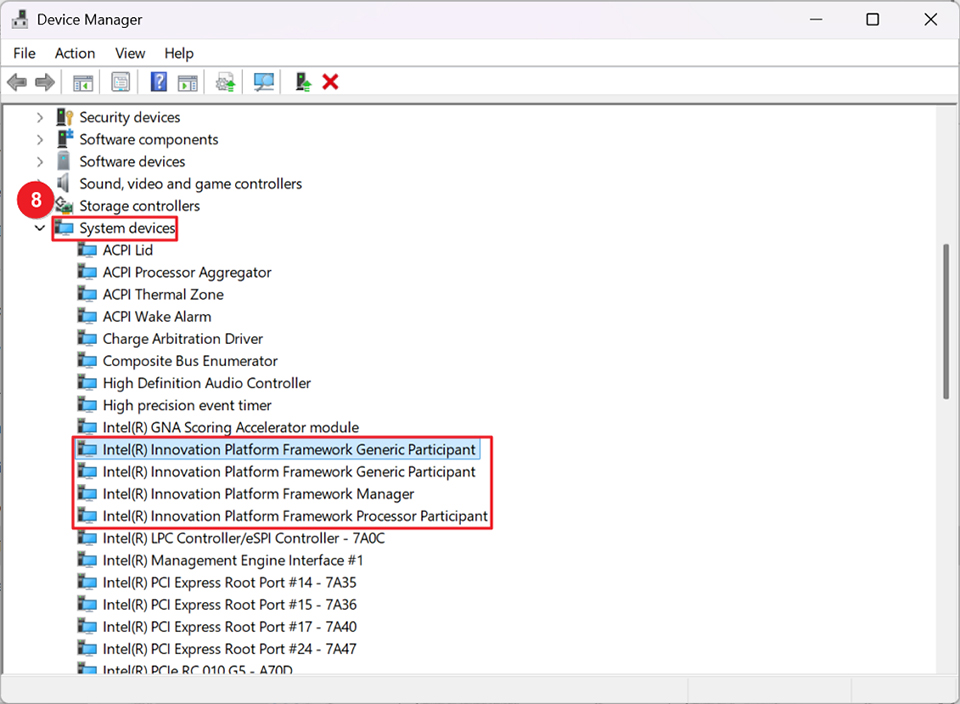
1. Click “System devices”, then locate the drivers that start with “Intel(R) Innovation Platform Framework” under this category.
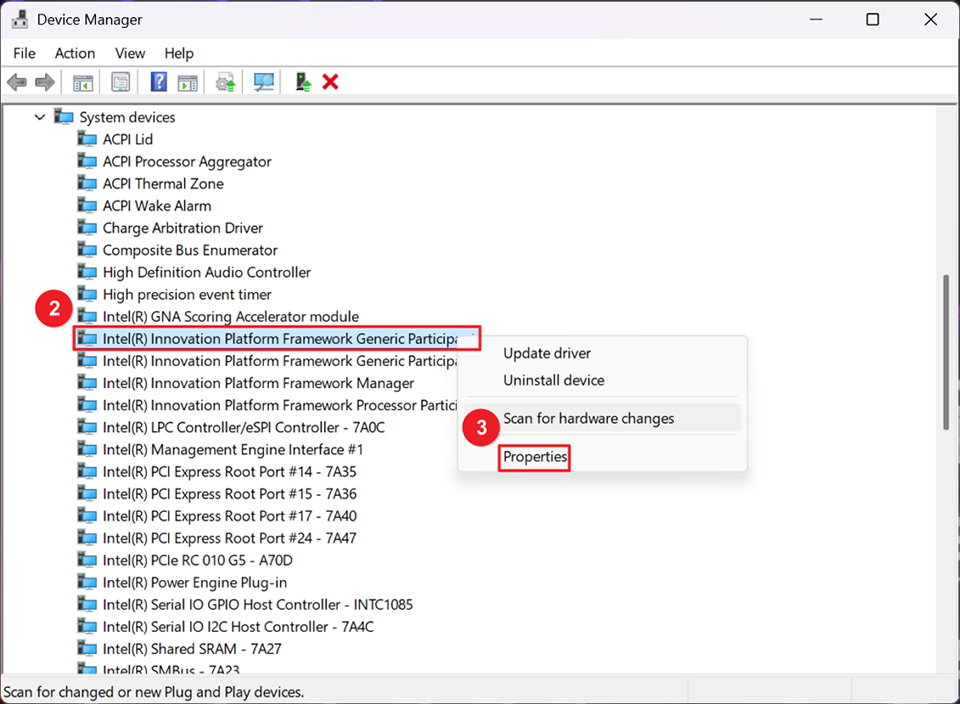
2. Right-click “Intel(R) Innovation Platform Framework Generic Participant” and select ”Properties.”
3. Click the “Driver” tab to check the driver version, then visit the official MSI website to verify whether the driver version installed on the notebook matches the version provided on the website.
Uninstall the DTT and IPF drivers and reinstall the official versions from the MSI website
1. If the comparison shows that the driver versions installed on the notebook do not match those on the official website, uninstall the drivers and reinstall the versions provided on the MSI website.
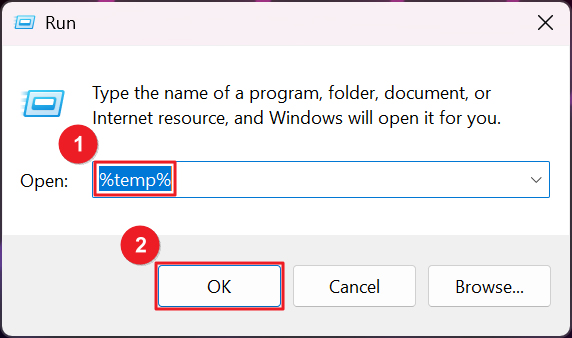
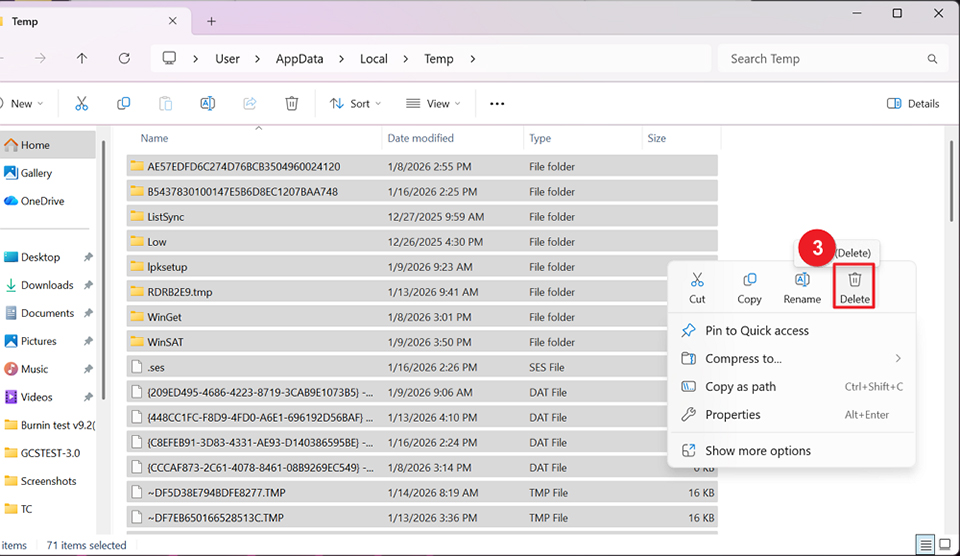
After connecting to the internet, press “WINDOWS+R”, enter “%temp%,” and open the Windows temporary files directory. Select all files in this folder and delete them to prevent the system from automatically reinstalling cached driver versions during uninstallation.
2. In Device Manager > Software components, right-click and uninstall the following four drivers one by one.
- Intel(R) Dynamic Tuning Technology Device Extension Component
- Intel(R) Dynamic Tuning Technology Updater Component
- Intel(R) Innovation Platform Framework Base Provider
- Intel(R) Innovation Platform Framework Extensible Framework Component
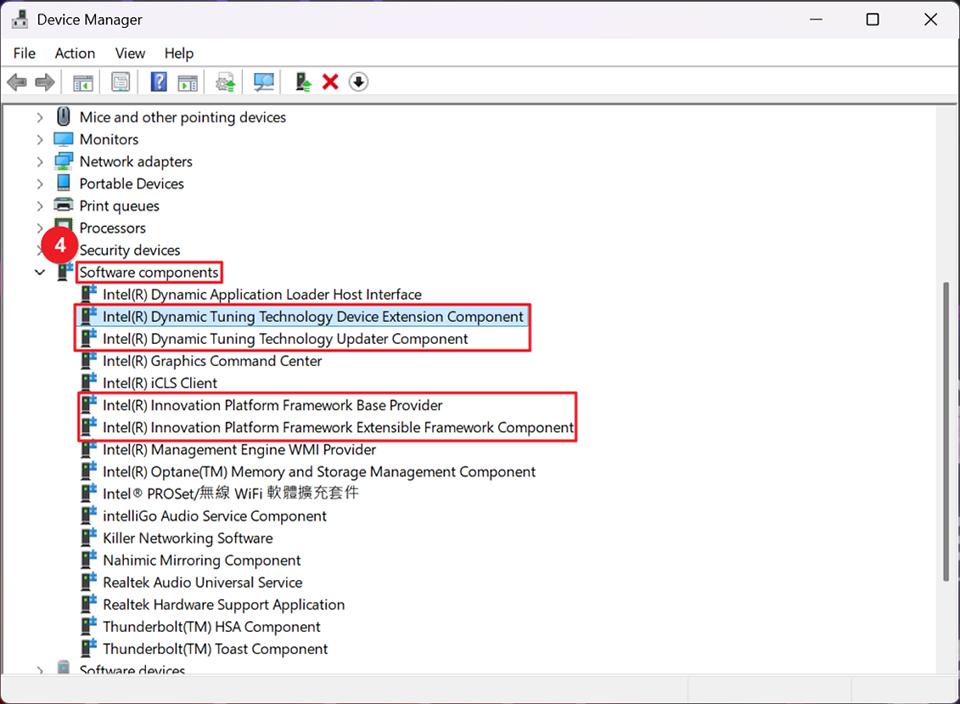
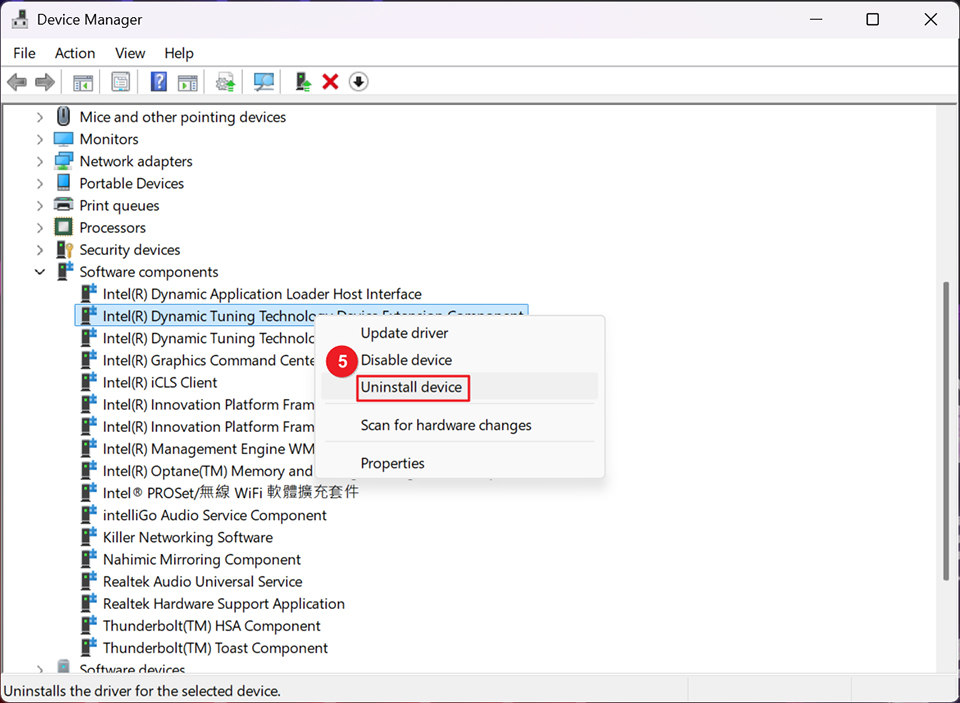
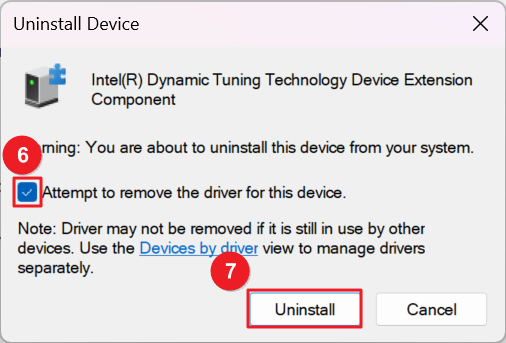
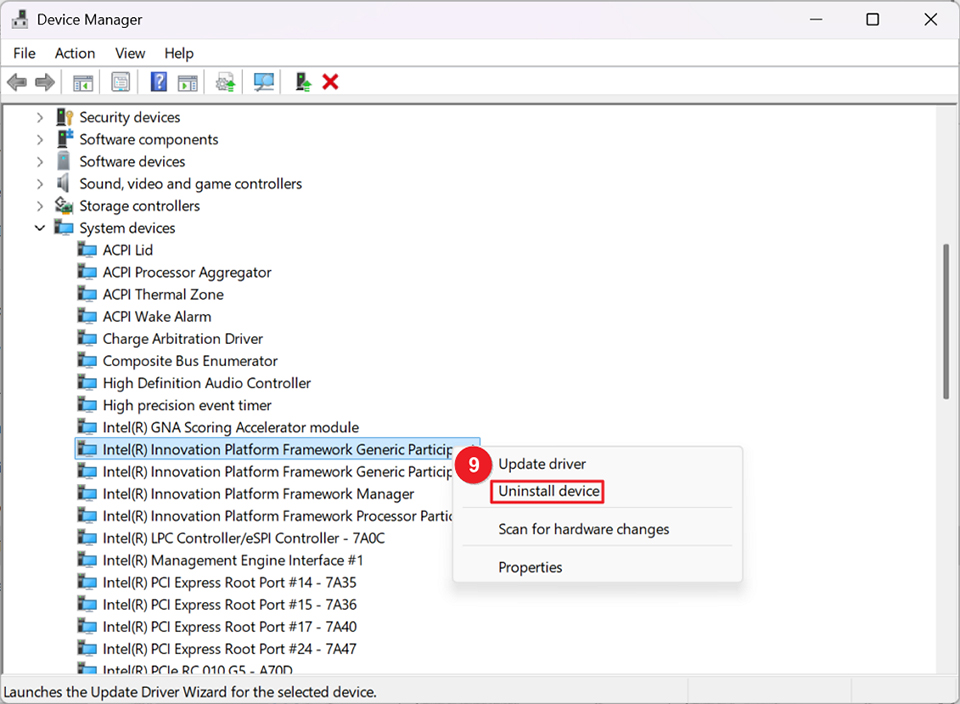
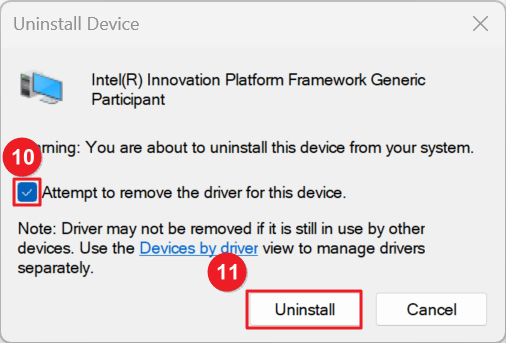
3. In Device Manager > System devices, right-click and uninstall all drivers that start with “Intel(R) Innovation Platform Framework”.
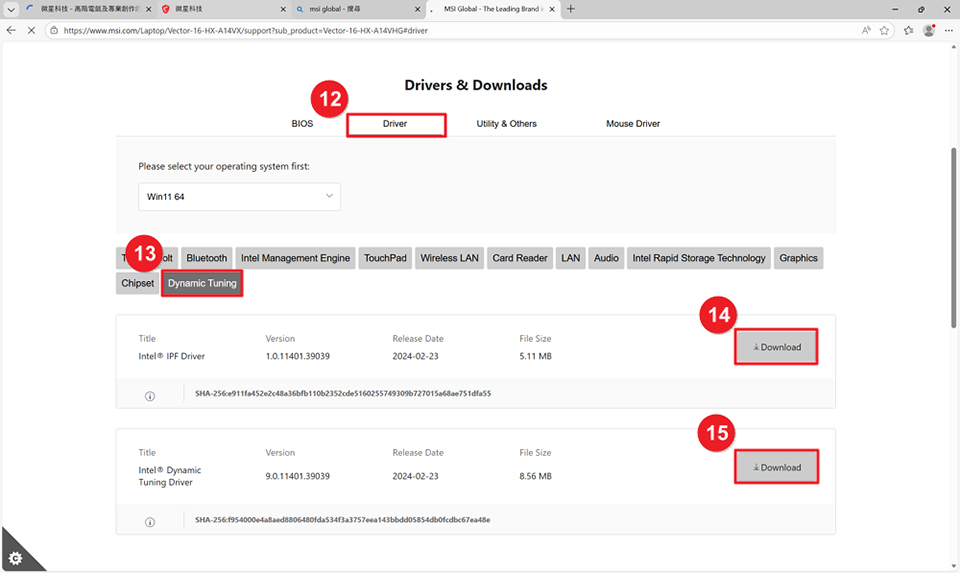
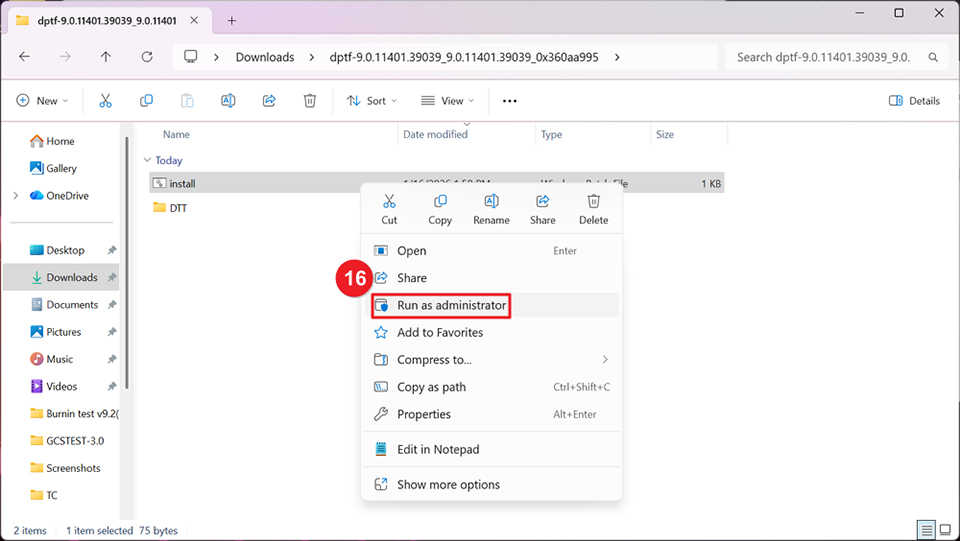
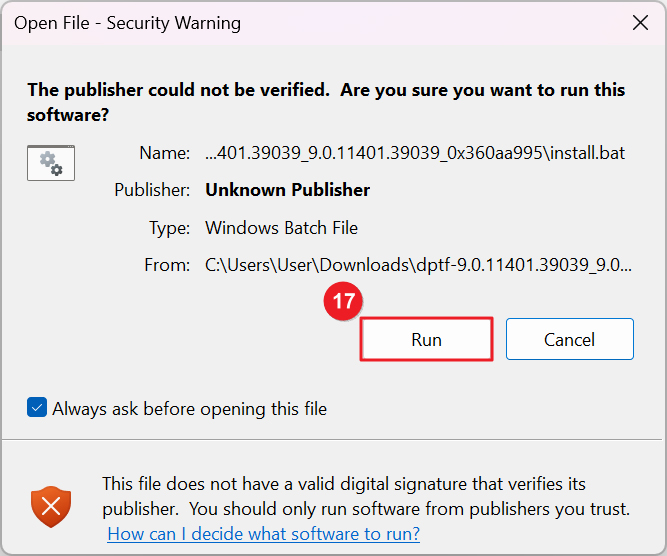
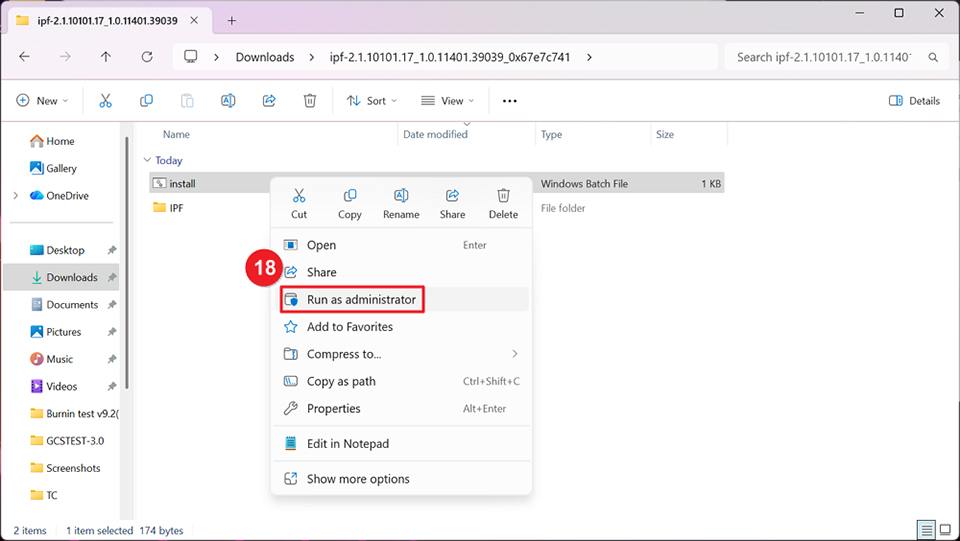
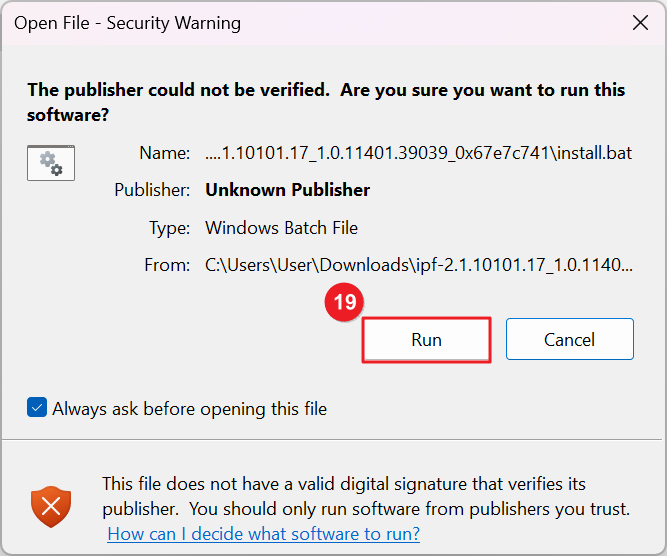
4. Download the latest versions of the DTT and IPF drivers from the official MSI website and extract them. Right-click install.bat in the folder and select “Run as administrator” to reinstall both drivers.
5. After installation is complete, please restart the computer to apply the changes.