[Notebook] Preventing Image Persistence in IPS Displays
MSI adopts In-Plane Switching (IPS) in its notebook screens which provides ultra-wide viewing angles and vastly improves content display and sharing, which will make printing/imaging/visual editing jobs much easier, hence improving user experiences.
When images are displayed on IPS screens for extended periods of time, users might still see faint/blurry image persistence even if the images displayed are changed. These so-called “residues”, “image persistence” or “afterimages” are normal occurrences in IPS screens, and these residual and blurry images will disappear over time.
Image persistence in IPS screens can usually be prevented by using Window’s sleep function to turn off the screen while the system is idle. Screen savers can also be set up to ensure static images are not displayed for long durations.
Preventing image persistence: Set system display and sleep
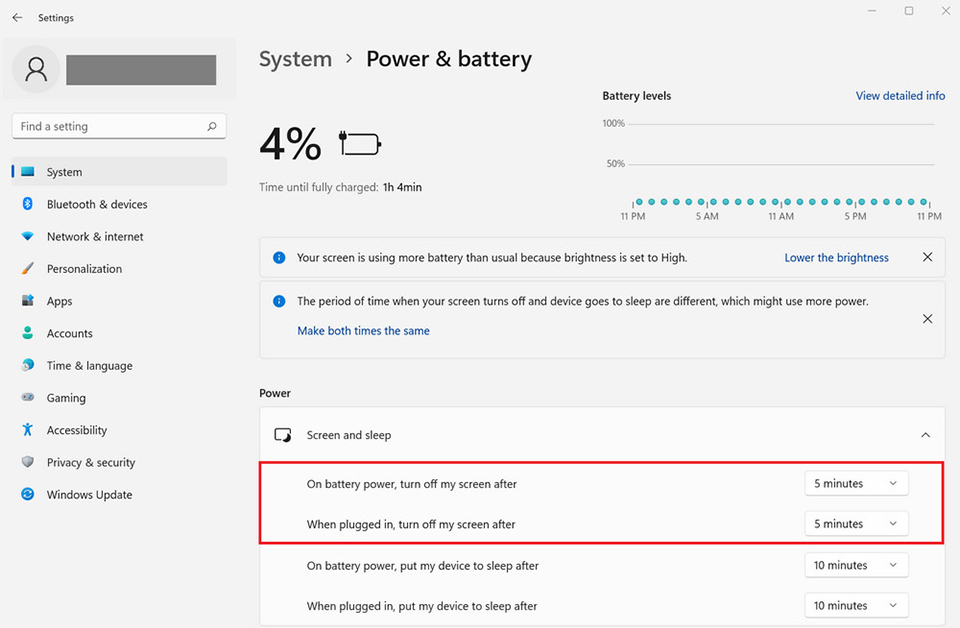
1. Select the Windows key → Settings → Power & battery → Screen and sleep.
2. It is recommended to set both “On battery power, turn off my screen after” and “When plugged in, turn off my screen after” to “5 minutes” (keep the system default settings).
Solving image persistence: Run the screen saver or turn off the monitor
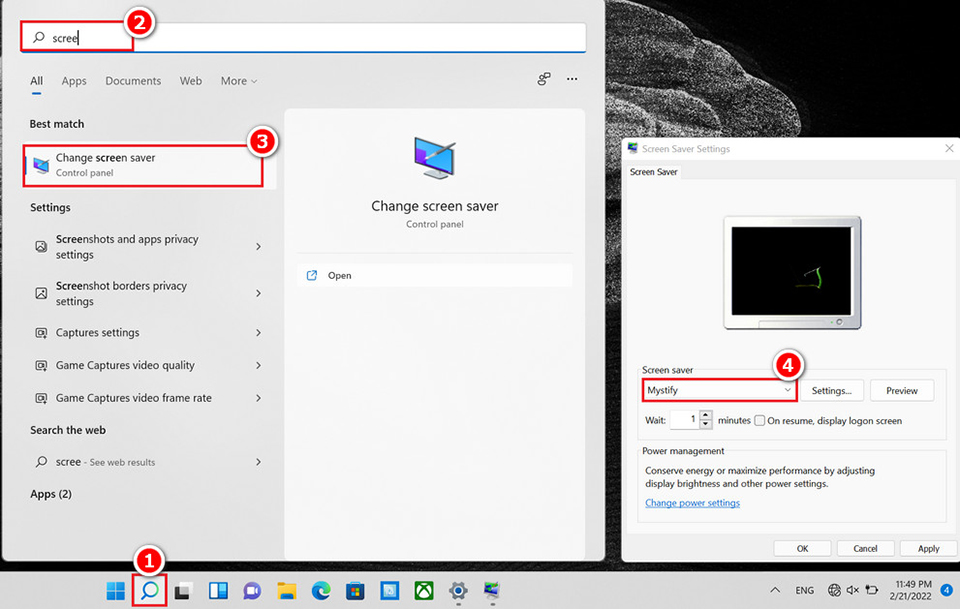
1. Select the search icon (or press Windows key + S) → enter “screen saver” → select “Change screen saver”.
2. Select your preferred screen saver and set the “Wait” time to a time shorter than the time set for “Screen and sleep” (system default is 1 minute).
3. Please let the screen saver program run or turn off the IPS screen for about the same duration as the image was displayed.