


[Notebook] Notebook Unable to Detect the Graphics Card
If your notebook cannot detect the graphics card, please refer to the following steps to solve the issue.
- Check Graphics Card Mode in MSI CENTER
- Reinstall the Graphics Card Driver
- Restore the BIOS Settings
- EC Reset
- Update BIOS
- Perform System Restore
Check Graphics Card Mode in MSI CENTER
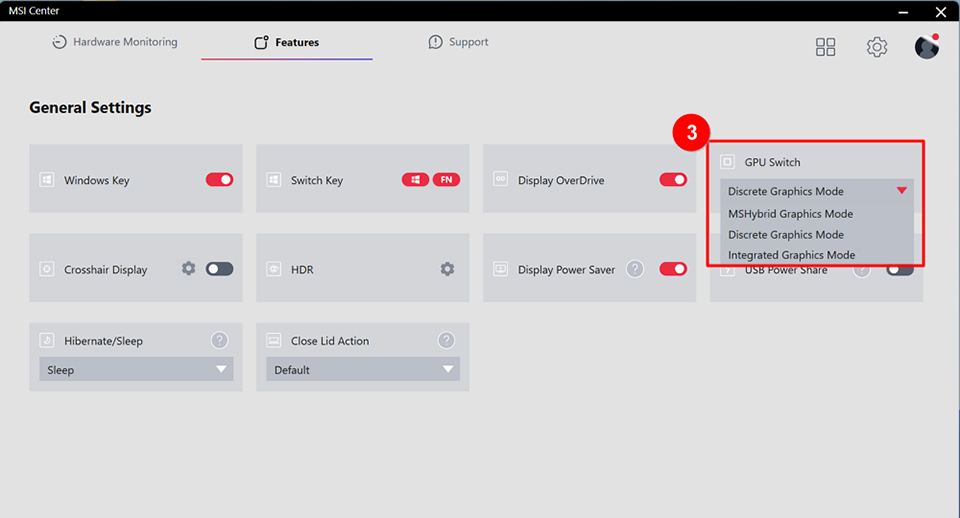
If your laptop does not detect the graphics card, please check the MSI Center to see if it has been switched to discrete graphics mode.
Note: If you do not see this feature in the MSI Center, it means your laptop does not support graphics card mode switching, please skip this step.
1. Open MSI Center → Features → General Settings.

2. Select “GPU Switch.” When the “Discrete Graphics Mode” is enabled, the integrated graphics will not appear in the Device Manager. It is recommended to switch the graphics card mode to “MSHybrid Graphics Mode,” then restart the laptop and check if all graphics cards are correctly recognized.
Reinstall the Graphics Card Driver
If an exclamation mark appears next to the graphics card in the Device Manager of your notebook (as shown in the figure below), or you do not see the graphics card, in most cases this is caused by the driver; please try to update or perform a clean install of the graphics card driver.

For the Nvidia graphics card, please refer to:
[How To] NVIDIA graphics driver Clean Install/Update
For the AMD graphics card, please refer to:
[How To] Clean Install/Upgrade AMD Graphics Driver and Radeon Software
For the Intel graphics card, please refer to:
[How To] Intel graphics driver Clean Install/Update
Note: It is recommended that you install the graphics driver corresponding to the model provided on the MSI website. Newer versions have not been tested by MSI for compatibility and stability. Therefore, unexpected issues may occur.
Restore the BIOS Settings
If you have recently changed BIOS settings, please refer to [Notebook] How to Restore BIOS Settings. It is recommended to restore the BIOS to factory settings and check if the screen issues are resolved.
EC Reset
Please refer to [Notebook] How to Reset Embedded Controller (EC reset) to reset the EC of the device and then confirm whether the problem is resolved.
Update BIOS
If the above methods do not resolve your issue, please refer to [Notebook] How to update BIOS? to update your BIOS to the latest version. After updating the BIOS, check if the problem is resolved.
Perform System Restore
If the problem still persists, please refer to [Notebook] How to restore the default factory system through F3 Recovery? to perform a system restore to its factory settings.
If you have tried the above troubleshooting methods and still cannot resolve the issue, please reach out to the MSI customer service center for further assistance.
Reference Information and Related Articles
[How To] NVIDIA graphics driver Clean Install/Update
[How To] Clean Install/Upgrade AMD Graphics Driver and Radeon Software
[How To] Intel graphics driver Clean Install/Update
[Notebook] How to Restore BIOS Settings
[Notebook] How to Reset Embedded Controller (EC reset)
[Notebook] How to update BIOS?
[Notebook] How to restore the default factory system through F3 Recovery?