

[Notebook] How to Troubleshoot Overheating Issues?
If your notebook experiences overheating during use, intermittent restarts, shutdowns, or performance degradation, please refer to the methods mentioned in this article for troubleshooting.
- Update BIOS and Run Windows Update
- Adjust MSI Center Fan Modes
- Close Unnecessary Applications
- Ensure Proper Ventilation for the Laptop
- Perform MSI Center Fan Diagnostics
Update BIOS and Run Windows Update
Updating BIOS and Windows packages often helps resolve known issues and optimize system performance. Ensure that your notebook is running the latest versions regularly.
Please refer to:
[Notebook] How to update BIOS?
[Notebook] How to Update the Windows Operating System?
If the BIOS and Windows packages are up to date and the issue persists, please continue troubleshooting.
Adjust MSI Center Fan Modes
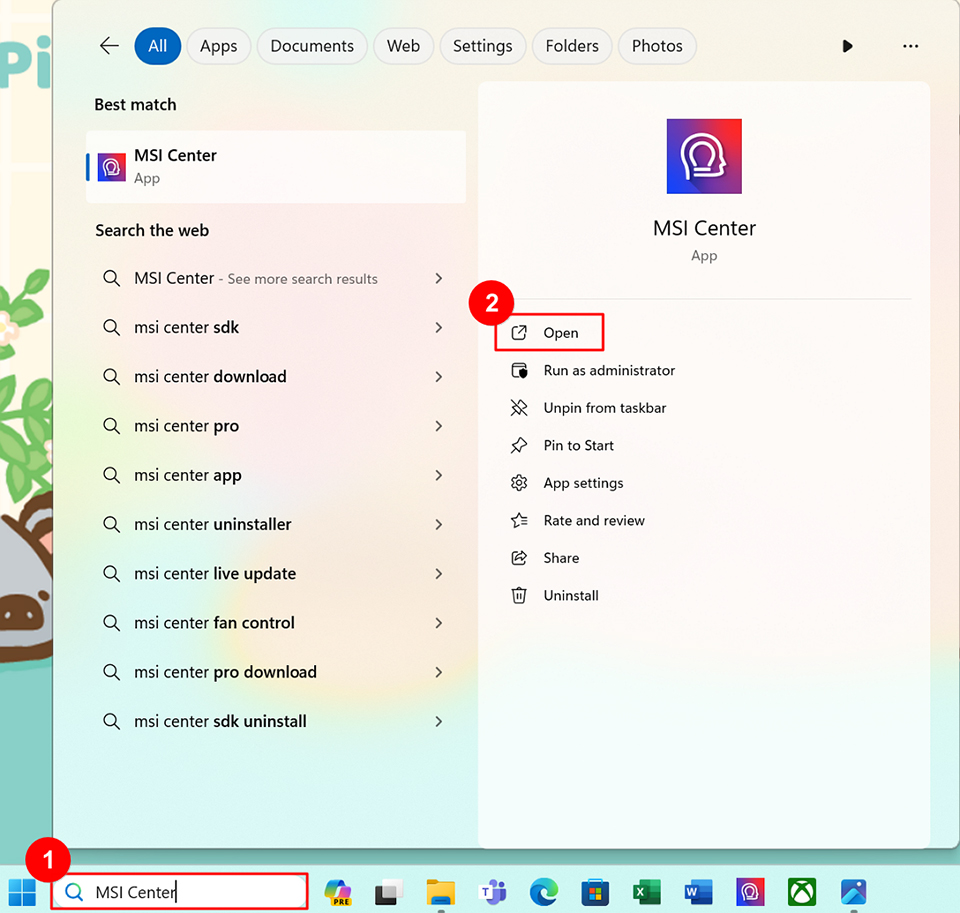
1. In the Windows search bar, type "MSI Center," then click "Open."
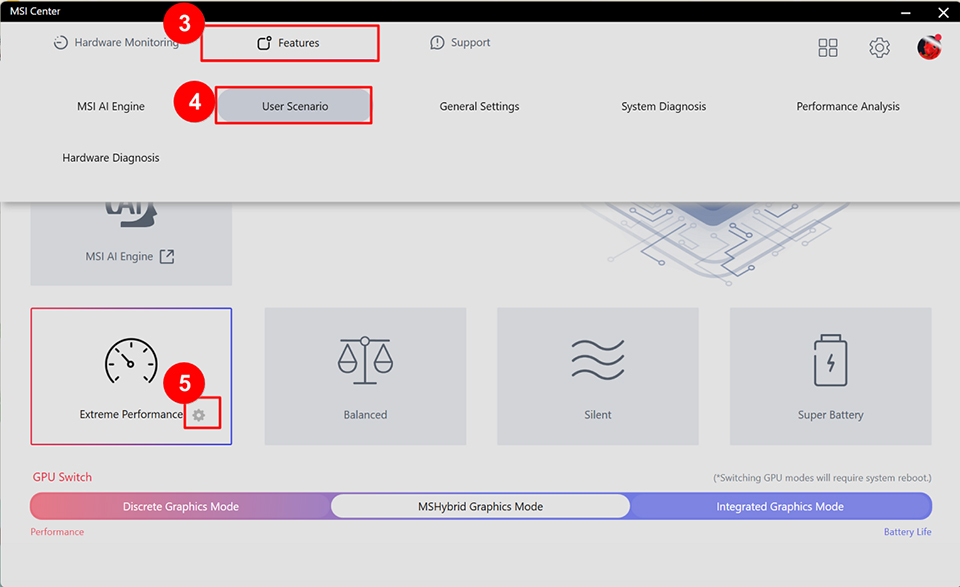
2. Click "Features," then "User Scenario," and select "Extreme Performance."
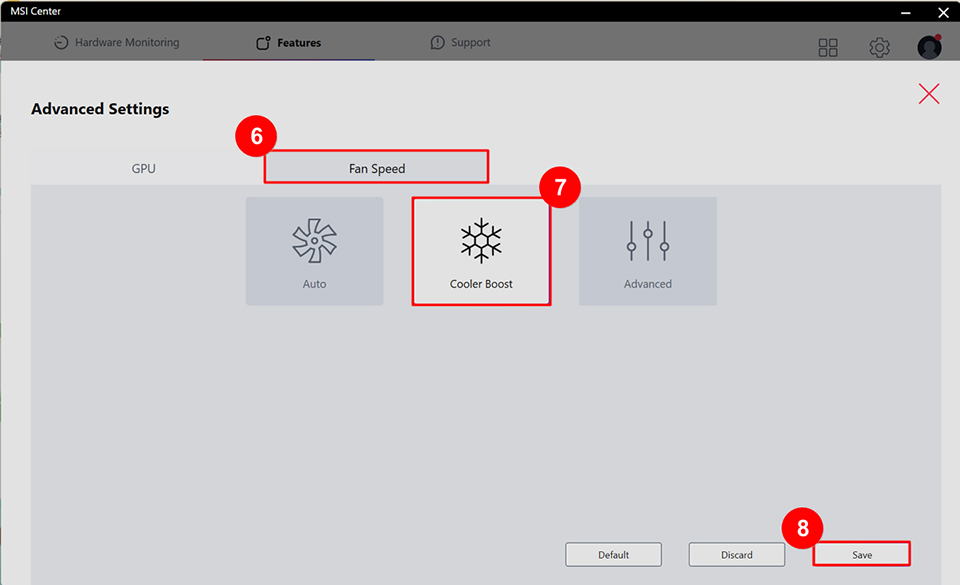
3. Choose "Fan Feed," adjust "Fan Speed" to "Cooler Boost," and click "Save."
Close Unnecessary Applications
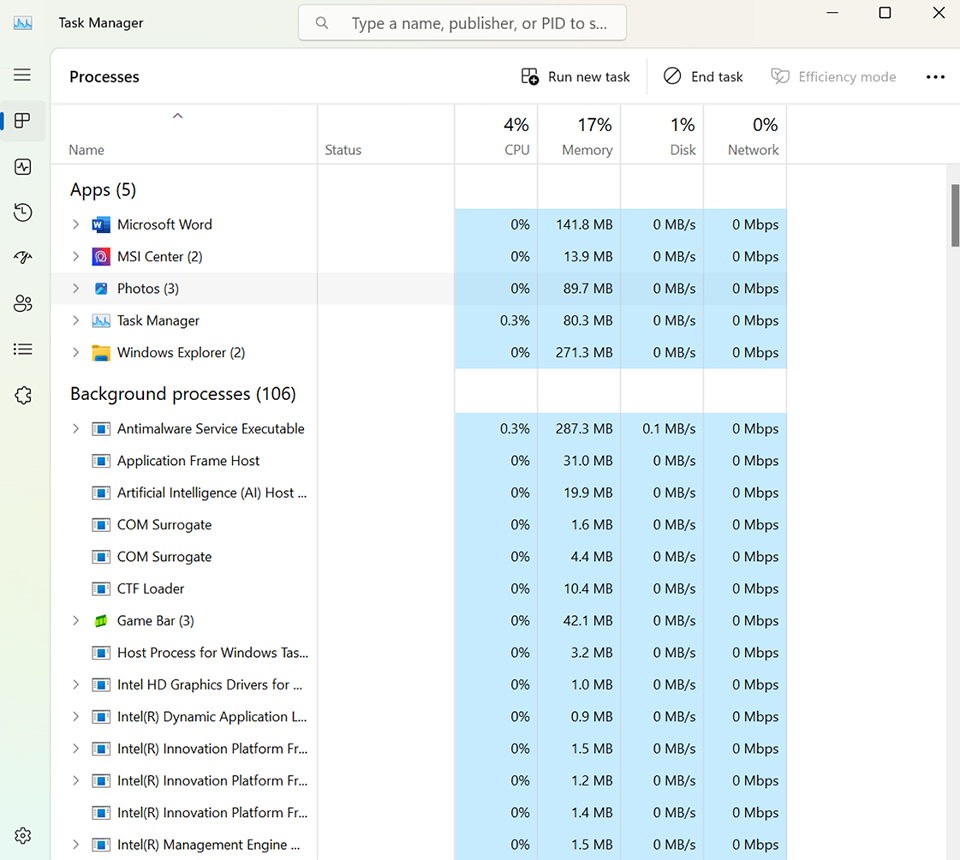
When running resource-intensive programs like games, video editing, or heavy data processing, the CPU/GPU temperature increases, and the fan speeds up to enhance cooling. Task Manager is a tool in the Windows system used to manage applications. It allows you to view the current status of your computer and provides information about computer performance and resource usage.
You can check Task Manager to see if CPU or memory usage of applications exceeds expectations and close background apps consuming resources.
Ensure Proper Ventilation for the Laptop
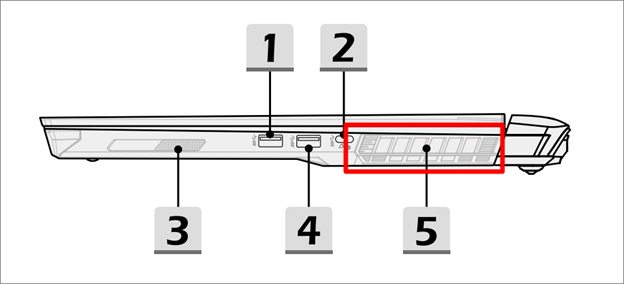
Dust and hair from the environment can accumulate on the fan and ventilation openings over time. If these openings are blocked, it can affect fan operation, leading to suboptimal device performance.
For cleaning, we suggest to use compressed air cans or blowers, maintaining distance from the exhaust vents.
Note: Please shut down the laptop before cleaning.
Perform MSI Center Fan Diagnostics
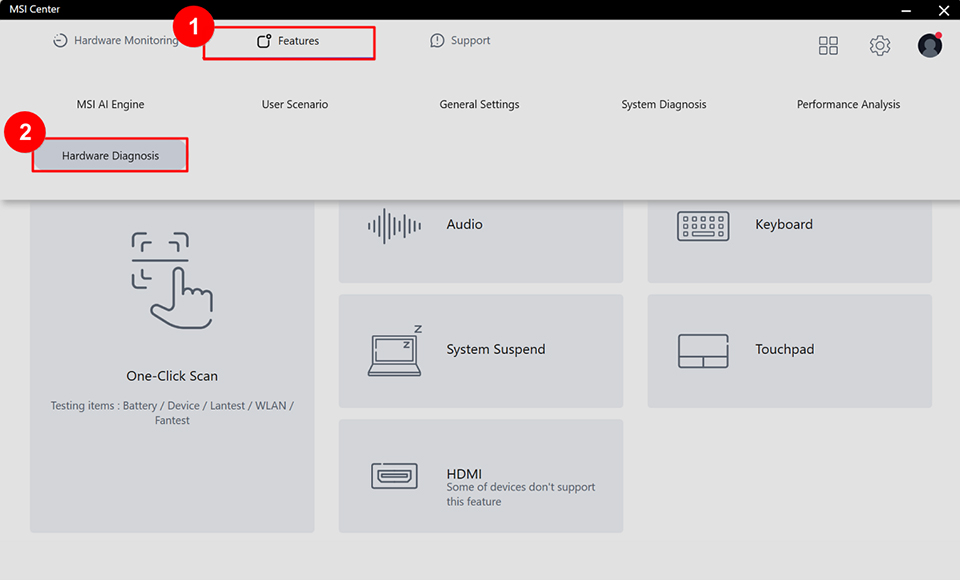
1. Click "Features," select "Hardware Diagnosis."
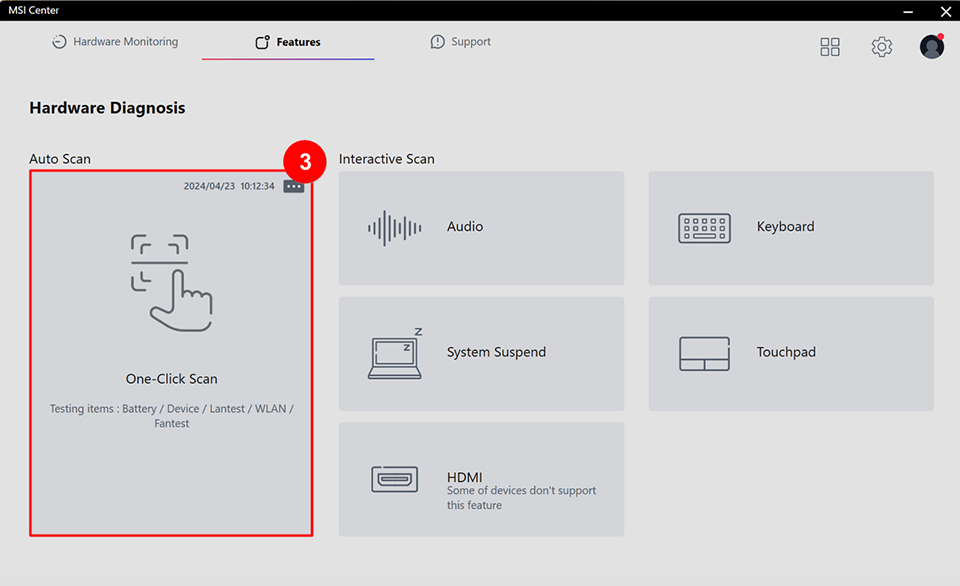
2. Click "Auto Scan" for one-click scan, then click "Start."
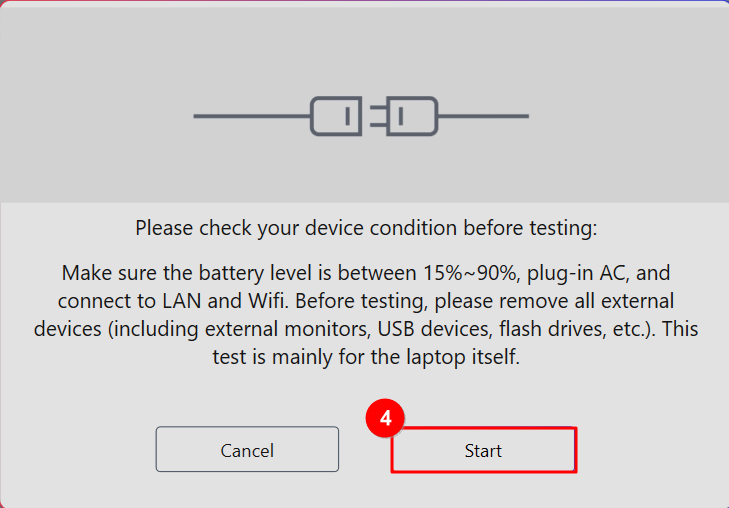
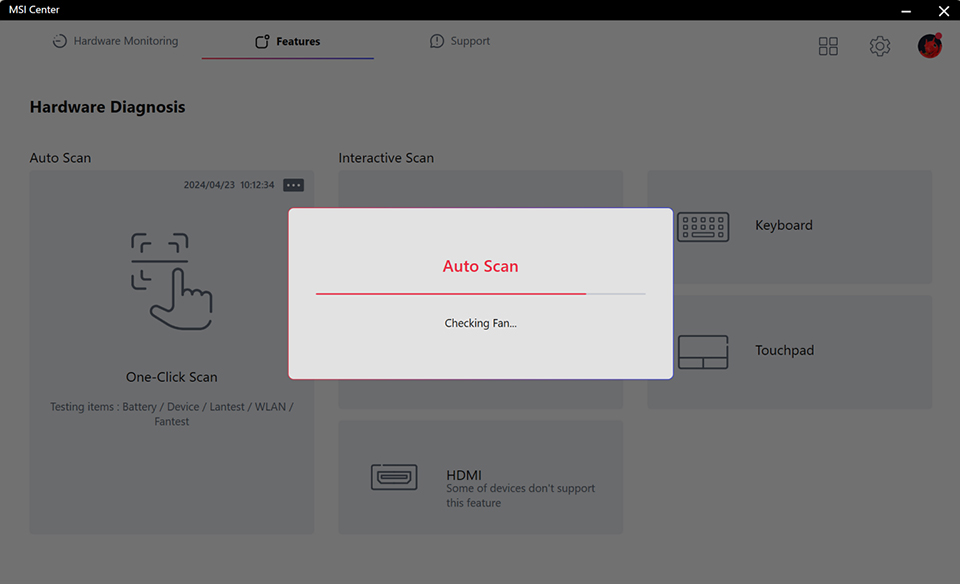
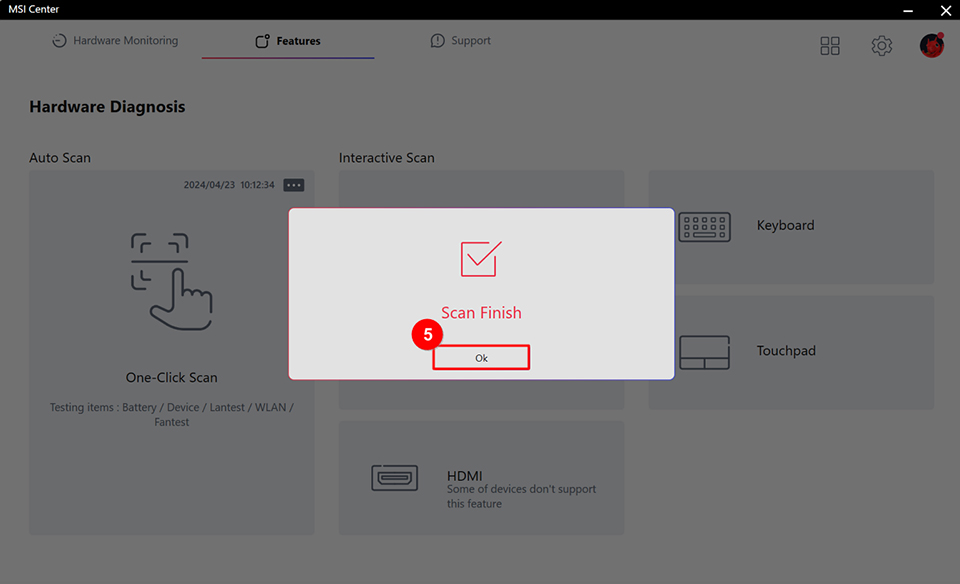
3. Initiate the test, then click "OK" after the scan is complete.
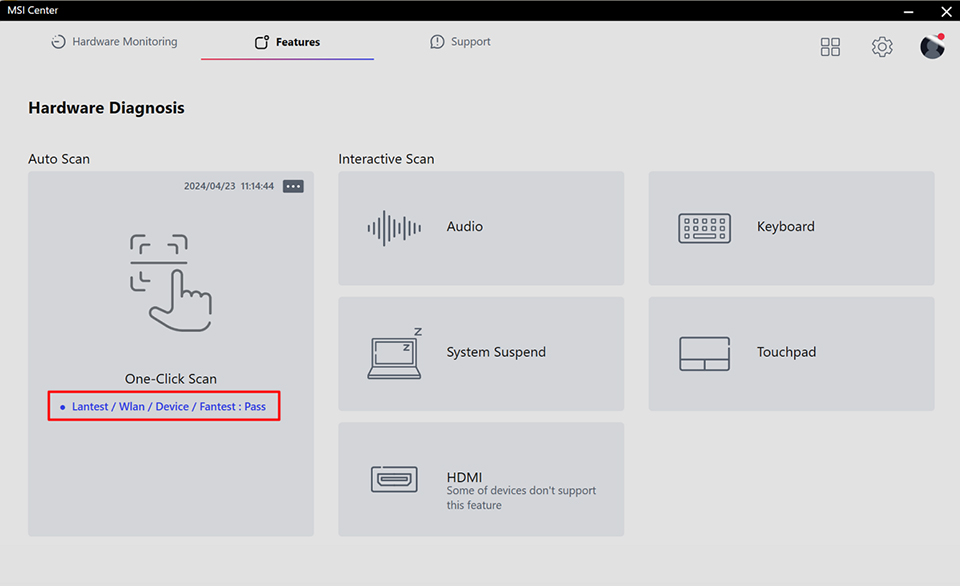
4. If the hardware test passes, it will display a success message.
If you still can't resolve the issue after following these steps, please contact MSI customer service for further assistance.
Reference Information and Related Articles
[Notebook] How to update BIOS?
[Notebook] How to Update the Windows Operating System?