


[Notebook] What should I do when the computer cannot wake up from sleep or hibernation mode?
If your notebook computer cannot be woken up after entering hibernation mode, please check the computer by referring to the contents below.
- Remove external devices
- Disable fast startup
- Restore the BIOS settings to the default values
- Run Windows Update
- Update BIOS
- Reset EC
- Run Windows power troubleshooting
- System restore
Remove external devices
Please first try to remove the external devices connected to the notebook computer, such as external hard drives, memory cards, optical drives and other devices, and confirm whether the problem is solved.
Disable fast startup
Sometimes enabling fast startup may cause the computer to be unable to be waken up properly from hibernation or sleep mode. You can try to disable fast startup to solve this problem.
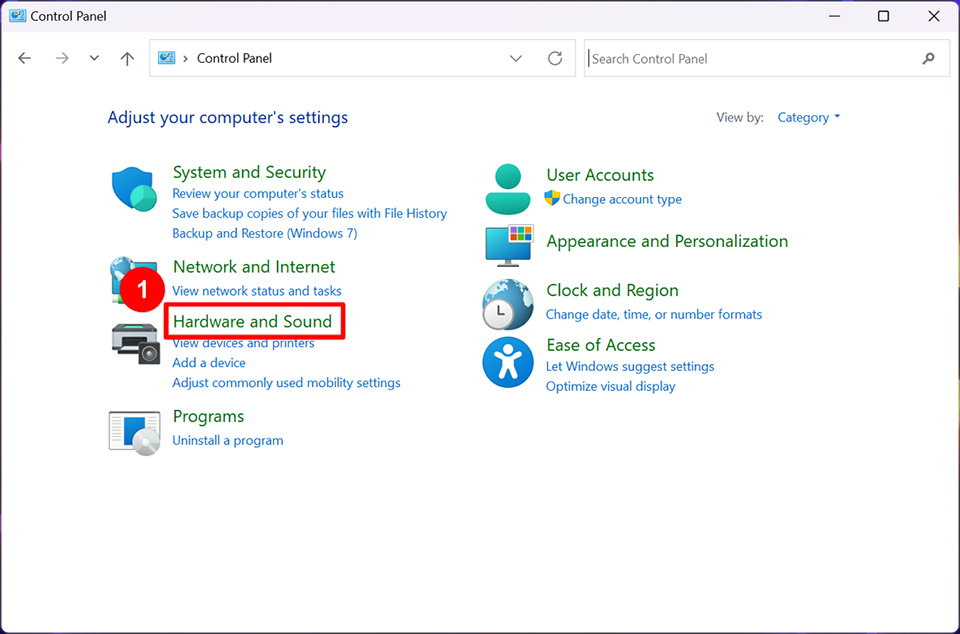
1. Open Control Panel→ Click “Hardware and Sound”.
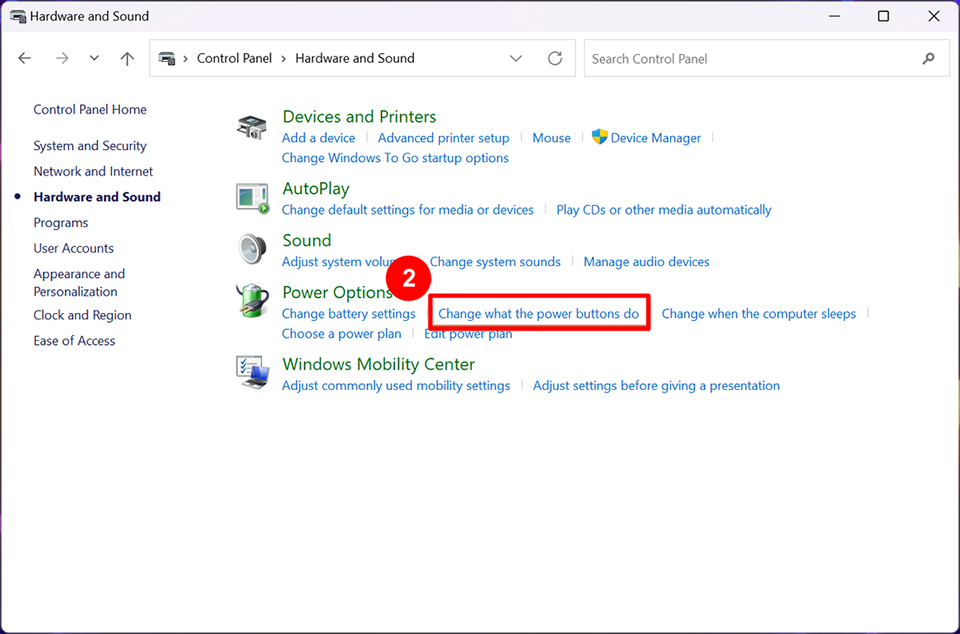
2. Click “Change what the power buttons do”.
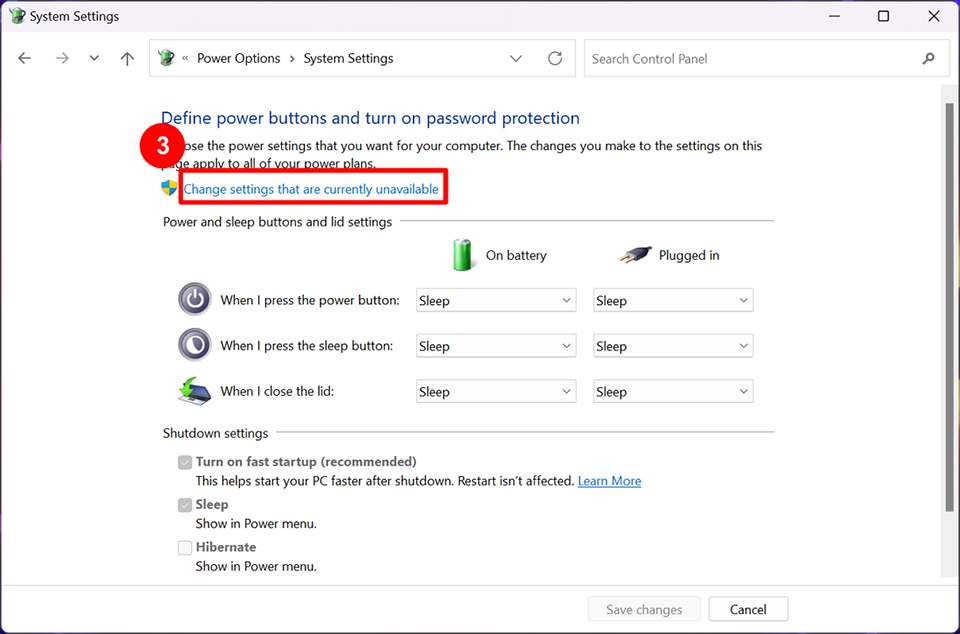
3. Click “Change settings that are currently unavailable”.
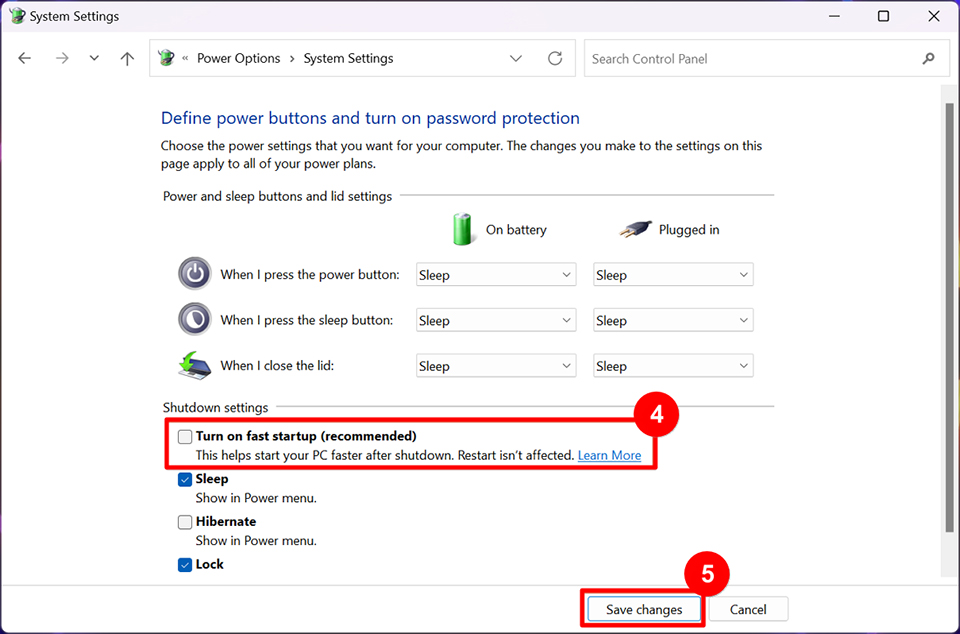
4. Uncheck “Turn on fast startup” and save changes.
Restore the BIOS settings to the default values
Improper BIOS settings may cause computers to be unable to wake up from hibernation or sleep mode; please try to restore the BIOS to its default values and then confirm whether the problem is solved.
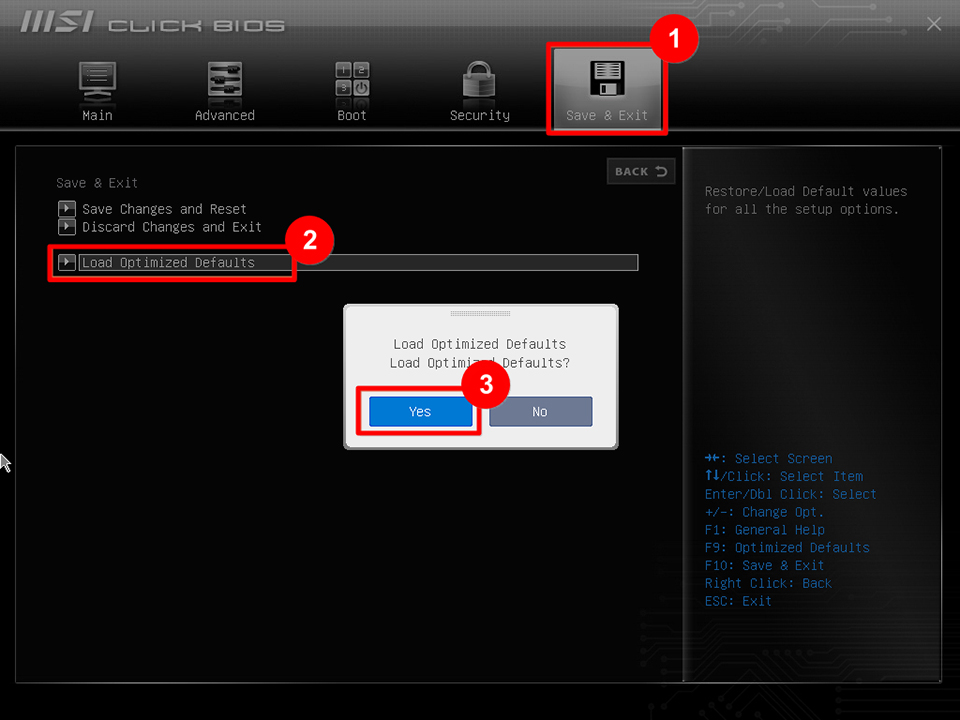
1. Restart the notebook and press the “Del key” repeatedly when you see the MSI logo to enter the BIOS interface.
2. Select “Save & Exit” → select “Load Optimized Defaults” → select “Yes”.
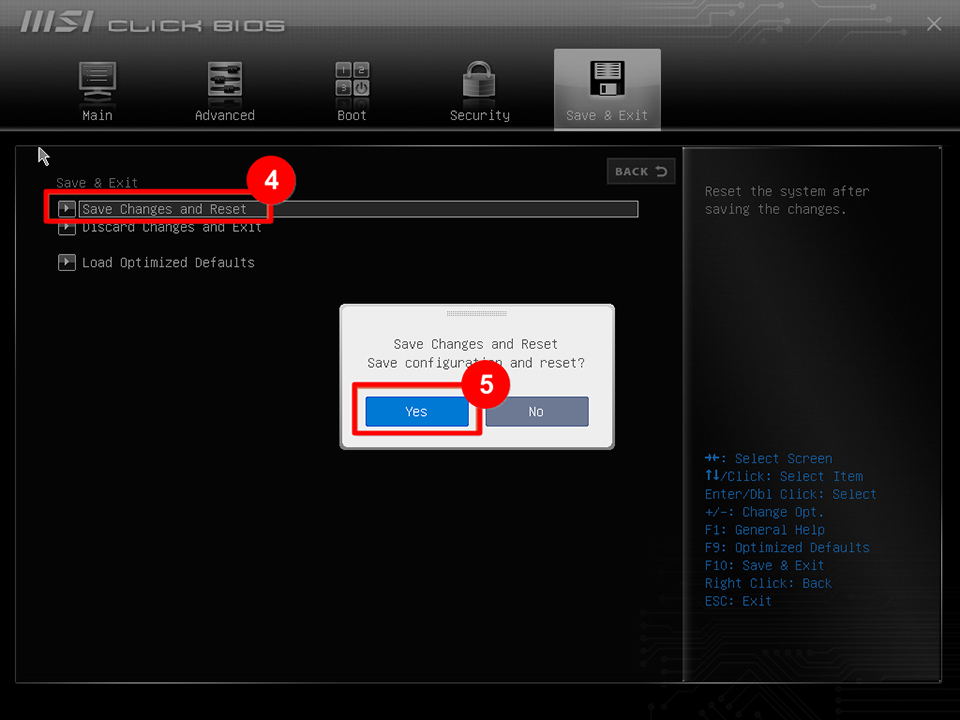
3. Select “Save changes and Reset” → select “Yes”.
Run Windows Update
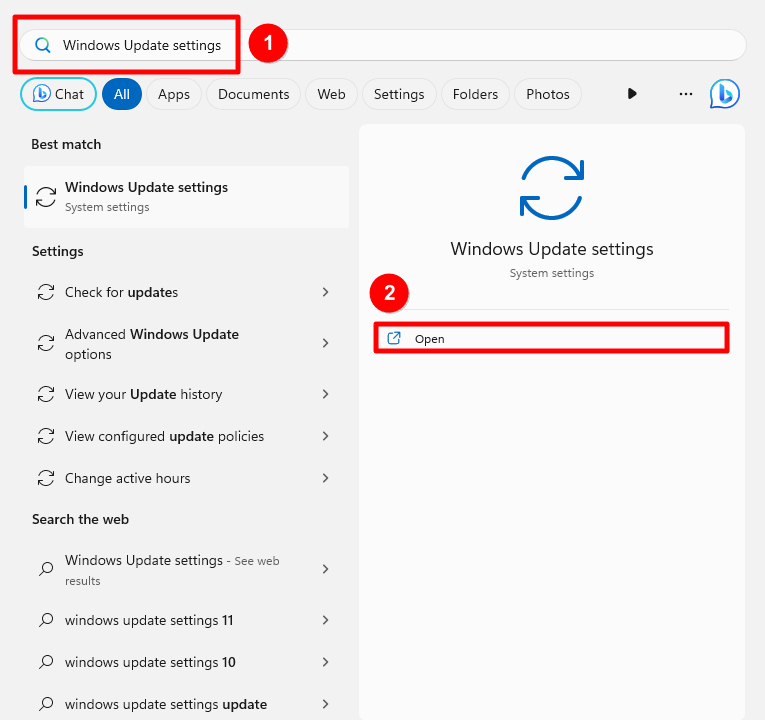
1. Enter “Windows Update settings” in the system’s search field and click “Open”.
2. After entering the Windows Update page, the system will automatically check whether there are updates available for installing and download them; click “Install all” when downloading is completed.
Note: Some updates may need to restart the computer after installation; do not shut down the computer while the computer is restarting as this may cause the update to fail.
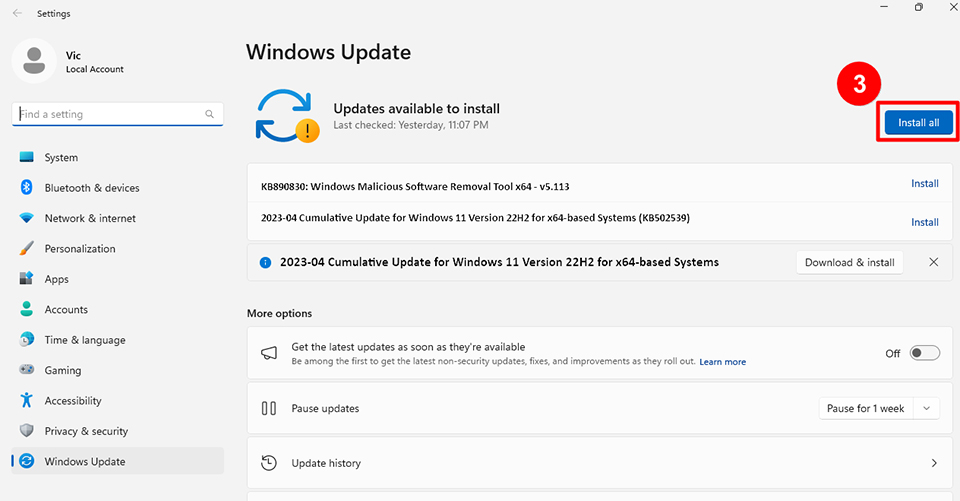
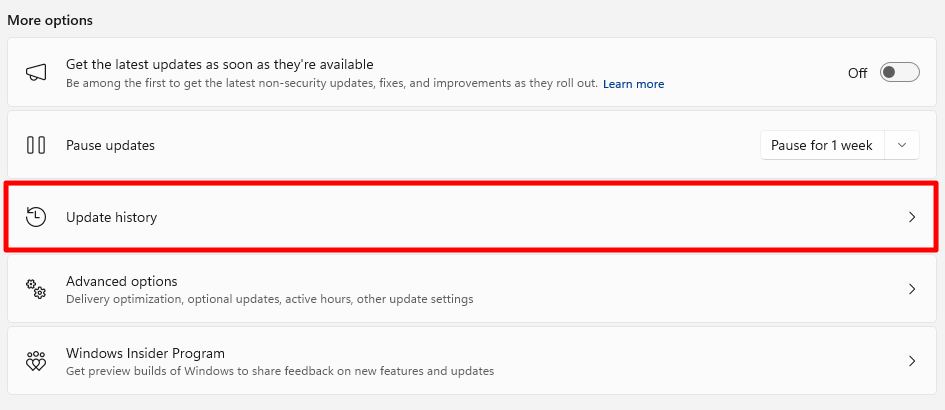
3. After updating, you can click “Update history” to view detailed information on recent updates.
Update BIOS
If the above methods do not resolve your issue, please refer to the guide [Notebook] How to update BIOS? to update your BIOS to the latest version. After updating the BIOS, check if the problem is resolved.
Reset EC
Sometimes resetting EC can solve power management related problems; please refer to [Notebook] How to reset the EC (Embedded Controller) to reset the EC of the device and then confirm whether the problem has been eliminated.
Run Windows power troubleshooting
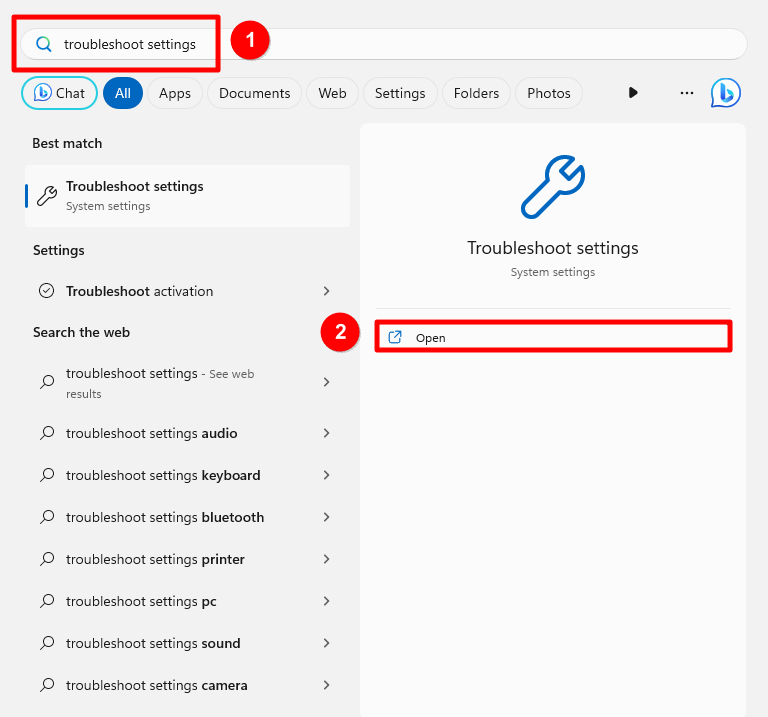
1. Enter “troubleshoot settings” in the system’s search field and click “Open”.
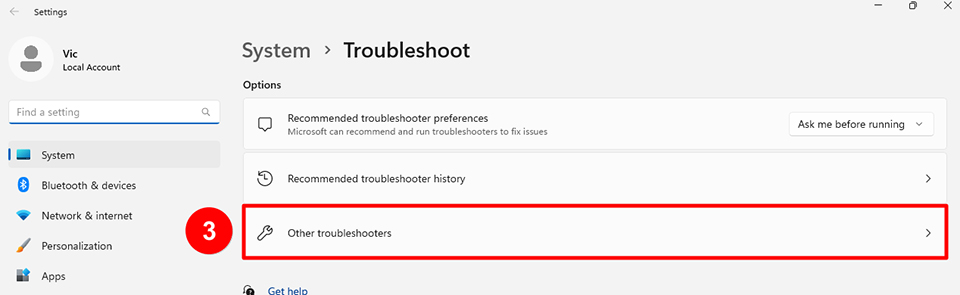
2. Select “Other troubleshooters”.
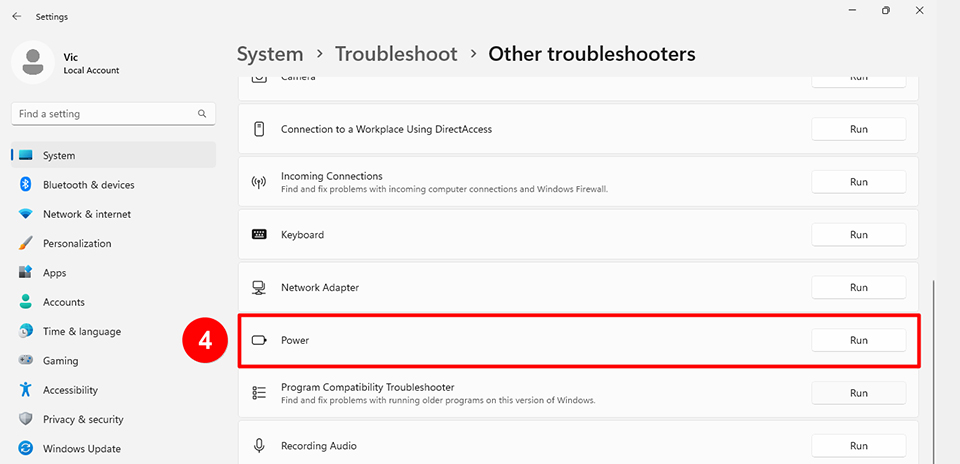
3. Locate the “Power” option and then click “Run”, and follow the instructions on the screen to finish troubleshooting.
System restore
If the problem still persists, please refer to the guide [Notebook] How to restore the default factory system through F3 Recovery? to perform a system restore to its factory settings.
If you have tried the above troubleshooting methods and still cannot resolve the issue, please reach out to the MSI customer service center for further assistance.
Reference Information and Related Articles
[Notebook] How to update BIOS?
[Notebook] How to reset the EC (Embedded Controller)
[Notebook] How to restore the default factory system through F3 Recovery?