


How to Troubleshoot Touchpad Insensitivity Issue
When your MSI laptop encounters touchpad insensitivity issue, please check the system settings and reinstall the driver to troubleshoot the issue.
System Settings
1. To confirm that the touchpad is set up correctly, follow the steps below to locate touchpad settings under windows settings.
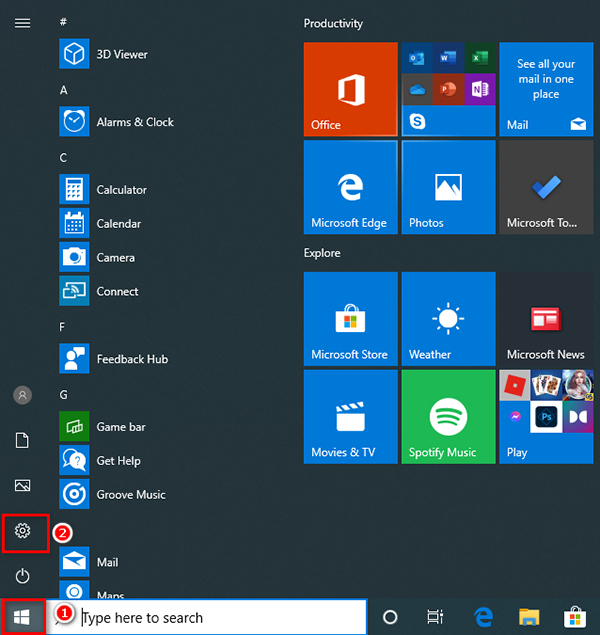
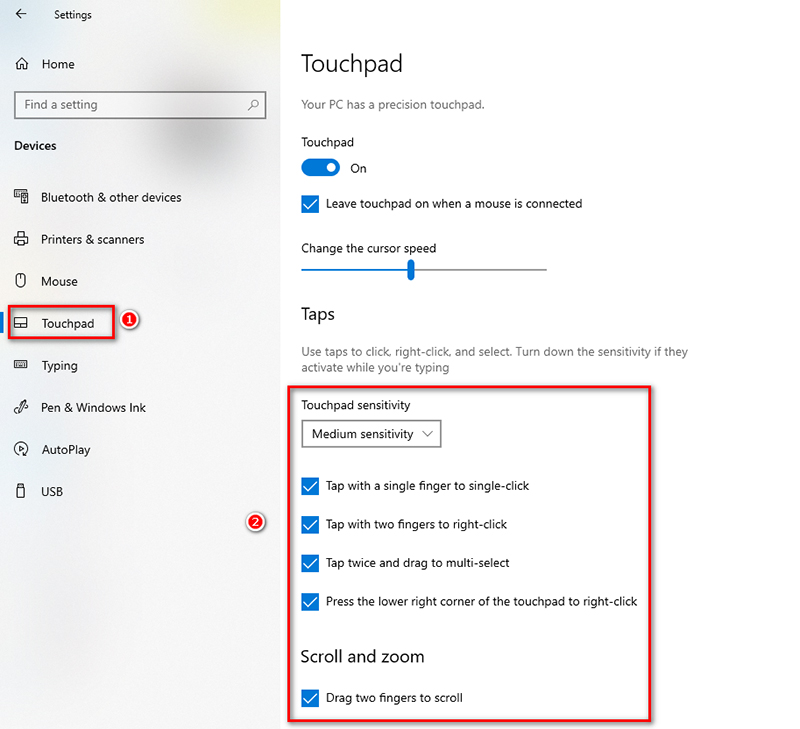
2. Click “Device” and locate “Touchpad”

3. Click on “Touchpad” and confirm that all the touchpad functions are checked and also adjust touchpad sensitivity option to your personal preference.
Note: Touchpad Available functions may vary by model.
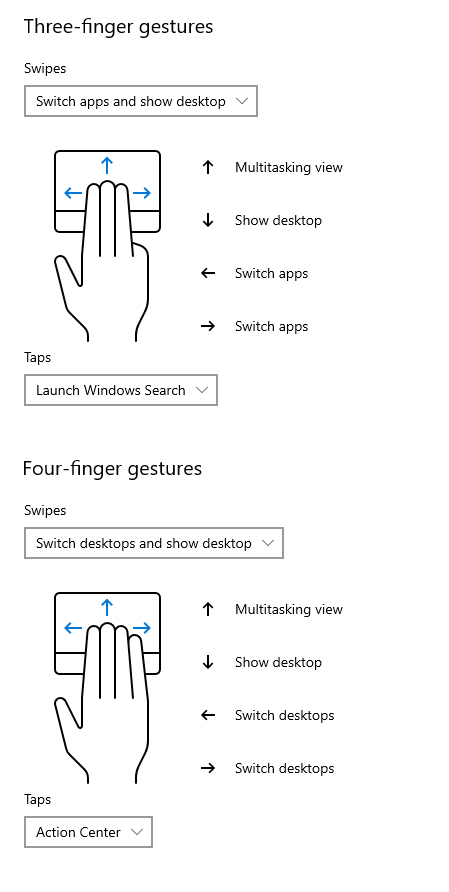
4. Scroll down to the bottom of the page and set the function to be triggered by three-finger or four-finger swipe gestures according to your personal preference.
Reinstall Driver
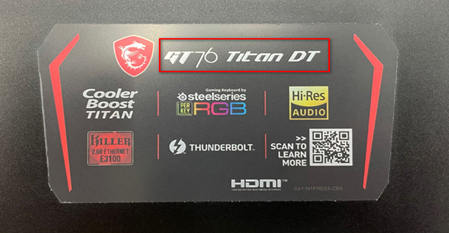
1. To reinstall the touchpad driver, please first confirm the model name on the sticker located on the right-hand side palm rest area.
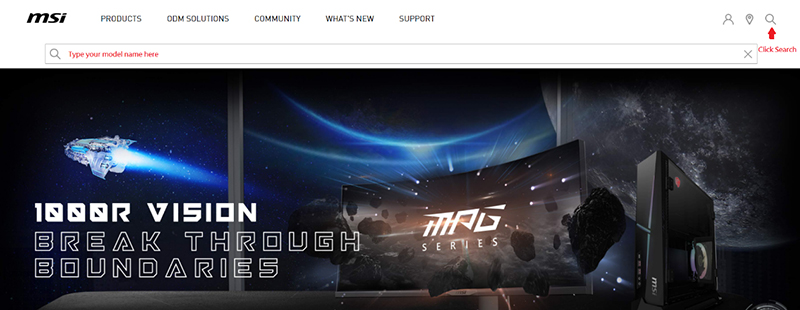
2. Click on the search icon located at the top right hand corner of MSI website main page, type in the model name in the search field and press "Enter" to proceed to the next page.

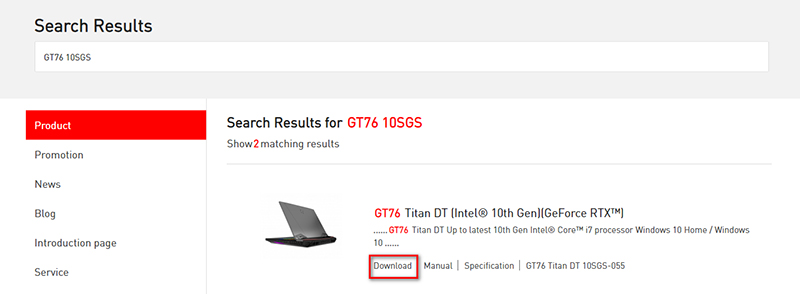
3. On the result page, click on "Download" next to your model on the list to proceed to the next page.
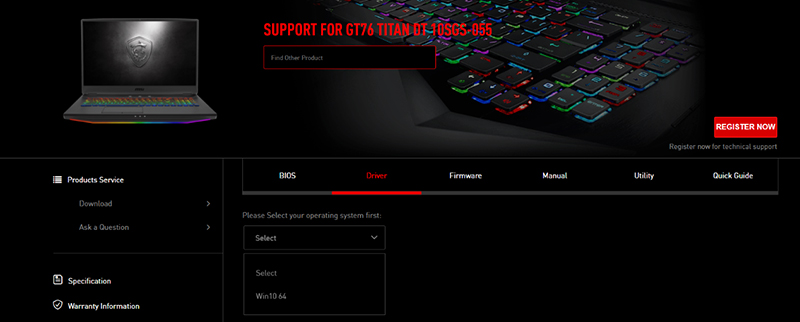
4. Click on driver and select "Win10 64" to proceed to the next step.
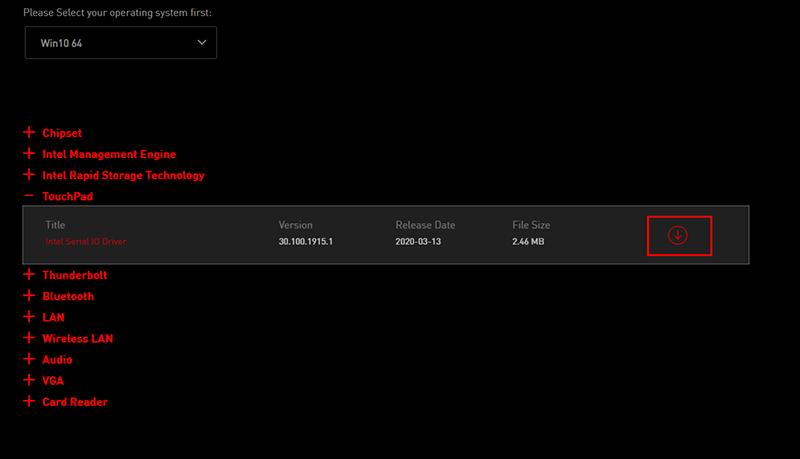
5. Click on "TouchPad" and download the touchpad driver.
Note: Touchpad equipped with the laptop may vary by model.
https://storage-asset.msi.com/global/picture/about/FAQ/nb/nb-touchpad-en-09.jpg"
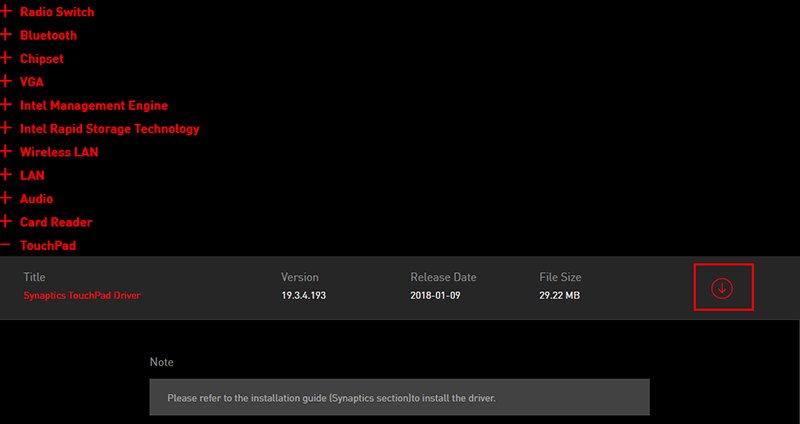
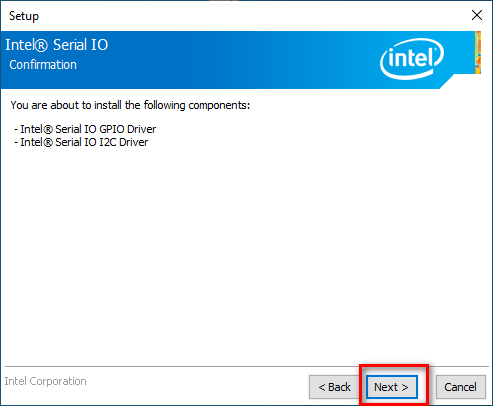
6-1. Newer laptop touchpad driver usually contain a Setup executable file after the downloaded file is extracted. Double-click on it to run and click next until the installation is complete.
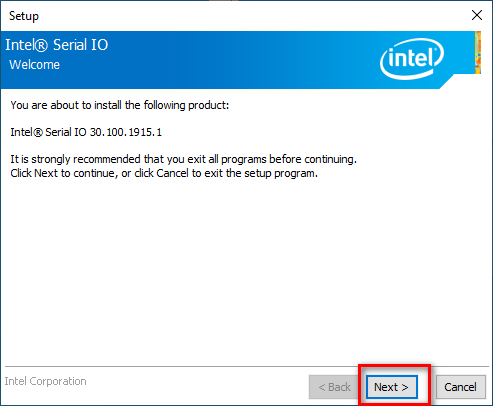
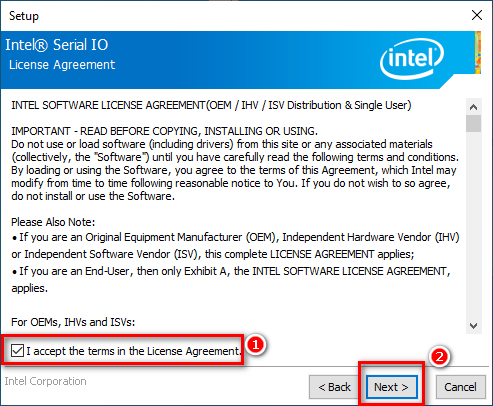
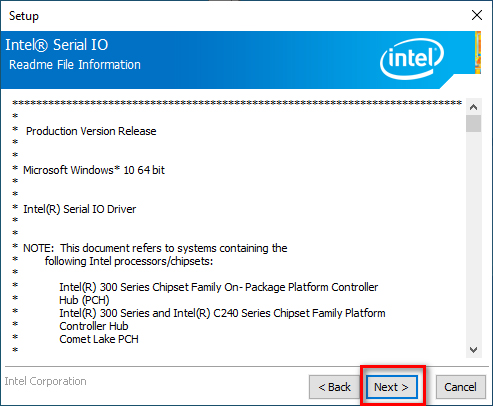

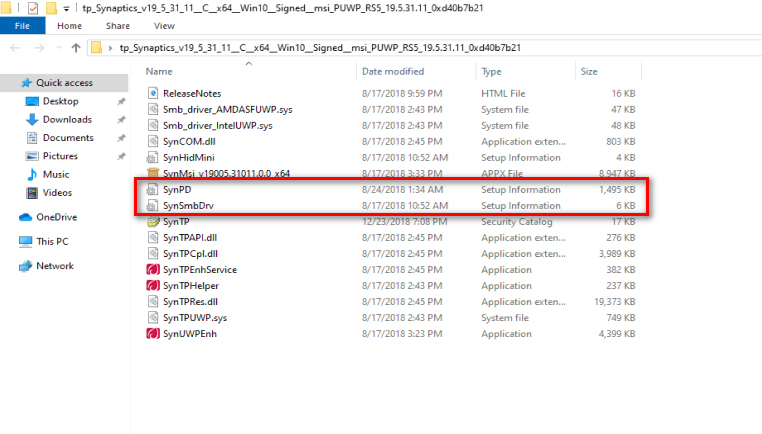
6-2.Earlier model laptop touchpad driver contain several ".INF" installation files after downloaded file is extracted. Right-Click and select Install on each of the .INF files in the folder until all is complete.
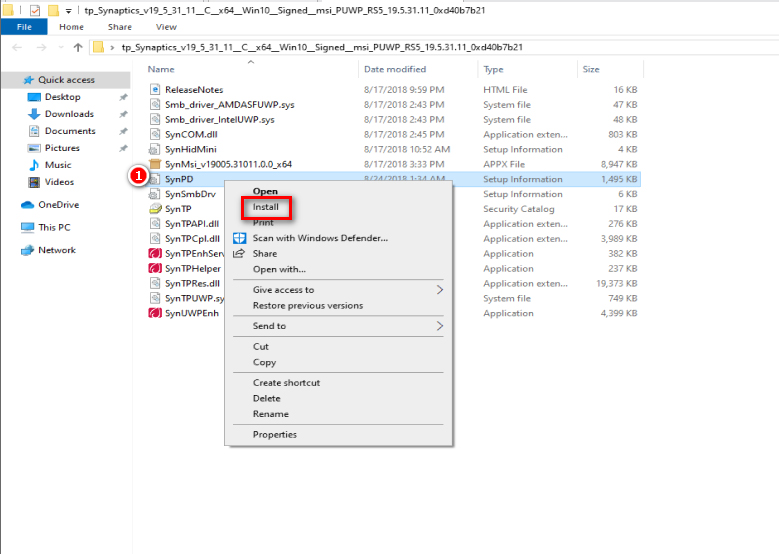
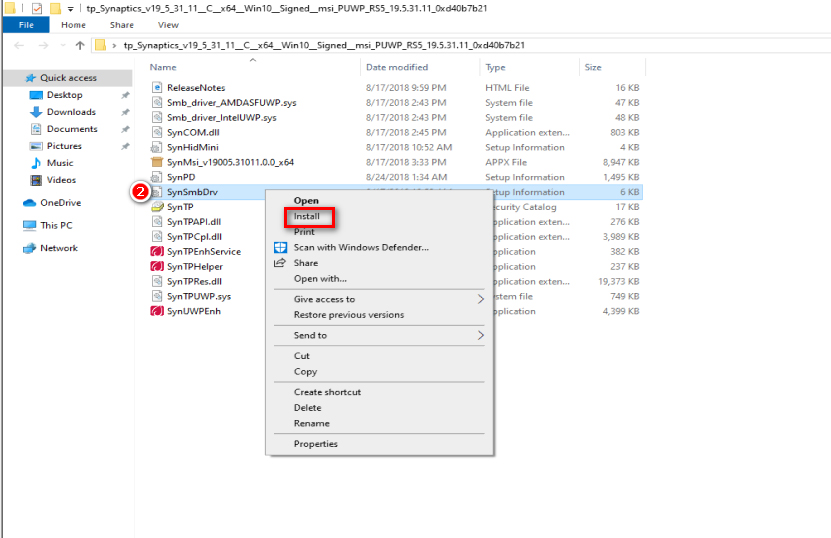
For more information on how to install the .INF installation file, please refer to the following article in the link down below: [Instructions] Install the driver with.inf files as the last resort.
After installing the driver, please reboot your computer and check whether the touchpad works properly. If the touchpad still behaves abnormally, please contact MSI customer service for further support.