


[Notebook] Setting optimization for Wi-Fi 6E connections
Please refer to the following setting recommendations for optimizing the performance of Wi-Fi 6E.
Note: If your notebook is equipped with Wi-Fi 6 or older generation wireless Ethernet cards, please keep the default settings or refer to this article for advanced setting guide.
Checking the requirements
1. Confirm that all conditions in [Product Information] Wi-Fi 6E Requirements are met.
2. Go to the official website of the manufacturer of your Wi-Fi 6E router to obtain the setting guide or user manual.
Applying optimized settings
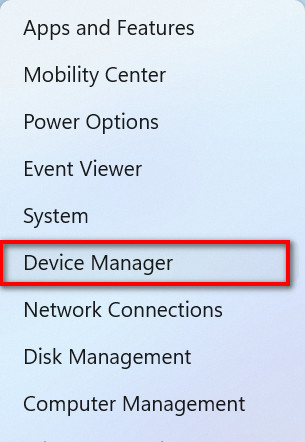
1. Right-click on the “Start icon”.

2. Select "Device Manager”.
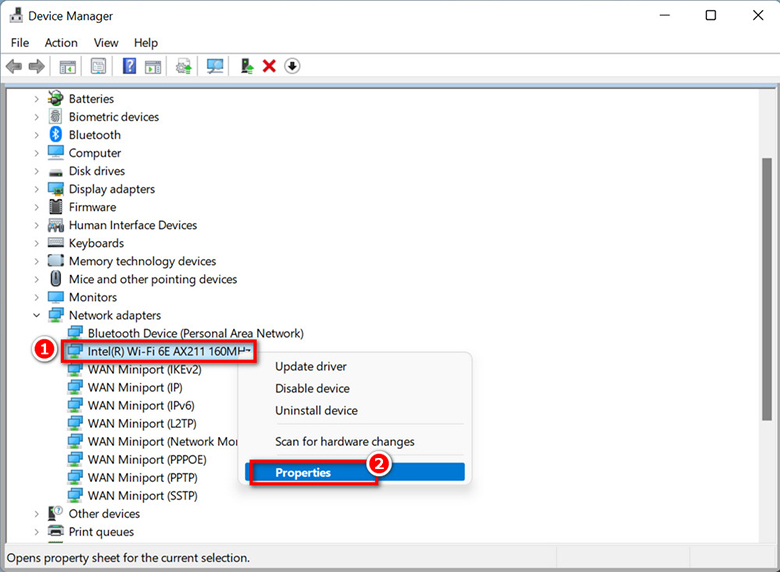
3. Right-click on the Ethernet card and then select “Properties”.
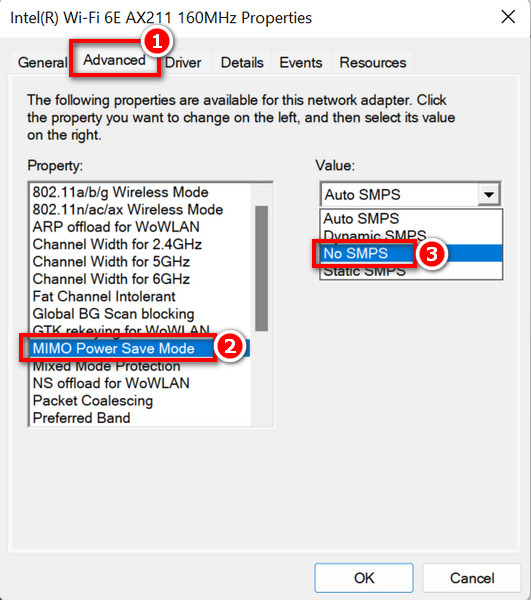
4. Select “Advanced” and set “MIMO power save mode” to “No SMPS”.
MIMO Power Save Mode is also known as Spatial Multiplexing Power Save (SMP); setting it as No SMPS can ensure that the Ethernet card antenna is always operating.
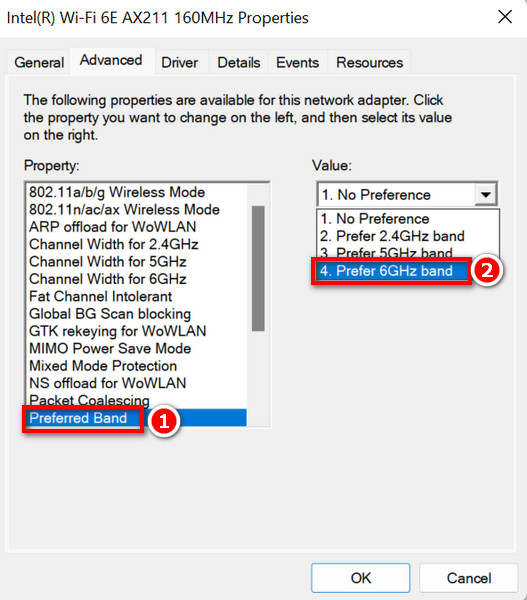
5. Set the “Preferred band” to “ Prefer 6GHz band”.
6. Continue to apply the settings recommended by Intel:
Recommended Settings for 802.11ax Connectivity
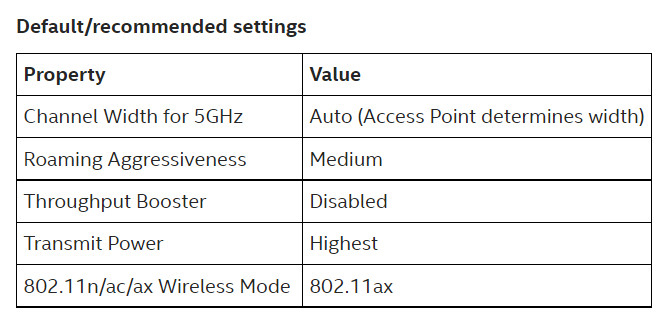
To see more descriptions on contents related to settings, please refer to the Advanced Intel® Wireless Adapter Settings.
