


Why does F3 recovery fail after upgrading to Windows 11?
The reason is because the system structure of Windows 11 was changed and is different from before; if you need to restore the previous system, please refer to the following methods.
- Please prepare a flash drive before beginning.s
- Keep the power connected to the notebook during the upgrade process.
Restoring the system using a flash drive
1. Download the WinRE tool.
2. Decompress the folder and copy all files in the folder to an empty flash drive.
3. Connect the power supply, insert the flash drive and then press the power button to start up the notebook. Click the “F11” key on the keyboard repeatedly after seeing the MSI logo to enter the boot menu; select the flash drive as the boot device and press the Enter key to boot up.
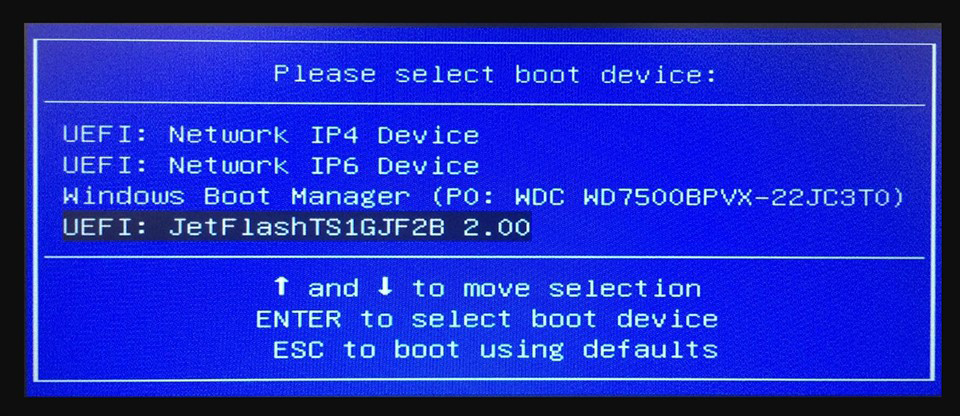
4. When the following screen appears, click the “System Partition Recovery” button to start executing the system recovery
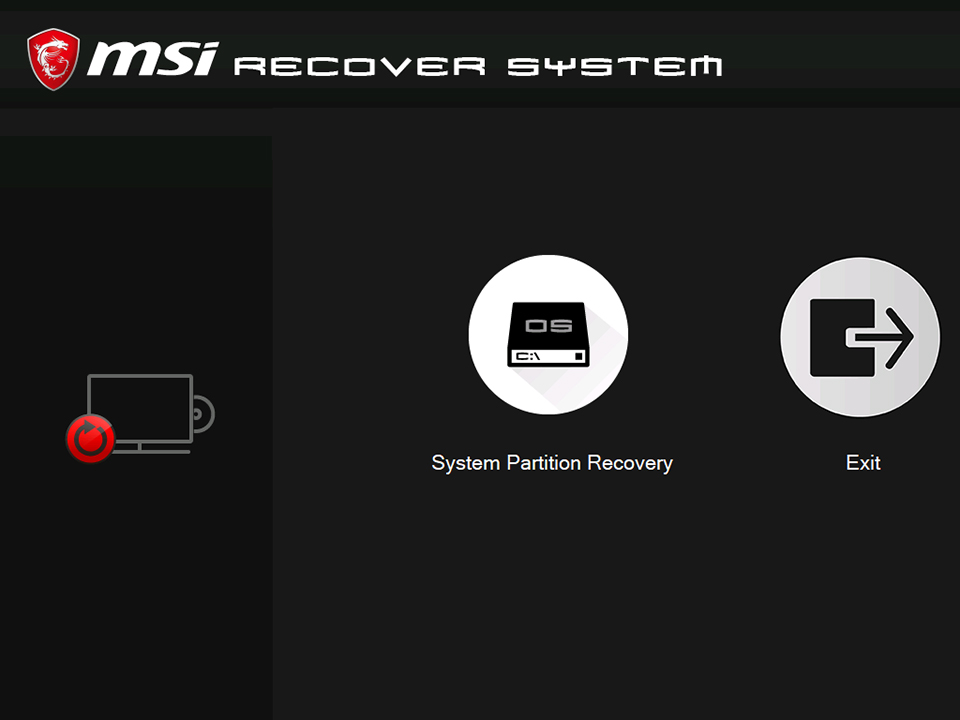
5. After the recovery has been completed, the notebook will restart and the system will be restored to factory settings.
Restoring the system using recovery media
If you have created a recovery media through “MSI BurnRecovery” before upgrading to Windows 11, you can use this recovery media to perform a system recovery.
Equipped with MSI Center/ MSI Dragon Center/ MSI Creator Center:
[How To] Create recovery image on Windows 10 preloaded system
Equipped with MSI Center Pro:
[How To] Create MSI Recovery Image and Restore System with MSI Center Pro