
How to use MSI mystic light
Step 1
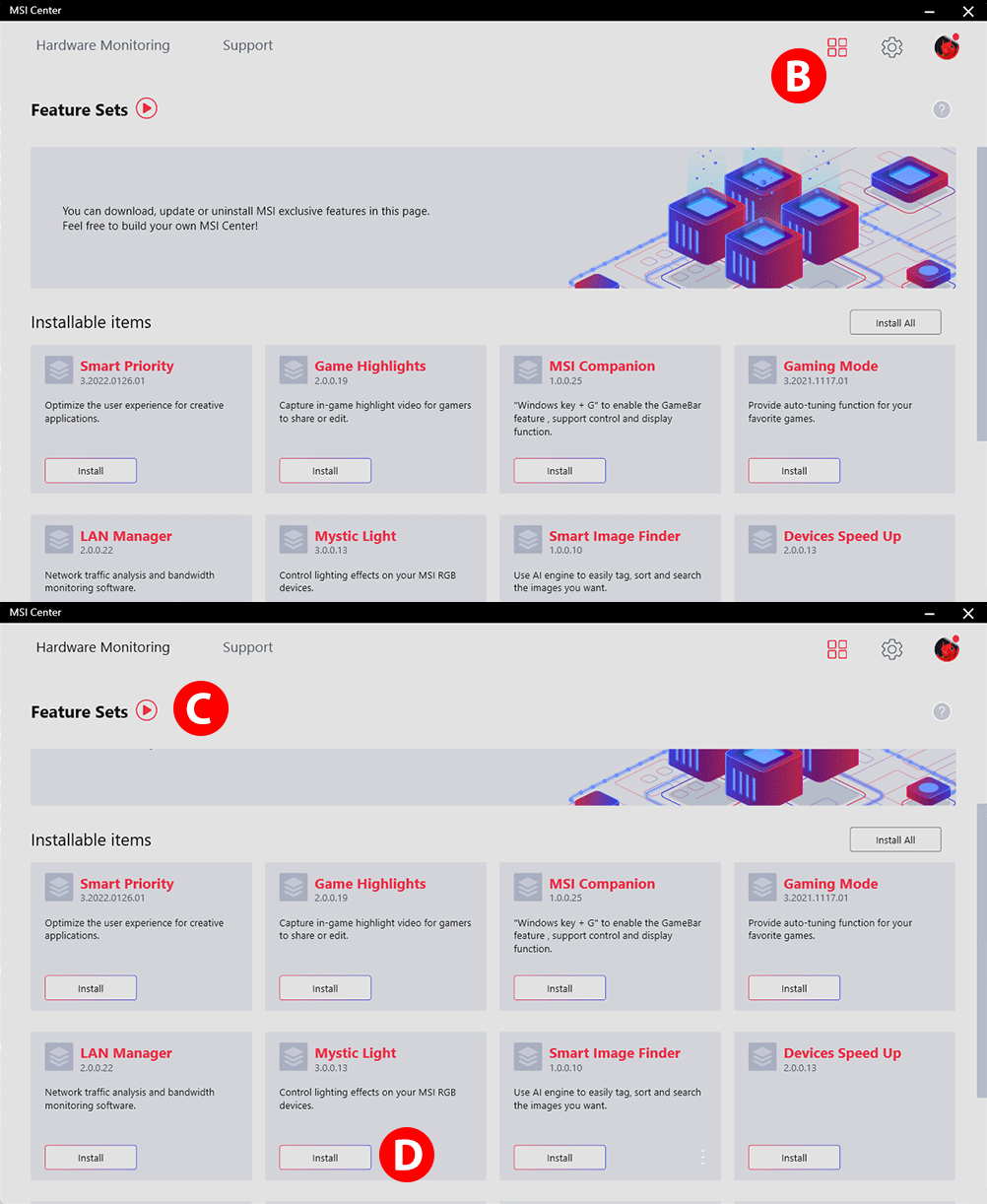
Step 1: DOWNLOAD
- ADownload MSI Center software (or applicable software) HERE, , or from the Support Tab of MSI product page. Install and reboot your system.
- BLaunch MSI Center. Click “
 ” at the right top side to active the Feature Set.
 - CClick Features Sets Tab and find the “Mystic Light” faqCard.
- DClick Mystic light "Install" icon to set the Mystic light in place.
Step 2
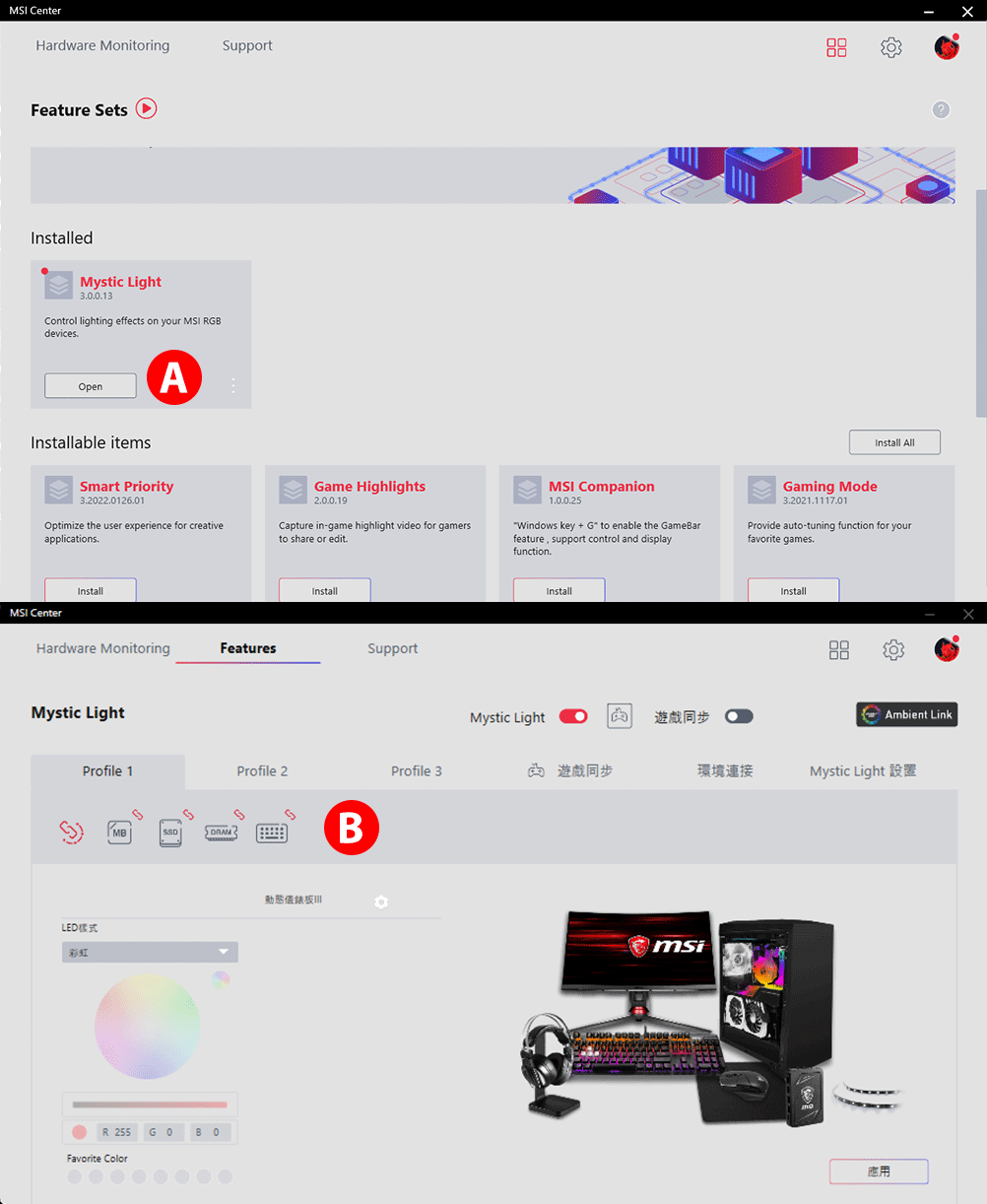
Step 2: DETECT
- AOpen Mystic Light in the "Installed" section to enter the utility.
- BA list of auto-detected products will be displayed on the top of the control panel.
Step 3
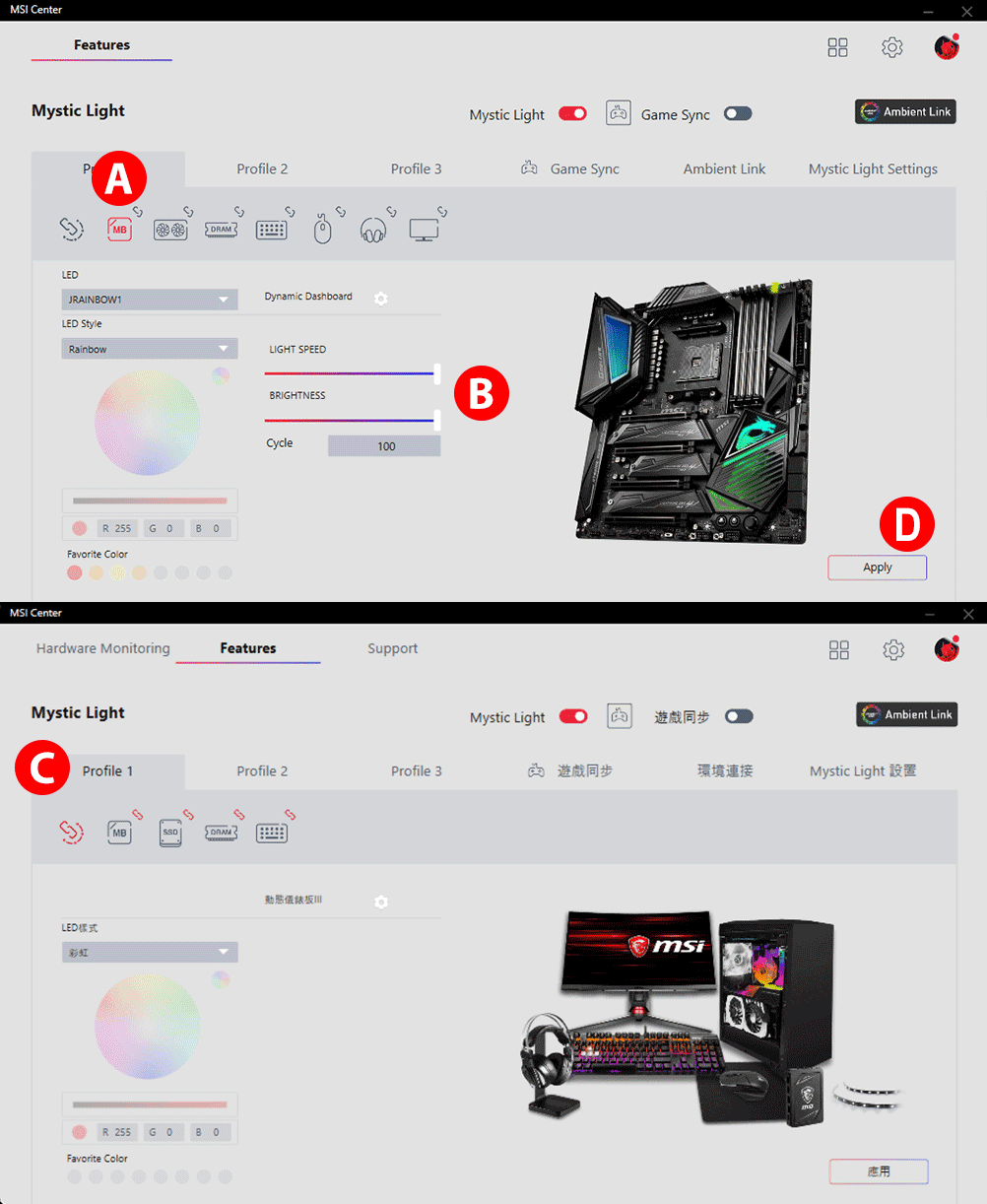
Step 3: CUSTOMIZE
- AClick the product icon on top to change RGB LED light for each product.
- BSelect any LED style, color, effect, light speed or the brightness you prefer, and click “Apply” button to save your preference.
- CRGB PC Lighting Sync: Click the big chain icon in the upper left corner, you may sync RGB LED light effect to all product. The light effect is still adjustable as previous step.
- DYou can also change settings for single product. To do that, click the red chain icon under the product icon and turn the chain color to gray. The broken-chain icon indicates the product is not synchronized.
FAQ
What is Mystic Light?
MYSTIC LIGHT software is an all in one RGB software solution application, which users can either download from MSI website or via MSI Center (Please refer to download page of your product), that allows you to control RGB LED light effects of MSI & partner products.
What is Mystic Light Sync?
What is Mystic Light Extension?
Mystic Light Extension is a feature of Mystic Light software which allows user to control colors and effects of partner’s product such as RGB LED Strips, RGB PC Fans or RGB PC Case via on-board JRGB / JRainbow / JCorsair pin header.
- JRGB (4-Pin / PIN-definition: 12V/G/R/B): The JRGB pin header provides up to 3A (12V) power supply for non-addressable 5050 RGB LED solution showing single color.
- JRAINBOW (3-Pin / PIN-definition: 5V/D/-/G): The JRainbow pin header provides up to 3A (5V) power supply for addressable WS2812 RGB LED (ARGB) solution showing rainbow color.
- JCORSAIR (3-Pin / PIN-definition: 5V/D/G): The JCorsair pin header provides up to 3A (5V) power supply to Mystic Light software compatible CORSAIR devices.
What is Portal X?
Portal X is a newly developed interface that allows users to quickly and easily configure MSI products through a web-based platform. It currently supports lighting control for MSI motherboards, MSI graphics cards, and most memory modules. (If you are using MSI Center at the same time, we recommend you to update MSI Center to version 2.0.61.0 or newer version for better experience.)
What is RGB motherboard?
The motherboard which has on-board RGB LED and Mystic Light Extension pin header, also is capable of showing multiple colors and effects.
What is Voicemod Sync?
Voicemod Sync is a new MSI Mystic Light feature that allows the control of RGB lighting and Voicemod functionality within the MSI Center interface. Streamers can also sync a different RGB lighting effect with each voice effect.
What RGB fans works with MSI Mystic Light?
Check the Compatible Product in this website and select the compatible model you want.
How to detect my pc components showing in the Mystic Light Software?
First of all, make sure you are using MSI certified products and connecting those products to MSI RGB motherboard. After that, it will show up in the software device icon tab automatically. If not, please follow the steps as below,
- Make sure the device is correctly connected to your system. Unplug and re-plug it if necessary.
- If the step 1 does not work, close and restart Mystic Light software.
- If the step above does not work, restart your system and restart Mystic Light software.
Can I Sync the RGB lightings of Ambient Devices such as Nanoleaf light panels and Philips Hue together with MSI device?
Yes, MSI has created 9 exclusive preset lighting effects in the “Ambient Mode” tab of MSI Mystic Light, you can access on the default light effects without other additional set up.
Since those MSI exclusive effects are presetting, if you’d like to do customize set up on the Ambient Device, please check on MSI Center App.
How to sync CORSAIR DRAM, CPU Cooler or the other components and perpherials with MSI Motherboard?
Connect all Cosrair devices to proper connectors (ie. DRAM to DIMM slot, Fan to JCORSAIR pin or USB header), then control them via Mystic Light software.
Please note that conflict might occur between Mystic Light software and other lighting control software.
Make sure other software is close or uninstalled.
Please note that conflict might occur between Mystic Light software and other lighting control software.
Make sure other software is close or uninstalled.
Which MSI products can support Voicemod Sync?
All MSI products that support Mystic Light also support Voicemod Sync.
*Notebook does not support the Voicemod Sync feature.
How to turn off Mystic Light?
Switch all detected components or peripherals to sync mode and choose “OFF” light effect.
How to update MSI Mystic Light?
You may scan / update Mystic Light software via MSI Center software.
(Please refer to software manual for detail procedure).
(Please refer to software manual for detail procedure).
Is there other solution to control RGB lights without opening MSI Center?
Try MSI Portal X — a new web-based lighting control platform that lets you adjust colors and effects directly through your browser (learn more)
What's the difference between Mystic Light and Portal X?
Here’s a comparison table to help you quickly understand the differences between Portal X and the Mystic Light Utility in MSI Center, and determine which one is more suitable for you.
Portal X
Mystic Light
Features
- Browser interface
- Low system load
- Limited lighting control – support MSI motherboards, graphics cards and memory modules
- After the initial installation, no additional updates are required — always runs the latest version online.
- Application
- Loading time depends on how many utilities are running simultaneously
- Full lighting control – supports all MSI products and third-party partners devices
- Lighting synchronization with third-party software, such as Ambient Link and Voicemod
- Periodic downloads and updates are required to improve compatibility
Target group
- Recommended for users who want a quick and easy way to control lighting effects and colors.
- Recommended for users who have multiple lighting devices and components in the PC build and enjoy fine-tuning lighting effects.
How to install RGB LED strips in pc?
Steps:
- Check what kind of the RGB LED strips it is and find the matched pin-header on MSI Motherboard.
Note: There are 3 types of pin headers on MSI Motherbaord. - A JRGB (4-Pin): The JRGB male header is for non-addressable 5050 RGB LED strips which shows in single color.
- B JRAINBOW (3-Pin): The JRAINBOW male header is for addressable WS2812 RGB LED (ARGB) which shows in rainbow color.
- C JCORSAIR (3-Pin): The JCORSAIR male header is for Mystic Light software compatible CORSAIR devices.
- Connect the RGB LED Strips header to the correct RGB LED header on the motherboard. You can also extend the length of the LED strips by connecting other LED strips with the connector to decorate your RGB gaming pc. Or just leave it as the way you like.
- Use MSI Mystic Light software to control the lights.
How to change the RGB LED strips lighting?
Go to Motherboard icon tab in Mystic Light software and locate the matched pin-header option, then just simply adjust the light as you want.
How to Set up Voicemod Sync?
First, open the Voicemod app, then launch MSI Center. Next, install Mystic Light within MSI Center.
Your system should display the "Voicemod Sync" tab within Mystic Light automatically.


