Are QD-OLED Monitors Worth it?
Monitors
Although QD-OLED monitors offer an unparalleled visual experience, you’ll often encounter concerns from users and reviewers about using QD-OLED monitors. In this article, we’ll openly explore potential issues with QD-OLED panel technology, and how a mix of care and intelligent software features can mitigate them effectively!
Concerns About QD-OLED / OLED Panel Technology
So, why exactly are people worried about QD-OLED or OLED monitors?
One of the chief causes of this worry is the possibility of permanently damaging your brand-new device just by using it like a regular display.
How? Burn-in.
Whenever anyone reviews or talks about OLED panels, it’s impossible to avoid that term. It’s a downside to OLED technology that makes people understandably apprehensive.
That said, it’s something that can be managed quite effectively with the right mix of features and care. What’s more, considering visual experience on offer, taking a lot more care of your monitor is worth it for gamers who want the very best in display technology.
What is Burn-in?
However, before you can prevent burn-in, it’s important to understand what exactly it is and what causes it.
Burn-in on an OLED or QD-OLED screen is a visible, faded remnant of an on-screen element that persists (stays on screen) regardless of the content on your display. A simple way to understand this is that a part of a frequently displayed image becomes permanently burnt into your monitor.
A good example is the Windows Taskbar or a news ticker (as shown below).
However, this damage can be minimized and delayed to an extent with a blend of good practices and some software features.
What Causes Burn-in?
One of the most common causes of burn-in is having persistent elements on the screen stay on for too long. OLED and QD-OLED monitors use OLEDs or Organic Light Emitting Diodes to emit light.
If an element stays on-screen for an extended period of time at high brightness levels on an OLED panel, it has a tendency to degrade (as seen in the image above) the lit area. Some burn-in is temporary and can be fixed with panel refresh features. However, past a certain point of no return, the panel damage CAN become permanent.
Heat, which is nearly unavoidable in electronic devices like monitors, is another factor that can quickly degrade an OLED panel.
Preventing Burn-in and Panel Damage: Yes, It’s Possible
No technology is perfect, and that holds true for QD-OLEDs as well.
However, with some clever hardware and software engineering, we can manage burn-in and protect these QD-OLED panels quite effectively!
MSI’s OLED Care 2.0: Designed for Your Peace of Mind
Efficient Heat Management: Heat is Bad; Very Bad
As we mentioned above, high levels of heat for extended periods of time can degrade OLED panels quickly. What’s more, increasing brightness will inevitably raise heat levels.
But simply adding a fan into the mix will add another source of noise that’s just not pleasant for most users.
That’s where MSI’s decades of experience designing smart thermal solutions comes in handy! Our range of QD-OLED monitors are equipped with a graphene film that acts as a heatsink to protect the OLED panel – allowing for much higher brightness without the risk of degradation.
Protecting Your Gorgeous QD-OLED Panel from Burn-in with Smart Features
MSI’s QD-OLED monitors come equipped with OLED Care 2.0 – a range of features to help protect your screens and prolong their life substantially.
- Pixel Shift: Moves pixels around the screen at set intervals (intervals are customizable). This allows for new images to rotate into previously static display areas, which helps minimize burn-in.
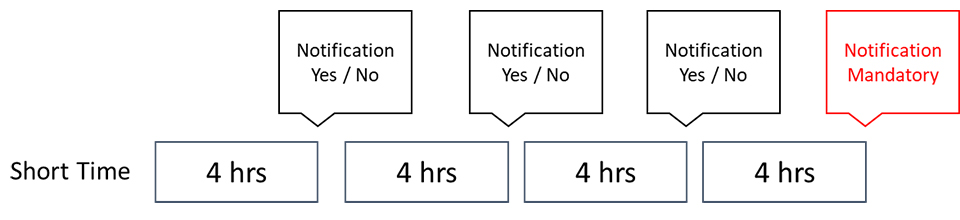
- Pixel/Panel Refresh: From time to time, you can opt to refresh your panel quickly (Pixel Refresh) or more thoroughly (Panel Refresh). OLED Care will notify users if your monitor has been in use for 4 continuous hours (can be declined up to 3 times) to start a quick Pixel Refresh.
- Static Screen Detection: If OLED Care 2.0 detects static elements on the screen for a set period of time, the monitor will automatically reduce brightness in those areas to prevent burn-in. This duration can be set by you in the monitor’s OSD menu.
- Boundary Detection: When consuming content like videos, you might’ve noticed black bars above and below it. OLED Care 2.0 automatically detects these black bars and dims luminance near the border. If the black bars are to the left and right of the content, a Pixel Shift will be performed instead.

- Taskbar Detection: There’s always a taskbar on your screen if you’re staring at your desktop or using desktop apps regularly. OLED Care 2.0 automatically detects the taskbar and dims luminance in that area to prevent burn-in.
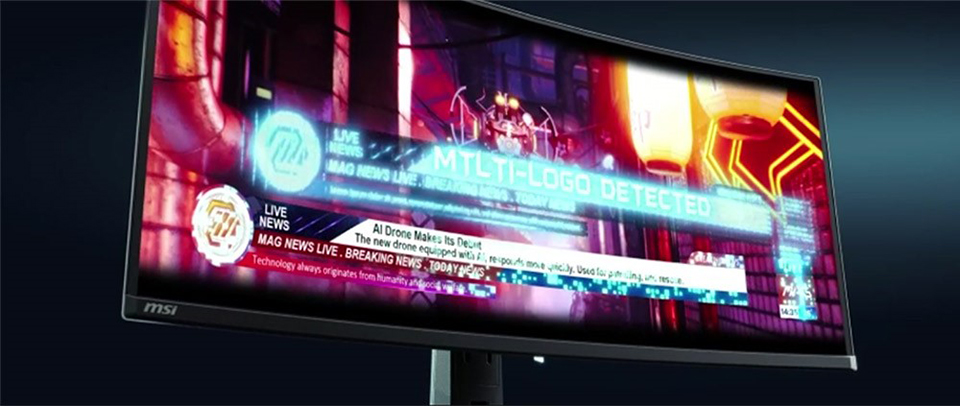
- Multi-Logo Detection: Static logos for content that’s on your screen quite often can also cause burn-in. OLED Care 2.0 can detect these logos (multiple on a screen) and dim brightness to protect your panel.
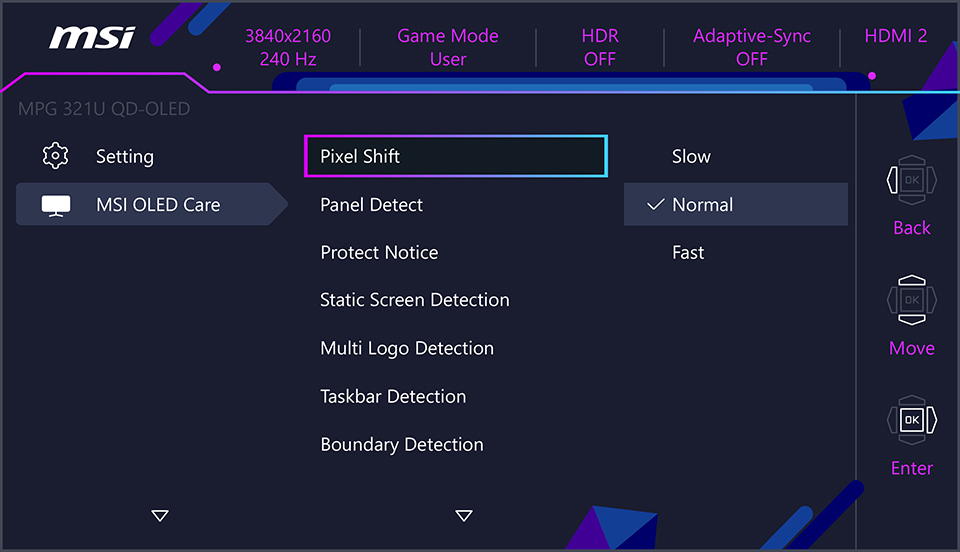
For OLED monitors, the MSI OLED Care function that is always on by default has been delayed, turned off, or otherwise rendered inoperable.
There are 2 level on the table: OLED Care 1.0 and 2.0, and honestly there is no OLED Care 1.5 definition officially because OLED Care 1.5 is the function already include 1.0 but doesn’t all the function to reach 2.0.
Standard 3-Year Warranty!
Although the OLED Care 2.0 software features do quite a bit to prevent any damage to your monitor, peace of mind can still pose an issue if you’re constantly worried.
However, to show our users that we aren’t worried, we’ll be offering a Standard 3-Year Warranty for all our QD-OLED monitors in ALL* regions. For example, if the standard MSI monitor warranty in your area is typically 2 years, we’ll be offering 3-year coverage for your MSI QD-OLED monitor at no extra cost.
*Some regions are excluded. Please find the list of excluded regions here.
Extending the Lifespan of Your QD-OLED Monitor
In addition to our OLED Care 2.0 features, there are several good practices you can follow to minimize the risk of burn-in and extend the lifespan of your QD-OLED monitor.
- Hide the Taskbar and Desktop icons: Hiding any elements that stay on your screen for too long is one of the best ways to avoid burn-in.
- Move elements around often: Moving any ‘constantly on-screen’ elements is another good way to prevent burn-in. For example, if you often open up web pages on the left side of the monitor, with the other half occupied by another app – swap them from time-to-time.
- Use a true black wallpaper: Since OLED pixels basically switch ‘off’ when displaying true black colors, a black wallpaper ensures that your monitor is effectively off even when you’re looking at your desktop.
- Turn them off: We often leave our LCD monitors on, and let them sleep automatically. However, with OLED and QD-OLED panels, it’s a good idea to turn OFF your monitor when you’re done using it to protect your monitor.
- Avoid heat sources near your workspace: As we’ve covered above, heat is bad for your QD-OLED panel. Make sure your brand-new monitor isn’t sitting close to any heat sources (including direct sunlight).
Lastly, enjoy your monitor! MSI’s warranty and OLED Care 2.0 features are designed with a singular goal in mind – allowing you to experience a stellar visual experience without apprehension.
Upgrade to an MSI QD-OLED Monitor!
Whether your space needs a large, ultrawide monitor or can only accommodate a 27” flat panel, MSI’s QD-OLED monitor lineup has the best options for your setup. Here's a breakdown of some of their latest models categorized by usage scenarios:
Limited Desk Space:

- MPG 271QRX QD-OLED
- MAG 271QRX QD-OLED
For those with limited desk real estate, both the MPG 271QRX QD-OLED and MAG 271QPX QD-OLED offer exceptional performance in a compact 27-inch design. Packing a punch with a WQHD resolution (2560x1440), they deliver stunning visuals without overwhelming your graphics card. Since both boast an ultra-fast 360Hz refresh rate, you'll experience silky smooth gameplay in even the most fast-paced titles.
All-Around Gaming:

- MAG 341CQP QD-OLED
- MPG 321URX QD-OLED
- MAG 321UPX QD-OLED
For a more immersive gaming experience, these curved and flat 32-inch and 34-inch monitors offer excellent picture quality with a UWQHD (341CQP) or UHD (321URX, 321UPX) resolution. The flat MPG 321URX and MAG 321UPX boast a super-fast 240Hz refresh rate for smooth gameplay. The curved MAG 341CQP might be ideal for those who prefer a more wraparound viewing experience, while the MPG 321URX flat panel might be better suited for creative work that benefits from clean lines. Both MAG 321UPX and MAG 341CQP are more traditional flat panels offering great all-around performance.
Live Streaming and Content Creation:

- MPG 491CQP QD-OLED (CES 2024 Innovation Award Winner)
This behemoth of a monitor boasts a super wide DQHD resolution (5120x1440) stretched across a 49-inch display, offering an incredible amount of screen real estate. With a 144Hz refresh rate, it provides a good balance between high resolution and smooth visuals. This curved monitor is a perfect choice for streamers and content creators who need tons of space to display multiple windows and applications simultaneously while maintaining excellent image quality.
Want to find out more about these monitors and pick the best one possible? Head on over to our GO BORDERLESS page where you’ll learn more about QD-OLED monitors.