Why Is It So Hard to Find a Good External Monitor for MacBook?
Monitors
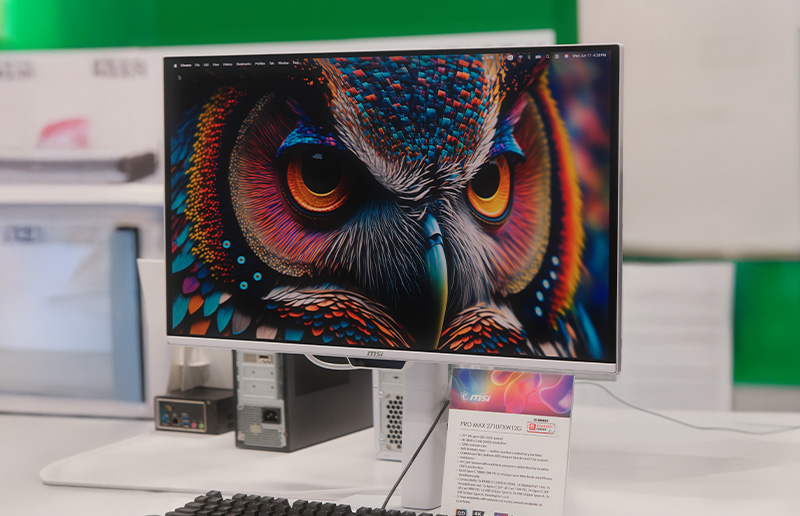
Buying an external monitor for a MacBook should be simple. You do the research, pick something with good reviews, plug it in — and something feels wrong. The colors are off. Text doesn’t look as sharp. Brightness requires hunting for a physical button on the back of the panel. You’re running two cables where you expected one.
This isn’t a hardware defect. It’s what happens when a monitor built for general use meets a platform with specific expectations. MacBooks are tuned to a particular color science, control paradigm, and cable ecosystem — and most external monitors weren’t designed with any of that in mind.
Problem 1: Color Mismatch Between Your MacBook and External Monitor
MacBook displays are calibrated to Display P3 — the wide color space Apple uses across its entire lineup. Connect a standard external monitor and the difference is immediately visible: colors shift between the two screens, leaning washed out, oversaturated, or tinted depending on the monitor’s default preset.
For casual use, it’s an annoyance. For photography, design, or video work, it undermines the display entirely — you’re editing on a screen that doesn’t reflect what your output actually looks like. Manually digging into the OSD to find a closer color mode is imprecise and rarely gets you to true consistency.
Problem 2: External Monitors Don’t Respond to Mac Keyboard Controls
On a MacBook, brightness and volume are a single key press. Connect an external monitor and those keys still work — but only for the laptop. Adjusting the external display means reaching behind the panel, finding the right button, and navigating an OSD menu. Every time. Some monitors offer software utilities, but they’re typically Windows-only or unreliable on macOS.
Problem 3: Text Sharpness on External Monitors Falls Short
MacBook displays are dense enough that pixels disappear at normal viewing distance. Most external monitors aren’t. A typical 27-inch 1440p panel sits at around 109 PPI. Even 4K gets you to roughly 163 PPI — an improvement, but still a visible step down for users accustomed to a MacBook’s built-in screen.
OLED adds another layer to this. Early QD-OLED panels had a subpixel arrangement that made text appear slightly softer than IPS at the same resolution, and showed a purple tint in dark scenes. For anyone spending most of their time in documents, browsers, and code editors, this matters more than peak brightness or refresh rate.
Problem 4: OLED Burn-In Risk Is Real and Mostly Unmanaged
OLED is the most visually impressive panel technology available, but it’s susceptible to image retention when static elements sit in the same position for long periods. The macOS menu bar, the Dock, persistent app toolbars — these are exactly the kinds of elements OLED panels need protection from. Most monitors handle this with basic pixel-shifting routines or refresh cycles that require manual management, or that interrupt work at the worst times. Many Mac users end up avoiding OLED entirely because of it.
Problem 5: USB-C and Multi-Device Setups Are Messier Than They Should Be
MacBooks run on USB-C, but most external monitors complicate this. Some cap power delivery at 65W — not enough for a MacBook Pro under load. Others need a separate video cable on top of power. Add peripherals and you’re running a hub off a hub. For users juggling a personal Mac, a work laptop, and an iPad, every device switch means manually rearranging cables and peripherals.
These five problems aren’t unsolvable. They’re just rarely all addressed by the same monitor. The MSI PRO MAX 271UPXW12G was designed specifically for MacBook users. Here’s how it handles each one.
Fix 1: M-Color Mode Syncs the Monitor to Your MacBook’s Color Profile
The PRO MAX ships with the MSI M-Mate app — a macOS companion that gives you direct software control over the display. M-Color Mode syncs the monitor’s color profile to match your MacBook automatically. The two screens look consistent without manual calibration.
Setup is two steps: disable True Tone in your MacBook’s display settings, switch the monitor’s preset to Display P3. Done. The panel supports 99% Display P3, 97.5% Adobe RGB, Delta E ≤ 2 across all major color modes, and Pantone Validation in sRGB, Adobe RGB, and Display P3 — color accuracy that holds up in professional creative workflows.
Note: The M-Mate app is planned for Q2 2026.
Fix 2: M-Sync Maps Brightness and Volume to Your Mac Keyboard
Enable M-Sync in the M-Mate app over USB-C and your Mac’s native keyboard shortcuts control the monitor directly. Brightness keys adjust the display. Volume keys drive the built-in speakers. No OSD, no reaching behind the panel — it works exactly like controlling the MacBook’s built-in screen.
Fix 3: 166 PPI 4K QD-OLED Matches MacBook-Level Text Sharpness
The PRO MAX uses a 4th-generation 27-inch 4K QD-OLED panel at 166 PPI — the pixel density that finally makes an external OLED display feel like a natural extension of a MacBook screen rather than a visible step down. Built on QD-OLED Penta Tandem technology, the panel delivers 1000-nit peak HDR brightness and absolute blacks with 30% better light efficiency than the previous generation.
MSI’s DarkArmor Film eliminates the purple tint issue from earlier QD-OLED panels, adding 40% deeper blacks and 2.5x more scratch resistance. VisiClarity anti-glare keeps the display readable in bright rooms and near windows — a practical consideration for any home office or studio setup.
Fix 4: OLED Care 3.0 Runs Burn-In Protection Automatically
OLED Care 3.0 handles panel protection entirely in the background. The AI Care Sensor — a CMOS sensor driven by an NPU chip — scans the environment every 0.2 seconds, distinguishing a person at the desk from objects left behind. No images are stored; visual data is converted to binary signals on-device.
With the sensor active, the monitor wakes when you sit down, dims and powers off when you leave, and adjusts brightness and color temperature based on ambient conditions. Multi-Icon Detection, Taskbar Detection, Pixel Shift, and Static Screen Detection run continuously to reduce luminance on static UI elements before retention develops.
The mandatory panel refresh cycle extends to 24 hours — up from 16 on previous-generation MSI QD-OLEDs — and triggers automatically during standby or power-off. A single reminder appears 30 minutes before. In practice, it almost never interrupts your work.
Fix 5: One USB-C Cable Handles Everything — and Built-In KVM Manages the Rest
A single USB-C connection to the PRO MAX delivers 98W power delivery, 4K DisplayPort signal, high-speed data transfer, and firmware updates simultaneously. A second USB-C port charges an iPhone or iPad at 15W. One cable in, no dongle required.
For multi-device setups, built-in 3-device KVM lets you connect a MacBook, Mac Mini, and PC and switch between all three with a single keyboard and mouse — no separate KVM hardware, no cable juggling. Full port selection includes HDMI 2.1 × 2 (48Gbps), DisplayPort 1.4a, USB-C × 2 (98W/15W PD), USB-A × 4, USB-B, and headphone out.
Everything Else Worth Knowing
The PRO MAX 271UPXW12G ships in a minimalist pure-white finish with a fully adjustable stand: 0–150mm height, ±30° swivel, -5° to 20° tilt, ±90° pivot for portrait mode. VESA Kit available for monitor arm mounting. HDMI 2.1 with VRR and ALLM supports 4K 120Hz for console gaming alongside the Mac setup. Built-in speakers, TUV-certified hardware-level blue light reduction, flicker-free certification, and a Color Vision Deficiency mode with three adjustable settings round out the feature set.
Quick Reference
Problem
MSI PRO MAX Fix
Color mismatch with MacBook
M-Color Mode syncs to Display P3 automatically
No Mac keyboard control
M-Sync maps brightness & volume to keyboard keys
Soft text on external OLED
166 PPI 4K panel, DarkArmor Film for crisp rendering
OLED burn-in risk
OLED Care 3.0 + AI Care Sensor, 24-hr refresh cycle
Cable clutter and multi-device juggling
98W USB-C single cable + built-in 3-device KVM
The MSI PRO MAX 271UPXW12G is available now. Visit https://us.msi.com/Business-Productivity-Monitor/PRO-MAX-271UPXW12G/Overview for more information.
Apple®, Mac®, and MacBook® are registered trademarks of Apple Inc. MSI and its products are not affiliated with Apple Inc. in any way.