How MSI OLED CARE prevents OLED from burn-in
Monitors
The primary concern for everyone regarding OLED panels is the risk of burn-in. If properly cared for, the risk of burn-in on OLED panels will be significantly decreased. This blog release introduces MSI OLED CARE, which is a simple tool to help you maintain your OLED monitors.
Why does OLED burn-in and how to decrease the chances of it occurring?
OLED burn-in occurs when a static image is uninterrupted on an OLED panel for an extended period, usually at peak brightness, causing degradation of the organic materials used in the manufacturing of these types of panels. The resulting burn in effect shows up as ghosting of the static image even when the static image has changed. The main way to prevent burn-in is to make sure that there are no static images or elements on the screen, and to adjust peak brightness levels when not necessary.
How MSI OLED Care Protects Your OLED Monitors
MSI OLED CARE contains several functions. All features of MSI OLED CARE aim to prevent the behaviors mentioned above and can easily be accessed through the MSI Gaming Intelligence APP or the OSD menu of your compatible MSI OLED monitor.
*All the MSI OLED Care settings on and off in the OSD menu or Gaming Intelligence, won’t affect the warranty.


1. Pixel Shift
As the name suggests, Pixel Shift moves the pixels of the screen at regular intervals. When the pixel is
moved, the images would not be shown in the same position thus preventing a static image. The interval of Pixel Shift can be adjusted according to your needs as it offers three preset intervals: slow, normal, and fast.
2. Panel Protect
*From June 2025, MSI started to release the firmware to extend the refresh interval to 24 hours, ensuring greater flexibility while maintaining the panel’s exceptional durability.
Panel Protect is a feature designed to maintain the OLED panel of your monitor, ensuring its longevity. Panel Protect is doing Pixel Refresh, a key aspect of protecting OLED screens, which is automatically activated if the screen is active for more than 4 hours. The system will remind us time to do Pixel Refresh. We can skip doing Pixel Refresh until we continuously 24 hours of usage and the system will force us to do Pixel Refresh for the health purposes of the OLED panel.
Don’t worry about the notification bothering us. When we receive the first notification, we can choose to postpone it, and the notice won't reappear until the monitor has been used for over 24 hours. Once this is exceeded, the notification will reappear, prompting you to perform a mandatory pixel refresh. The Protect Notice feature is set to "Usage 24hrs" by default. Alternatively, you can switch it to "Auto" mode. When set to Auto, the monitor will automatically remind the user to perform Panel Protect every 4 hours of usage.
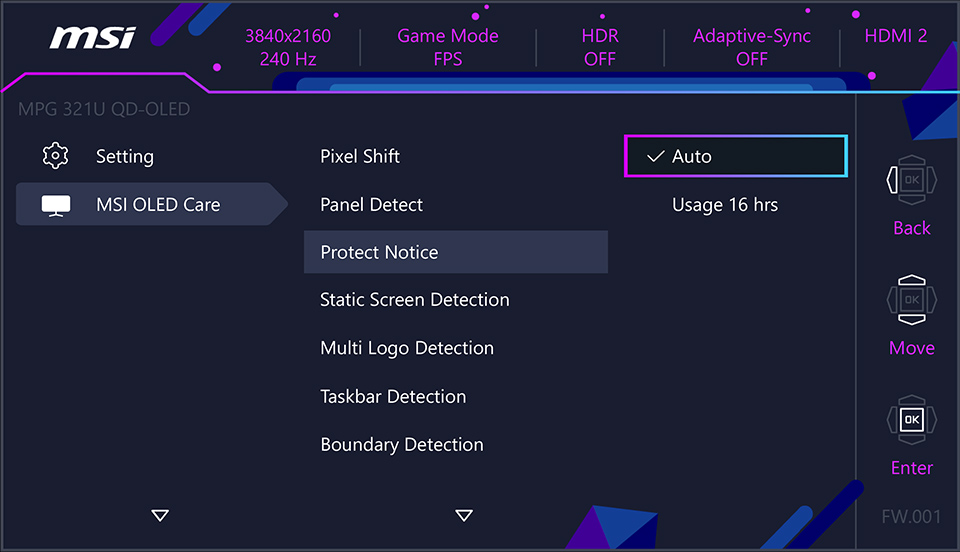
Choose Usage 24 hours, the notice will only show up until 24 hours of usage.

Once the notification pops up, we can click “later” to skip the notification.
(Photoed on MEG 342C QD-OLED)
(Photoed on MEG 342C QD-OLED)
Additionally, when we use the monitor for more than 4 hours, MSI OLED Care enables the monitor to automatically do Panel Protect when it enters standby mode after being inactive for 10 minutes, or do Panel Protect immediately when we turn off the monitor. This means that, in general, you won't need to interact with notifications as the system takes care of the maintenance process automatically.
* Leave the monitor turned on during the process.
* Users can manually activate Panel Protect at any time for image optimization.
* This protection function may take several minutes to complete.
* The power indicator will blink orange color until the process is done.
* While executing, please do not unplug the power cord from the monitor.
* While executing, press the power button again to cancel this function.
How Protect Notice Works


* MEG 342C QD-OLED and MAG 341CQP QD-OLED need firmware updates to get the above Protect Notice.
Long time Panel Protect (MEG 342C QD-OLED only)
When doing long-time Panel Protect, it is doing a panel refresh. This function will be activated if the
screen time exceeds 1500 hours. The protection system will notify you whether you want to do the
panel refresh or not. You can skip it, and after 24 hours of usage, the monitor will mandatorily do the
panel refresh.
Like above, MSI OLED Care enables us to skip the notification. Once we skip the notification, it won’t show up every 4 hours until mandatorily one.
* Leave the monitor turned on during the process.
* Users can manually activate Panel Protect at any time for image optimization.
* This protection function may take an hour to complete.
* The power indicator will blink white color until the process is done.
* You may see a line scrolling on the screen during the process, which is normal and not a malfunction.
* While executing, please do not unplug the power cord from the monitor.
* While executing, press the power button again to cancel this function.
We are impossible to remember the time which we have used. Not only does the notification remind us, but also there is detailed information on the monitor status which we can check in the OSD menu. OLED Panel Info has recorded the time that we have used. As we can see in the following image, "2, 0h 7m" indicates that 2 Panel Protect has been performed, and the current accumulated usage time after doing Panel Protect is 0 hours and 7 minutes.

3. Static Screen Detection
Static Screen Detection functions by detecting on screen moving visuals. If this function detects that there are static images or elements on the screen for a set period, the monitor will automatically reduce brightness. As soon as it detects the movement, the monitor will restore the original set brightness. The duration of time before brightness adjustment and brightness level can be easily tuned within the OSD menu to best cater to the user’s needs.
The above features are MSI OLED Care 1.0. With the upcoming MSI QD-OLED Gaming Monitors, MSI is introducing additional features against burn-in for the following scenario. As mentioned earlier, the primary cause of burn-in is the combination of high brightness and static images. MSI OLED Care 2.0 will automatically detect and reduce the luminance of specific static objects, thereby preventing the monitor from experiencing burn-in issues.
1. Boundary Detection
When watching movies or streaming media, we may have noticed the presence of two black bars at the top and bottom of the screen. This occurs because the monitor typically has an aspect ratio of 16:9, while many movies use wider aspect ratios such as 2.35:1 or 2.39:1. Consequently, extended viewing under these conditions can elevate the risk of burn-in along the border areas. Likewise, the appearance of black bars on the left and right sides can also contribute to an increased risk of burn-in.

To prevent burn-in, MSI OLED Care2.0 will detect the border of black bars and reduce the luminance near the border. Moreover, when black bars are left and right sides, the monitors will do Pixel Shift to move the pixel.

Have you ever used the split screen feature on your PC? It's incredibly convenient when you need to handle multiple tasks simultaneously. But there is a factor that may cause burn-in, there is always a static line between windows and windows. We're well aware of the adverse effects of static images persisting on OLED displays for extended periods. To mitigate this risk, MSI OLED Care 2.0 will reduce the luminance near the split lines, aiming to decrease the likelihood of burn-in caused by these static lines.

2. TaskBar Detection
Regardless of whether we’re using a Mac or Windows, there's always a taskbar that is at the bottom of the screen. Some users choose to hide the taskbar to decrease the risk of burn-in. Now we offer another way to prevent the taskbar from becoming a static image. With MSI OLED Care2.0 the taskbar will automatically detected, and when identified, the luminance surrounding the taskbar will be reduced.
3. Muti Logo Detection
Static images are also commonly seen in logos, particularly on news channels where a persistent banner appears at the bottom of the screen. MSI OLED Care2.0 will detect the static logos and decrease the luminance of the logo around.

MSI OLED Care2.0 Functions List
Model
Boundary Detection
TaskBar Detection
Multi-Logo
MPG 321URX QD-OLED/
MPG 271QRX QD-OLED
MPG 271QRX QD-OLED
O
(With Additional Pixel Shift)
(With Additional Pixel Shift)
O
O
MAG 321UPX QD-OLED/
MAG 271QPX QD-OLED
MAG 271QPX QD-OLED
O
(With Additional Pixel Shift)
(With Additional Pixel Shift)
O
O
MPG 491CQP QD-OLED
O
(Non-VRR condition)
(Non-Vertical Split)
(Non-VRR condition)
(Non-Vertical Split)
O
(Non-VRR condition)
(Non-VRR condition)
O
(Non-VRR condition)
(Non-VRR condition)
MAG 341CQP QD-OLED
O
(Non-VRR condition)
(Non-VRR condition)
O
(Non-VRR condition)
(Non-VRR condition)
O
(Non-VRR condition)
(Non-VRR condition)
For more details to learn about QD-OLED
https://www.msi.com/blog/what-is-qd-oled-what-is-the-difference-with-lcd
https://www.msi.com/blog/what-is-qd-oled-what-is-the-difference-with-lcd