How to upgrade your home office desktop to Windows 11 24H2?
All-in-One PCs ,
Desktops
Microsoft released Windows 11 24H2 in October 2024, bringing a host of new features that are reshaping the way we work. While some AI-exclusive features, such as those tied to Copilot+, may not yet be accessible to everyone, the update includes several valuable enhancements to improve the PC experience. Key improvements include advanced security features, a more powerful Copilot, and seamless smartphone integration. With this update, connecting your smartphone or tablet to your PC is easier than ever.

Effortless Smartphone Connectivity with Windows 11 24H2
Smartphones have become essential in our daily lives. We rely on them for taking notes, capturing photos, and recording important messages. After work or during the day, we often need to save or organize this data on a desktop PC. With the Windows 11 24H2 update, Microsoft has made this process seamless by integrating a feature that wirelessly connects your smartphone to your PC, eliminating the need for cables.
Stay Connected and Focused at Work
In the office, we often set our smartphones to silent mode and leave them on the desk to minimize distractions. However, this can lead to missed messages or phone calls. Microsoft’s Phone Link app addresses this issue by syncing your smartphone’s notifications, messages, and calls directly to your PC. This means you can manage messages, check notifications, and even make calls without having to pick up your phone, allowing you to stay focused on your tasks.
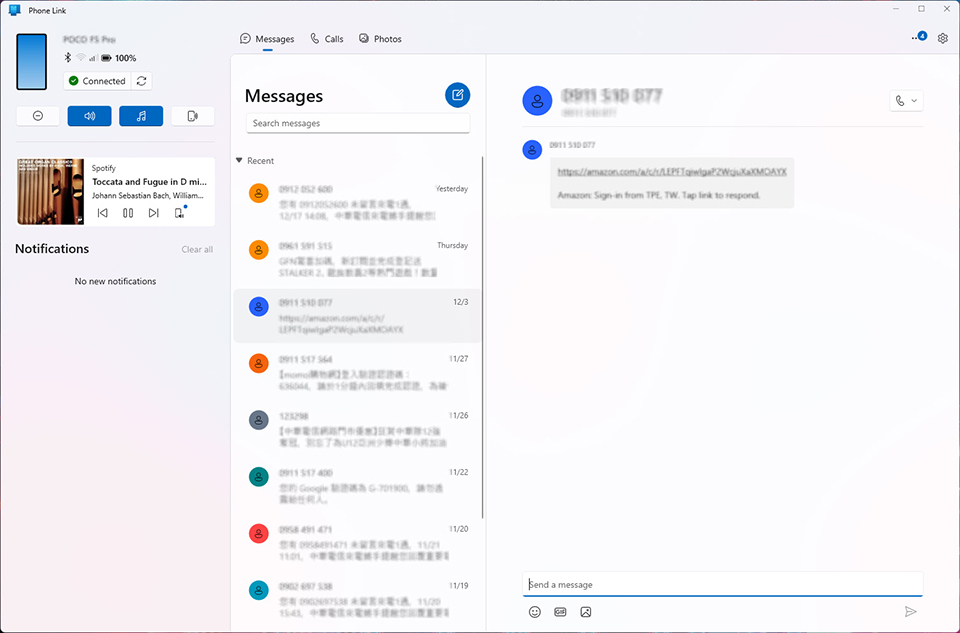
Never Miss Important Messages or Notifications - With the Phone Link function, you won’t miss any critical messages or notifications while staying focused on your tasks. All notifications sync seamlessly and display directly on your PC, keeping you informed without breaking your workflow.
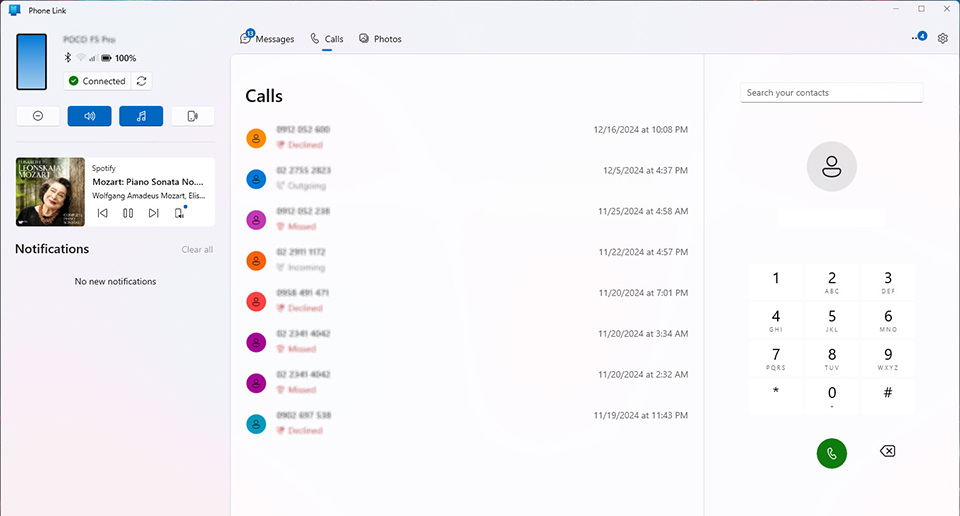
Handle Phone Calls Effortlessly - Phone Link ensures you never miss a phone call. Call notifications appear on your desktop PC, allowing you to answer them directly from your computer without needing to pick up your phone.
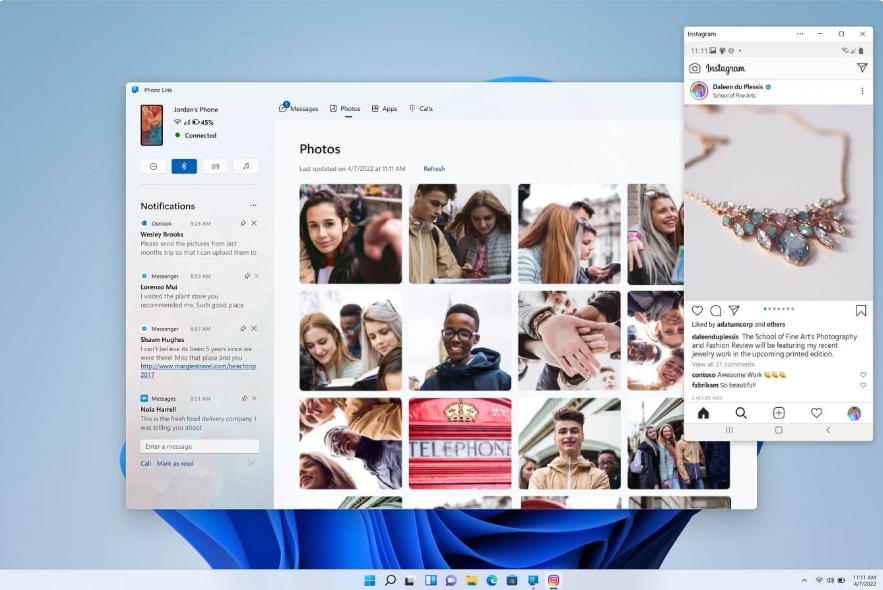
Seamless Photo Transfers - When you return home and want to organize your photos, there’s no need to search for a USB cable. With Phone Link, you can wirelessly transfer images to your PC effortlessly, simplifying the process and saving valuable time.
Additional Features of Phone Link
Phone Link offers many additional features beyond what’s been mentioned. For instance, you also can use Android apps directly on your PC, allowing you to control both your smartphone and PC from a single device. This seamless integration makes multitasking more efficient and enhances your overall productivity.
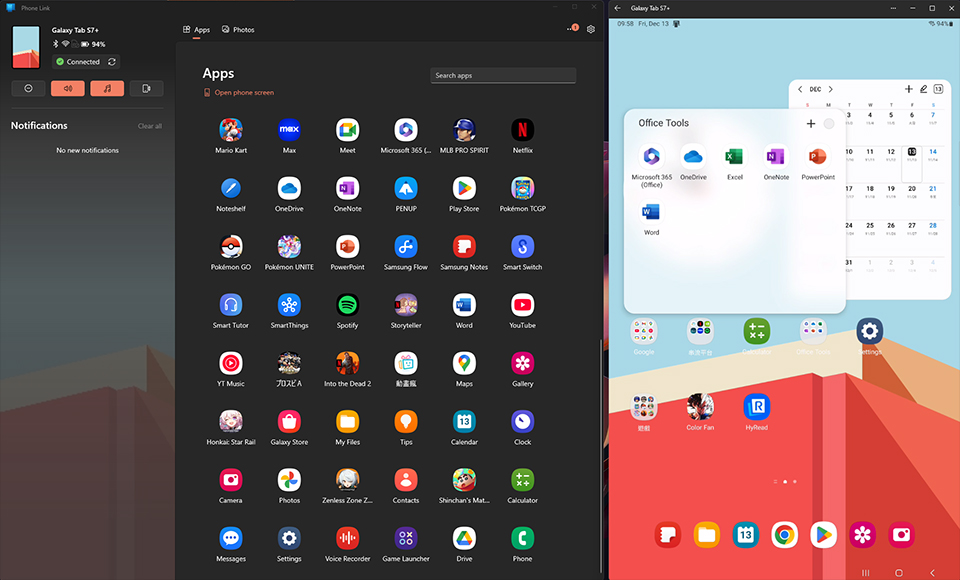
Noted: Use apps from your Android device on PC only supports some models, please check the support list before using this function. The Support List: Link
For more Phone Link information, you can visit Microsoft's webpage for the details.
Learn More Microsoft Windows Phone Link: https://support.microsoft.com/en-us/phone-link
Learn More Microsoft Windows Phone Link: https://support.microsoft.com/en-us/phone-link
User-Friendly Enhancements to Copilot
In addition to the improvements in Phone Link, Windows 11 24H2’s Copilot feature has also been made more user-friendly. Copilot is now a standalone app, meaning it no longer occupies a fixed position on the right side of the screen. You can move it to a location of your choice or resize the window to suit your preferences.
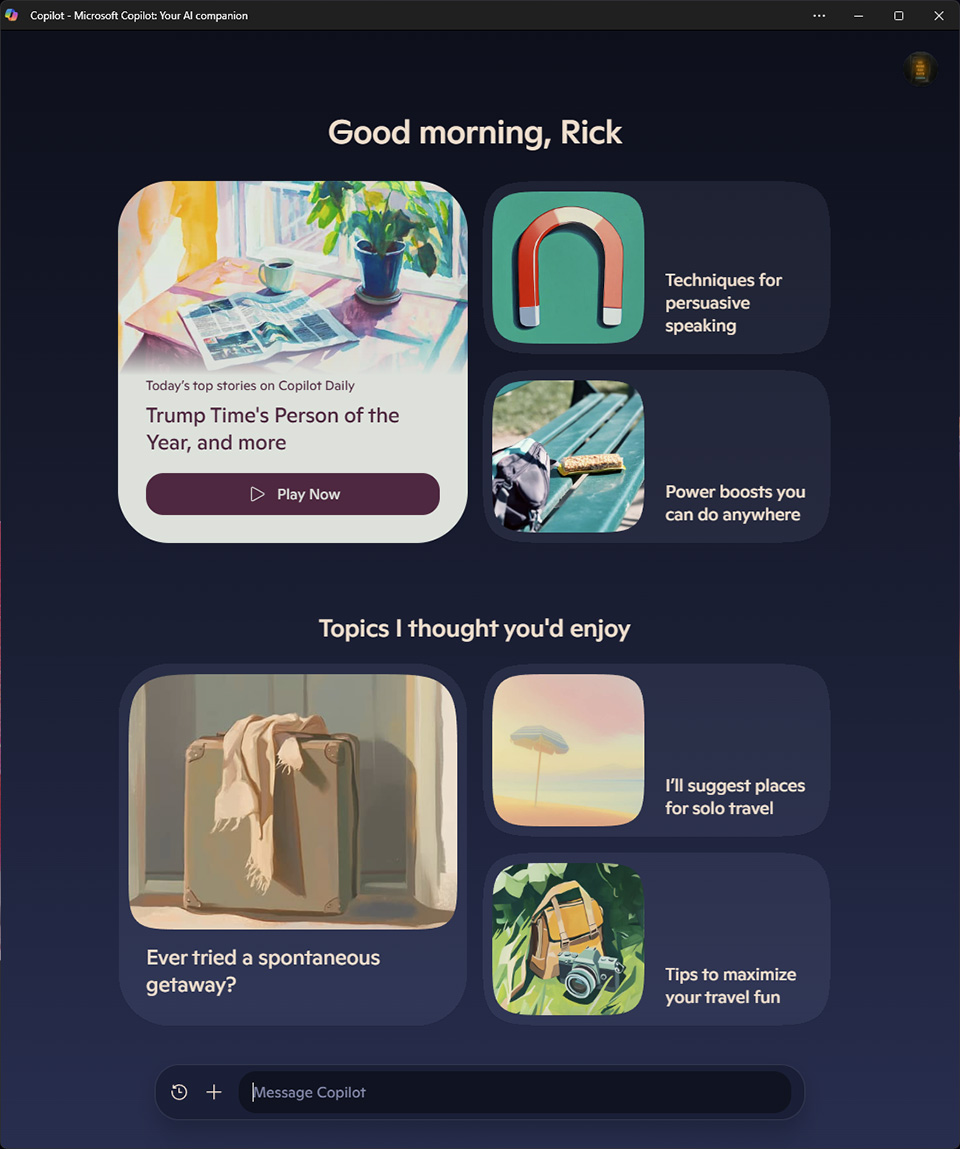
Copilot has become an indispensable tool for enhancing productivity. For instance, when writing an article, you can use Copilot to suggest synonyms or provide guidance on the writing direction. Moreover, Copilot can quickly summarize complex documents, such as tender proposals, to help you grasp key points and conclusions efficiently.
How to Upgrade PC to Windows 11 24H2
Like previous before, we have two ways to upgrade Windows. If you are always following the Windows Update. Then, you won’t miss the notice from Microsoft and will easily download and install the update to the 24H2 version.
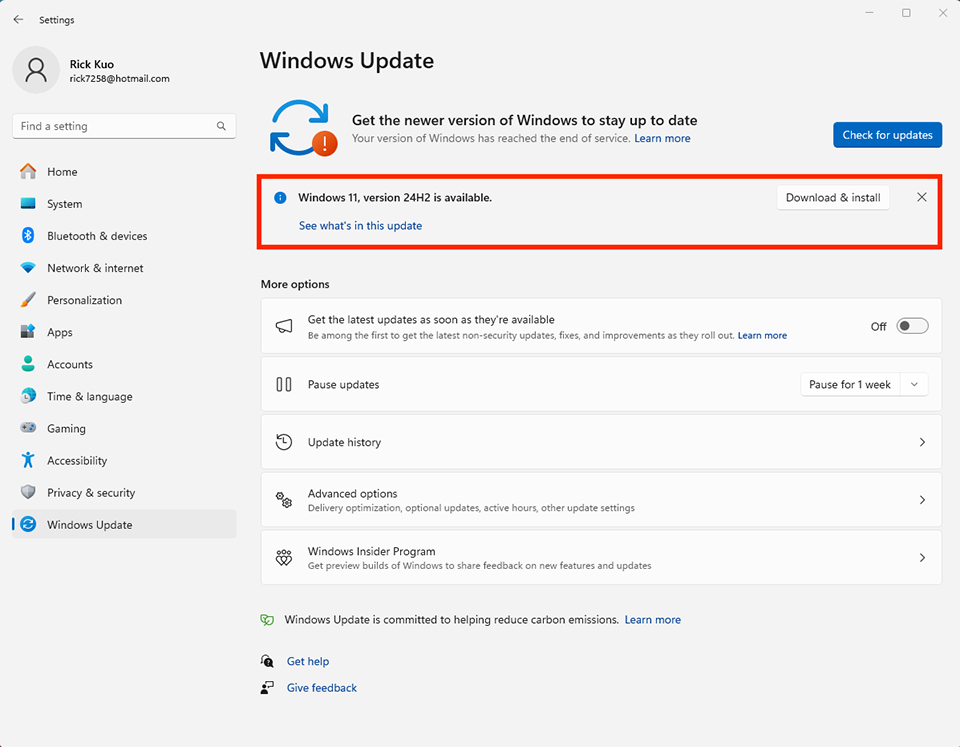
The First method is the easiest way to upgrade Windows 11 24H2. The whole process takes one hour to complete.
Upgrade Windows 11 24H2 by Assistant Tool
The second way is using the Windows 11 Assistant Tool to upgrade the system directly. Go to the link below, download the tool, and then follow the instructions to upgrade to Windows 11 24H2. The app will verify your PC system fulfills the requirements first. After that, it starts to download and install updates. Until the process finishes.

Go to download Windows 11 Assistant Tool in the link, then follow the app’s instructions to finish the upgrade. Windows 11 Installation Assistant download page: https://www.microsoft.com/software-download/windows11
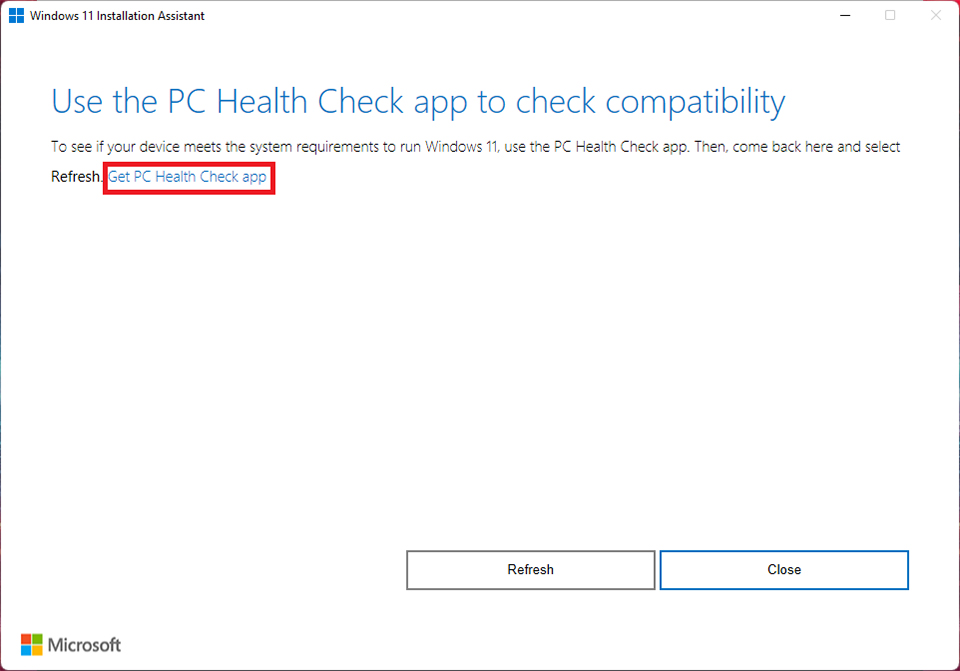
The tool will ask the user to download the PC Health Check app to verify whether the PC system is OK to upgrade to Windows 11 or not. After verifying and then reopening the Windows 11 Installation Assistant, it will start upgrading to Windows 11 24H2.
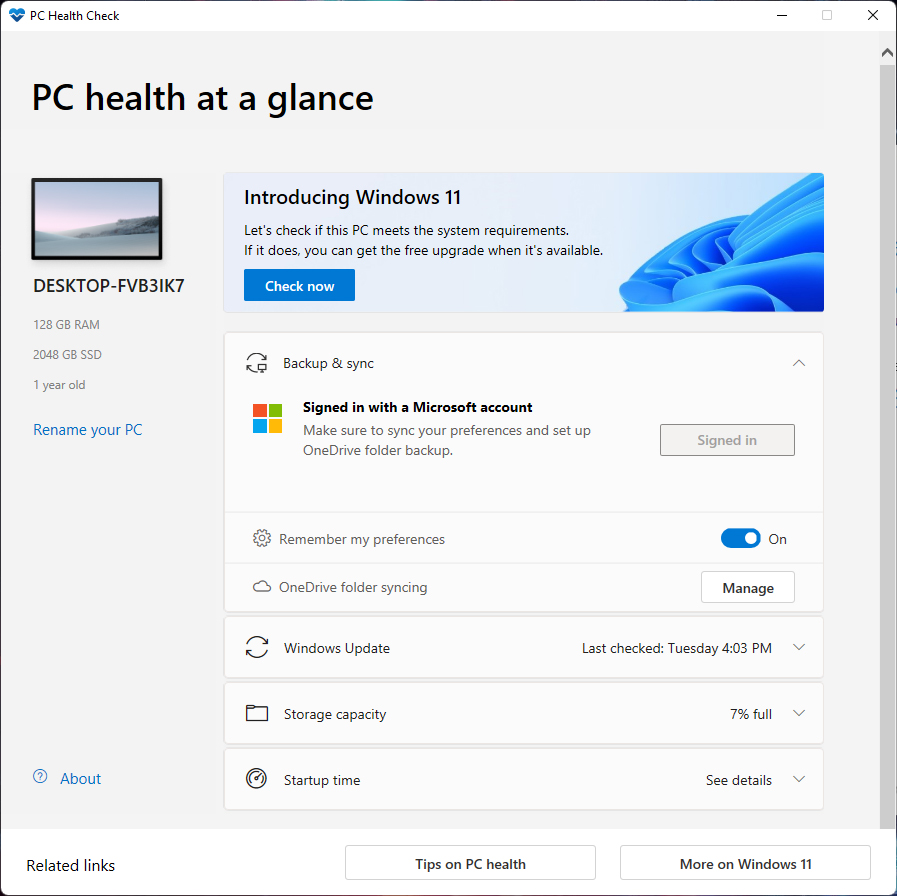
This picture shows that you passed the PC Health Check, so the system can start to upgrade to Windows 11 24H2.
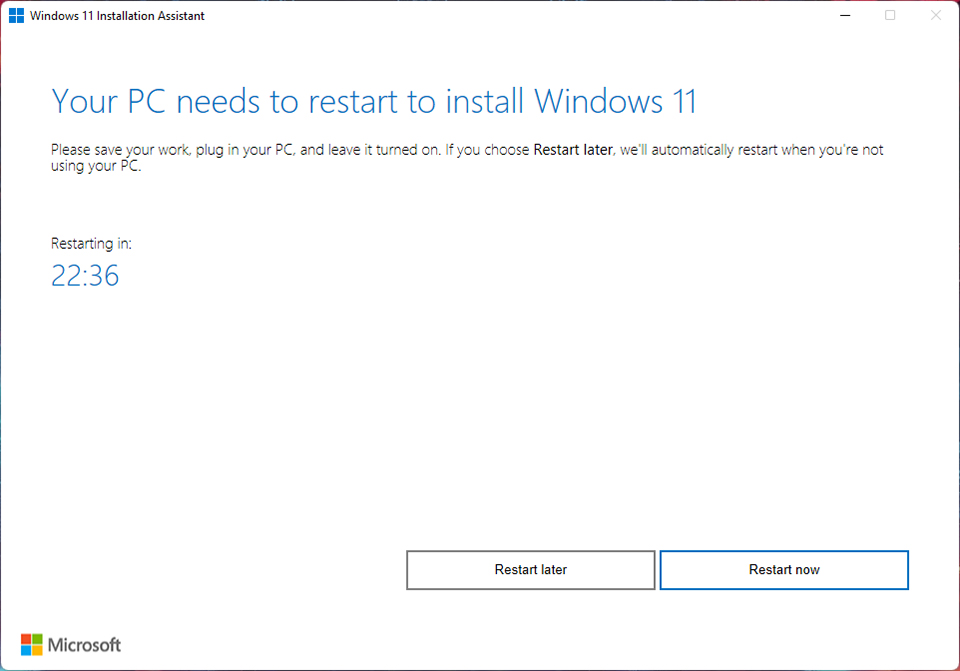
When the downloading process is finished, you will be prompted to restart the system for the Windows 11 24H2 upgrade. Once the process finishes, you can start using Windows 11 24H2's new features.
MSI AI Desktop Computer List
Mini PC
Cubi NUC 13MQ: https://www.msi.com/Business-Productivity-PC/Cubi-Nuc-13MQX
Cubi NUC 1M: https://www.msi.com/Business-Productivity-PC/Cubi-NUC-1MX
Cubi N ADL: https://www.msi.com/Business-Productivity-PC/Cubi-N-ADLX
PRO DP21 14MQ: https://www.msi.com/Business-Productivity-PC/PRO-DP21-14MQX
PRO DP180 14th : https://www.msi.com/Business-Productivity-PC/PRO-DP180-14th
PRO DP10 12M: https://www.msi.com/Business-Productivity-PC/PRO-DP10-12M
Cubi NUC 1M: https://www.msi.com/Business-Productivity-PC/Cubi-NUC-1MX
Cubi N ADL: https://www.msi.com/Business-Productivity-PC/Cubi-N-ADLX
PRO DP21 14MQ: https://www.msi.com/Business-Productivity-PC/PRO-DP21-14MQX
PRO DP180 14th : https://www.msi.com/Business-Productivity-PC/PRO-DP180-14th
PRO DP10 12M: https://www.msi.com/Business-Productivity-PC/PRO-DP10-12M
All-in-One PC
Modern AM273QP AI 1UM: https://www.msi.com/All-in-One-PC/Modern-AM273QP-AI-1UMX
Modern AM273Q AI 1UM: https://www.msi.com/All-in-One-PC/Modern-AM273Q-AI-1UMX
Modern AM272P 1M: https://www.msi.com/All-in-One-PC/Modern-AM272P-1MX
Modern AM242 1M: https://www.msi.com/All-in-One-PC/Modern-AM242-1MX
Modern AM242TP: https://www.msi.com/All-in-One-PC/Modern-AM242TP-1MX
PRO AP272P 14M: https://www.msi.com/All-in-One-PC/PRO-AP272P-14MX
PRO AP272P 13MA: https://www.msi.com/All-in-One-PC/PRO-AP272P-13MA
PRO AM272P 12MA: https://www.msi.com/All-in-One-PC/PRO-AP272P-12MA
PRO AP242 14M: https://www.msi.com/All-in-One-PC/PRO-AP242P-14MX
PRO AP242P 12MA: https://www.msi.com/All-in-One-PC/PRO-AP242P-12MA
Modern AM273Q AI 1UM: https://www.msi.com/All-in-One-PC/Modern-AM273Q-AI-1UMX
Modern AM272P 1M: https://www.msi.com/All-in-One-PC/Modern-AM272P-1MX
Modern AM242 1M: https://www.msi.com/All-in-One-PC/Modern-AM242-1MX
Modern AM242TP: https://www.msi.com/All-in-One-PC/Modern-AM242TP-1MX
PRO AP272P 14M: https://www.msi.com/All-in-One-PC/PRO-AP272P-14MX
PRO AP272P 13MA: https://www.msi.com/All-in-One-PC/PRO-AP272P-13MA
PRO AM272P 12MA: https://www.msi.com/All-in-One-PC/PRO-AP272P-12MA
PRO AP242 14M: https://www.msi.com/All-in-One-PC/PRO-AP242P-14MX
PRO AP242P 12MA: https://www.msi.com/All-in-One-PC/PRO-AP242P-12MA