First-Time Setup Guide: Unlock the Full Performance of Your Prestige N16 Flip AI+
Laptops
Powered by NVIDIA RTX Spark N1X and up to 128GB of unified memory, the MSI Prestige N16 Flip AI+ brings large AI models and multi-agent workflows within reach, opening up new possibilities for productivity. Combined with the Prestige series' exclusive features, it is a versatile powerhouse for AI, content creation, and entertainment. To get the most out of your new laptop from day one, start by completing Windows setup and installing the available system updates.
Your first Windows setup is called the Out-of-Box Experience (OOBE)—the guided setup you see when you turn on your laptop for the first time.
The key to getting started: connect to the internet during OOBE and stay connected until setup and the subsequent updates are complete. This allows your Prestige N16 Flip AI+ to download and install the updates needed to make the most of RTX Spark.
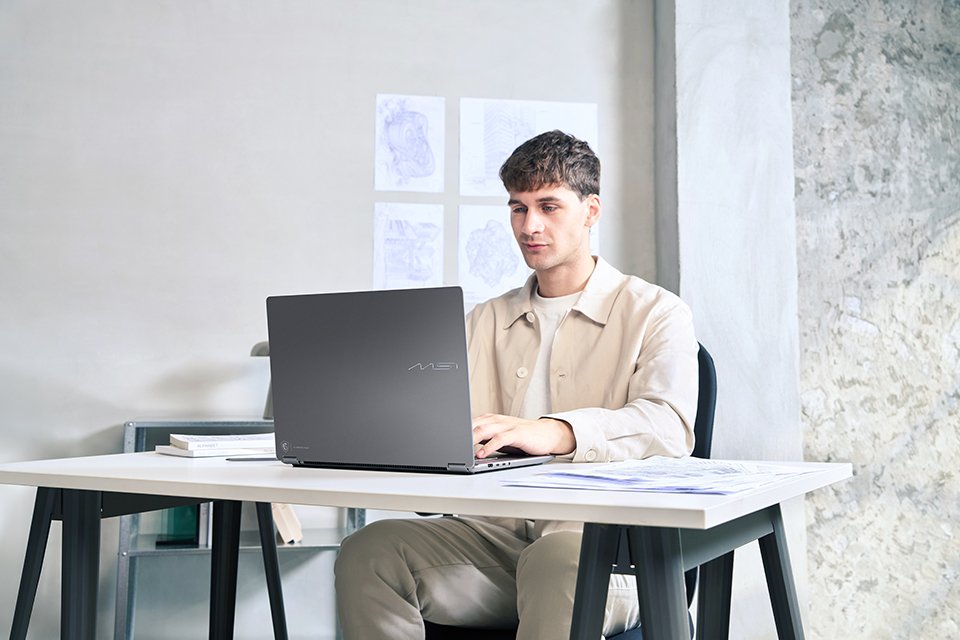
▲ Complete the initial setup and updates to get your Prestige N16 Flip AI+ ready for AI, creativity, and everyday productivity.
Before You Begin: Plug In, Connect, and Set Aside Some Time
Have your power adapter and a stable, high-speed internet connection ready. Keep your laptop plugged in throughout setup and updating.
The initial setup and update process may take more than an hour, depending on your internet speed and the updates available. Please allow enough time and wait patiently while downloads and installations complete. Giving your laptop this time now helps prepare it for the productivity experience ahead.
Step 1: Connect the Power Adapter
Connect the supplied power adapter to your Prestige N16 Flip AI+ and plug it into a power outlet. Keep the adapter connected throughout the following steps.
Step 2: Power On Your Laptop
Open the laptop and press the power button. Follow the on-screen instructions to begin Windows setup.
Step 3: Complete Windows OOBE and Stay Online
Follow the on-screen prompts during Windows OOBE and connect to a stable, high-speed internet connection when prompted.
Keep your laptop connected throughout OOBE and the subsequent Windows Update process. Internet access is essential for downloading the updates needed to enable the full RTX Spark experience on your Prestige N16 Flip AI+.
This stage may take some time. Leave your laptop plugged in and allow the on-screen setup process to finish.
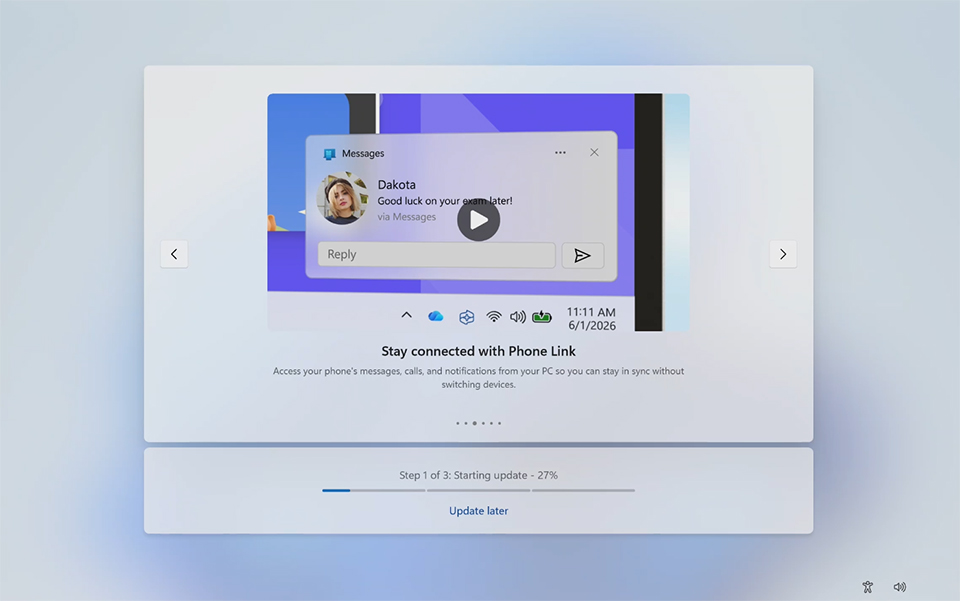
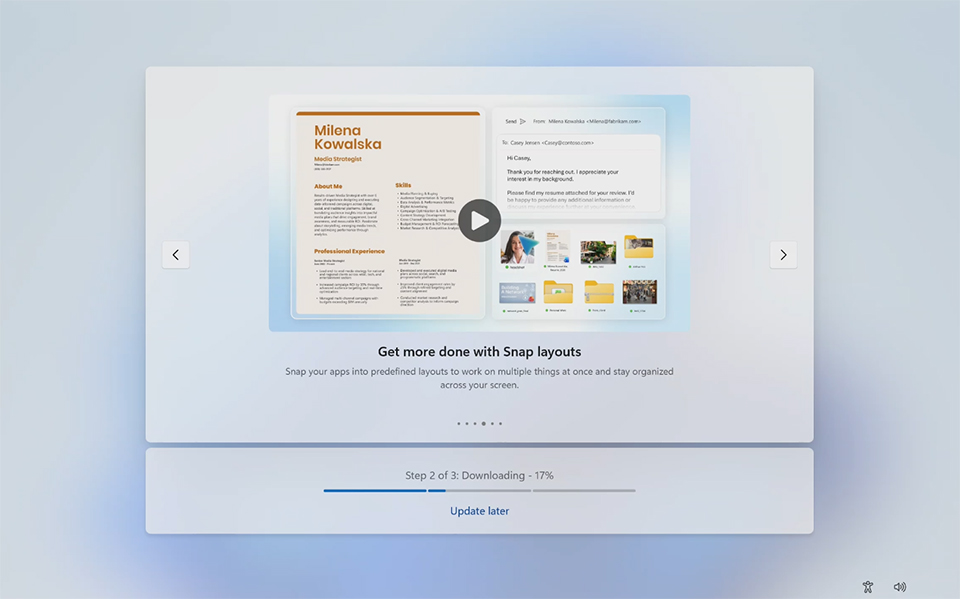
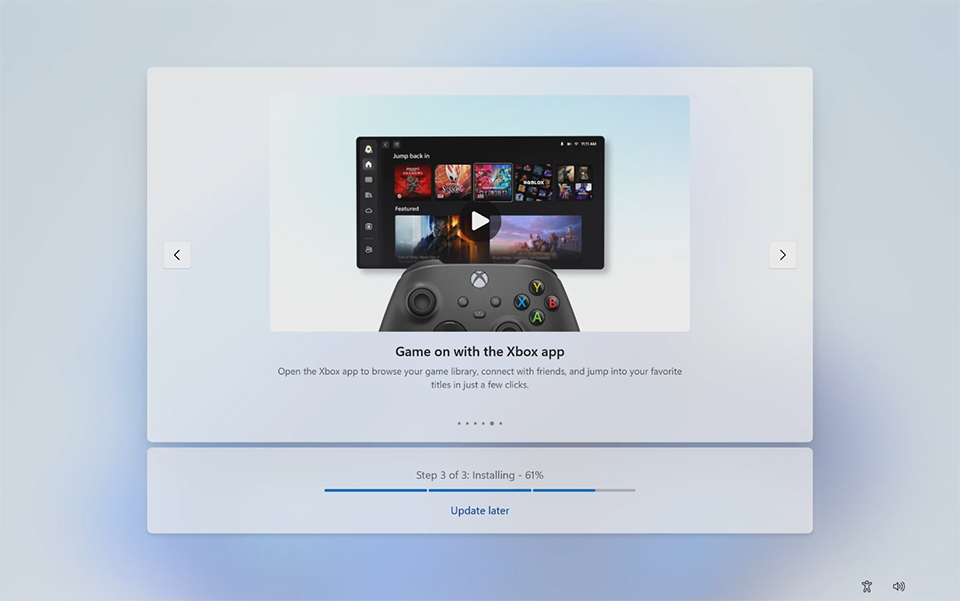
▲ Follow the on-screen prompts to complete Windows OOBE and the subsequent Windows Update process. This may take some time, so please wait patiently until all updates are complete.
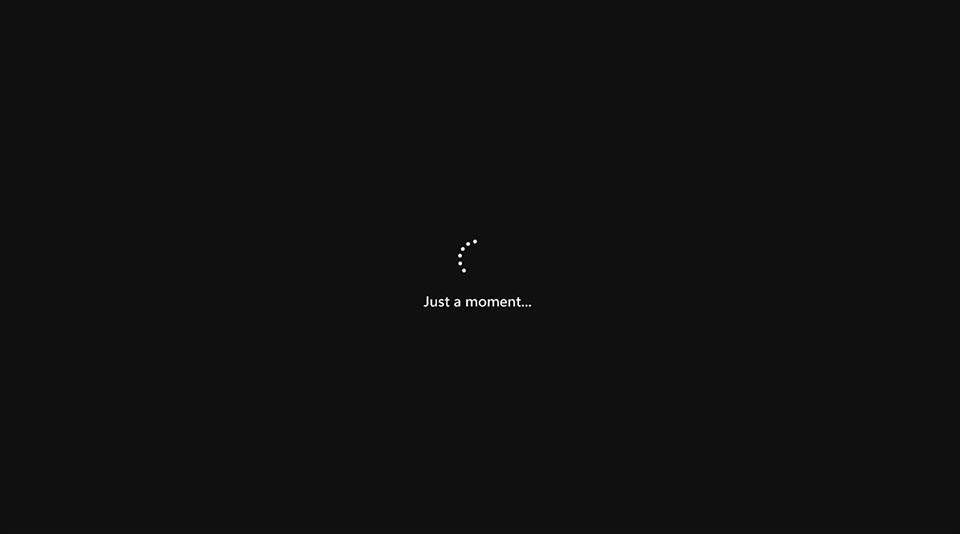
▲ If you see a black screen with a spinning indicator, please wait patiently while setup continues.
Step 4: Open Windows Update
Once you reach the Windows desktop, check for any remaining system updates:
1. Type Windows Update in the taskbar search box.
2. Select Check for updates from the search results to open Windows Update.
You can also open Start > Settings > Windows Update.
Reaching the desktop is your cue to check for updates—there may still be updates waiting to install.
Step 5: Install Updates and Restart When Prompted
In Windows Update, select Check for updates. If updates are available, select Download & install all or the download-and-install option shown on your screen.
Keep your laptop connected to power and the internet while the updates download and install. If Windows asks you to restart, follow the prompt to finish applying them.
After restarting, return to Windows Update and check again. Install any remaining updates and complete any required restarts until Windows reports You're up to date and no restart is pending.
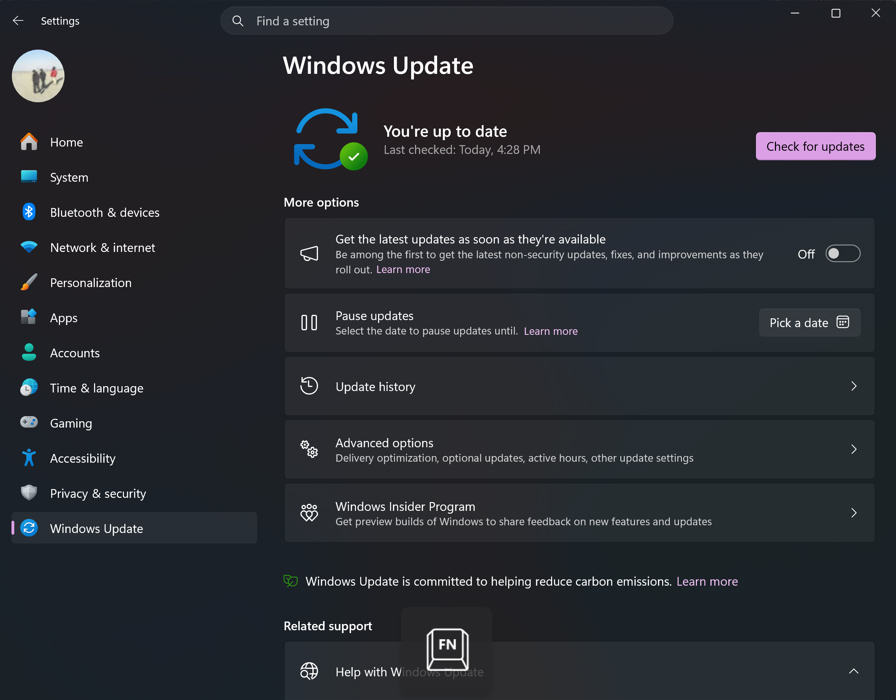
▲ Check for updates and confirm that Windows reports You're up to date. Please note that screenshots are for illustration. On-screen details may vary.
Unleash the Full Potential of Your Prestige N16 Flip AI+
With Windows setup and the available system updates complete, your Prestige N16 Flip AI+ is ready for you to explore its RTX Spark-powered capabilities.
From your next creative project to your everyday workflow, you can now get started with a system prepared to deliver its full potential. A little patience during setup lays the foundation for a powerful productivity experience from day one.