PC Building Guide: 10 Essential Tips to Check PC Component Compatibility
Motherboards ,
Case & Components
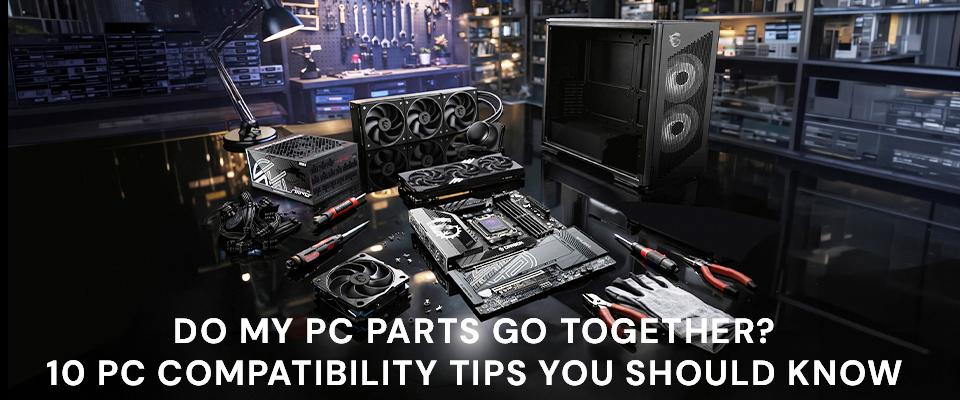
Beginning a PC build can be daunting. Perhaps this is your first PC build, or you haven’t put a PC together for several generations. Whatever the case, there are a lot of things you must get right to successfully craft at DIY desktop PC, and mistakes can mean a long delay to get a replacement part, or even result in damage to some of your precious components. With all the pitfalls involved in building a new PC, it is sensible to ask ‘How do I check if parts go together?’ So, we think a full 10-point compatibility checklist should be of great value to the community.
The following 10 points focus on the most common compatibility issues, in our experience. Basically, though, there are three root causes for PC component incompatibility, and are due to technological, electrical, and physical mismatching.
We are going to be highlighting and discussing:
10 Key Compatibility Factors to Verify
- Motherboards and CPU sockets
- RAM
- PSUs
- Case dimensions and capacity
- Cooling and CPU TDP
- Storage interfaces
- BIOS support
- Front panel and I/O
- Airflow
- Upgrades
1: CPU and Motherboard Socket Alignment
Fittingly, our first point covers one of the first choices you will be making when planning a new PC – the decision between AMD and Intel processors. Each CPU brand has different motherboard choices. Moreover, at the time of writing, both AMD and Intel offer more than one CPU socket type for consumer PC builders. This wide array of choices is good to have, but presents us with our first chance of getting something fundamentally wrong in our quest to pick PC parts.
The newest AMD processors (Ryzen 7000 series and newer) are designed to fit motherboards using the AM5 socket. But AMD still sells older-gen processors (notably the Ryzen 5000 family of desktop processors) that require an AM4 socket motherboard.
AMD’s latest and greatest processors use the AM5 socket and are available sporting the X870, X670, and B650 chipsets, providing different levels of features at a range of price points. This is a topic in its own right, and we have written a comprehensive guide to Comparing X870 vs. X670 vs. B650: Finding the Best Value Motherboards for AMD Ryzen.
The very top-end of the AM5 market is catered for by product families like the MSI X870E and X870 motherboards, which are perfect partners for AMD’s awesome Ryzen 7000 and 9000 X3D gaming processors.
If you prefer an Intel CPU, the platform choice is similarly split between sockets and then tiers of products. The newest Intel processors require an LGA 1851 socket motherboard. You’ll use one of these boards to house a Core Ultra 200 series CPU, and it is expected to be compatible with the Core Ultra 300 CPUs, when they come out.
However, three older-gen Intel CPU families are still available at retailers and are compatible with the broad range of motherboards that feature the LGA 1700 socket. Buyers often consider these Intel 12th, 13th, and 14th generation Core i3, i5, i7, and i9 chips as they have become good value options after Intel forged ahead with its newer Core Ultra platforms.
We wrote a comprehensive guide to choosing the ultimate motherboard for both LGA 1851 and LGA 1700 Intel processors. Our Z890 or Z790? Choosing the Right Motherboard for Your Next Build is an essential guide to how to pick PC parts for a top-tier Intel PC.
2: RAM Generation: Distinguishing DDR4 vs. DDR5
You will have got locked-in to a RAM type when you chose your motherboard. We just haven’t mentioned RAM until now, simply to keep this PC compatibility guide as clear and compartmentalized as possible.
In AMD-land AM4 motherboards support DDR4, and AM5 motherboards require DDR5 DIMMs to be purchased and installed. Things are slightly less clear-cut in Intel-world, as you can find LGA 1700 motherboards with either DDR4 or DDR5 slots. This makes it tricky to immediately know if parts go together. The newest LGA 1851 platform is DDR5-only, though.
With the RAMpocalypse being a hot topic in early 2026, a phenomena which disproportionately affects DDR5 pricing, we are seeing platforms with DDR4 support enjoying a comeback. Motherboard makers, including MSI, have recently committed to extending DDR4-supporting motherboard production into the foreseeable future.
Once you are sure of your RAM type, DDR4 or DDR5, you have some other decisions to make. The most significant choice will be regarding the overall RAM capacity you want in your desktop PC. As motherboards commonly support either 2- or 4-DIMM slots, you should buy matched memory kits appropriately.
It is difficult to go wrong getting a memory kit with two sticks to fill your initial memory requirement goal. If your motherboard has four slots, starting with two also leaves you a no-waste upgrade path for later.
Memory speed is another factor that needs to be considered when you are wanting to check if PC parts go together. In general, faster RAM, denoted by the number after the RAM-type, will give facilitate faster system performance. There are diminishing returns to getting faster, pricier RAM. But these decisions are less about PC compatibility and more about getting the right kind of performance for the system. You don’t need the world’s fastest RAM for a home office machine, for example. But you may be tempted to pay more for fast RAM to benefit content creation or gaming performance.
DDR4 and DDR5 sweet spots in the market used to exist, and we’d see repeated recommendations of DDR4-3200 and DDR5-6000, but the turbulent RAM market pricing means beggars can’t be choosers.
You could spend a lot of time choosing an optimal RAM kit, and there are guides to help make such a decision. And the finer points of RAM specifications are only useful after getting the basics right, and ensuring you are accurate with the type, speeds, and XMP/DOCP profile support, as confirmed by your motherboard vendor and RAM maker.
3: PSU Wattage and GPU Power Connectors
Sometimes PC DIYers might be inclined to save a little cash on the PSU, but we don’t recommend taking such a view, as this unglamorous component is really the beating heart of your machine. There are several things you must aim to get right when PSU shopping. Most critically, can the PSU deliver enough power to cover peak load scenarios? And you need to check it has all the cables and connectors your finished system build requires.
Covering the critical peak power delivery decision, concerning how many watts the PSU is rated to deliver, there are some useful guides that we have already created. Your first point of call should probably be the MSI Power Supply Calculator page. Here you input the key component specs of your (planned) PC, and the underlying code will show you a minimum recommended PSU rating.
I just tried this PSU wattage guidance tool by feeding in my desktop PC configuration, and was told that a power supply offering 541W or better was optimal, so I could have got by with a common 550W PSU. However, I have a 750W PSU, which will cover future upgrades and expansions, transient spikes, and operating at ~550W under load should put me at a comfortable point on this PSU’s efficiency curve.
Please also ensure the PSU you are interested in has captive or modular cables to feed power to all your components. In particular, watch out for the provision of the appropriate GPU connectors (12VHPWR / 12V-2x6, or 8-pin Molex) in adequate quantities.
We have put together some other PSU guides ensuring PC compatibility with popular components like Nvidia GeForce RTX 30, 40 and 50 series GPUs, the enthusiast sweet spot RTX 5070 Ti graphics card, and the PSU choice for the ultimate RTX 5090 graphics card-powered system. We also have specific guides for value buyers choosing the AMD Radeon RX 9070 XT and its highly power-efficient little brother, the RX 9070.
PSU buyers will also want to consider features like the range of power cables supplied, modularity (do the cables detach?), efficiency ratings (Bronze, Gold, Platinum), and the physical size (ATX, SFF, etc) of the unit.
4: Case Clearance: GPU Length and CPU Cooler Height
To get this choice right, we are moving beyond technological and electrical compatibility checking to consider the basic physical dimensions of PC parts fitting together comfortably in our chosen chassis. PC components are made and sold in a wide range of sizes and form factors, and it is easy to buy something that doesn’t fit into your intended build.
Motherboards are made in three major size options, which are commonly referred to as (from big to small) ATX, Micro-ATX, and Mini-ITX form factors. Your case must support your choice. Case makers make it easy by usually putting the maximum size standard in the case name, or high up in the description.
Though people are attracted to compact micro- and mini-builds, they can limit your expansion options, and the task of how to pick PC parts will likely be more tricky.
The latest generation of graphics cards are mostly BIG, one could argue many are unnecessarily so. Due to this design decision by AMD and Nvidia partners, even some of the smallest cases made for gamers will have a large void to fit in the prevalent triple fan GPUs from the current generation. Please measure your GPU, and cross-reference it with the clearance measurements provided by the case manufacturer to ensure your PC compatibility.
Similarly, those using smaller cases for their PC build will have to pay closer attention to CPU cooler height. On the topic of cooling, a PC case will support a certain number and size of cooling fans and radiators. Be sure the maximum specification is sufficient for your needs.
5: Thermal Solutions: Mounting Brackets and TDP Ratings
Different CPU sockets will need different CPU cooler mounting kits. As we mentioned above, there are quite a lot of platforms still commonplace in 2026, likely enduring due to the RAMpocalypse. Thus, now more than ever, please check a compatible CPU cooler mounting kit for your socket/CPU is provided when purchasing a passive, air, or AiO liquid cooler.
Above we mentioned the physical considerations of CPU cooler choice. Now is a good time to double-check the CPU cooler in your shopping basket will fit in your case.
A PC DIYer also needs to ensure that their cooler is rated to handle the peak heat dissipation of their CPU. If you get this wrong it isn’t breaking a rule of PC compatibility, but you could effectively neuter your CPU, making it throttle under load, and underperform.
Luckily, both CPU makers and cooler manufacturers are usually clear about TDP figures, helping DIYers with the question of how to pick PC parts. Even the most basic CPU air coolers, which are sometimes bundled with a boxed processor purchase, will cool mid-range processors adequately. But it is recommended that some overclockable and high-end CPUs are fitted with AiO liquid coolers, in order to live up to their full potential.
6: Storage Interfaces: M.2 NVMe (Gen 4/5) vs. SATA
One of the key considerations when you purchase a motherboard will be how many and what type of M.2 storage slots are available. SATA ports are less important nowadays, but it is still good to have some available for backwards compatibility and for the most affordable extra storage technology during the current SSD price crunch.
M.2 SSDs and slots come in various configurations, which need to be considered carefully, to choose an optimal storage solution. When buying any currently supported motherboard, you will get at least two M.2. slots for PCIe NVMe storage. Larger form factor, higher-end, boards might come with as many as five M.2 slots.
In addition to the number of slots available, it is important to look at the PCI generation supported. Currently, the most modern and fastest type of slot is PCIe Gen5, and for the best performance you will need to match this slot with a PCIe Gen5 SSD. These SSDs will also need (at least) a passive heatsink to sustain their breathtaking transfer speeds.
Luckily, M.2 slots and PCIe SSDs are backwards compatible. This means if you upgrade to a new PC and you want to bring over an old M.2 PCIe Gen3 SSD over, for example, it will work at full speed in any PCIe Gen3, 4 or 5 slot in your new system. Meanwhile, if you plug a PCIe Gen5 drive into a Gen3 slot, it will also work, but will be limited to Gen3 speeds.
M.2 SSDs also come in various sizes. The most common is M.2 2280, which is 80mm in length, but it is also common to find M.2 2242 and 2230 models at PC retailers. They are fine to use if they physically fit, with corresponding retainer screw holes on the motherboard.
SATA drives aren’t as common nowadays, but are useful for upgraders to bring data over to a new system, and for data hoarders who love the massive capacities and low $/TB prices offered by mechanical 3.5-inch HDDs.
One thing to watch out for is trying to bring an old M.2 SATA (hybrid tech) drive to a new motherboard. Modern AM5 and LGA 1851 motherboards usually won’t offer support for this older standard, as they provide NVMe-only M.2 slots. If you have an old M.2 SATA drive to bring over, it is probably best to shove it in a USB caddy nowadays.
7: AIO Radiator Support and Mounting Positions
You’ve already made sure your CPU and socket are compatible, on paper. Yet it is still possible to build a setup which passes these checks but works unpredictably, or even fails to boot.
This unfortunate experience is more likely on older sockets like AM4 and LGA 1700, where new generations of processors were launched several years after the first motherboards in those families were released. If you’ve bought new, you should get the support to fix any issues from the retailer. If not, it is often possible to add support for your too-new-CPU with a BIOS update direct from the motherboard manufacturer.
Please check your motherboard product pages for specific CPU model support and BIOS update instructions.
8: Motherboard Form Factor: ATX, Micro-ATX, or ITX
PC DIYers may be tempted to re-use old components, and this makes great budgetary sense sometimes. Nevertheless, tech marches on, and there can be PC compatibility snags that sneak up your plans when older and newer components meet.
Some common building issues occur when re-using beloved old chassis, CPU coolers, and/or fans. Older cases might not work with the new motherboard’s front panel and I/O headers without issue, leaving some conveniently situated front ports performing slower than expected or not at all.
Even a PC’s LED lighting isn’t immune to incompatibility issues. For example, there’s a compatibility chasm between pre-2020s era 4-pin 12V RGB, and more modern addressable RGB 3-pin 5V standards.
9: Case Front Panel I/O and Internal Headers
Airflow is a key consideration in a PC build. Modern PC builders prefer a multitude of large-radius, slower-spinning fans to shift air over heat-generative components. This provides a good volume of moving air, while keeping acoustics low.
However, the airflow problem isn’t all about quantity. Fan placement, case compartments, cable management, venting, and a host of other design factors come into play. As it is quite a tricky topic, we’d recommend following the tried and tested methodology of pulling air in to the case from the front/top/bottom, and expelling it (fan assisted) through the back. Having more intakes than exhaust fans can help ensure positive pressure and minimize dust build-up in the case.
10: Operating System and BIOS Version Compatibility
The beauty of DIY desktop PCs over laptops, and even mini PCs, is that nearly all the components can be individually replaced or upgraded when the user feels it is appropriate. We have already mentioned the idea of configuring RAM using a 2-stick kit, even when you have 4-slots available on the motherboard. In our how to pick PC parts advice we also touched upon making sure your PSU has muscle to spare for future upgrades.
For even better future-proofing, we have to go back to the motherboard choice stage. Those who want, need, or feel they will eventually bolster their desktop PCs with more PCIe cards, more M.2 SSDs, multiple GPUs, and oodles of bandwidth hungry USB peripherals, should carefully weigh up going for a premium chipset from the outset. On the AMD side, this would mean opting for the E-suffix chipsets, such as the X670E or X870E over their cheaper X670 and X870 brethren.
Online tools to ensure PC component interoperability and compatibility
MSI invites all PC DIYers to test out the AI-enhanced MSI EZ PC Builder (beta). This is a free online tool which takes a few questions and answers as input and delivers a full recommended PC component spec to match your stated goal, usage, and price bracket.It is a really useful shortcut to sidestep the question of ‘How do I check if parts go together?’
Those who prefer more traditional PC building and shopping guides, and have some pre-set ideas about the components they want to spec, can also test out their build ideas at the trusty PCPartPicker site.