How to Upgrade Roamii BE Lite to the New Roamii Firmware?
Networking
MSI recently introduced the Roamii BE Pro Mesh System, featuring enhanced Adaptive Roaming technology designed to deliver a smoother and more reliable whole-home WiFi experience.
Adaptive Roaming keeps your connection stable and uninterrupted as you move throughout your home. It enables zero-wait switching between nodes, allowing devices to automatically connect to the strongest signal without disruption. With smart band selection, devices are assigned to the optimal WiFi band for the best possible speed and stability. If a connection is disrupted, Auto Recovery quickly restores connectivity, so you can continue streaming, gaming, or working without interruption.
By following the steps below, these features can also be enabled on Roamii BE Lite.
Before you begin,
- This guide applies to Roamii BE Lite units running legacy firmware(v722187~v753636)
- The entire process takes approximately 30 minutes.
- For maximum stability during the upgrade, we recommend using a wired (Ethernet) connection.
- The process includes two times firmware upgrades. The second upgrade will erase all configurations and reset the router to factory defaults.
Phase 1: Intermediate Firmware Upgrade (to v780360)
1.1 Initial Setup: Ensure you have completed the initial setup wizard. Verify that your internet connection is active and that all mesh nodes are online.
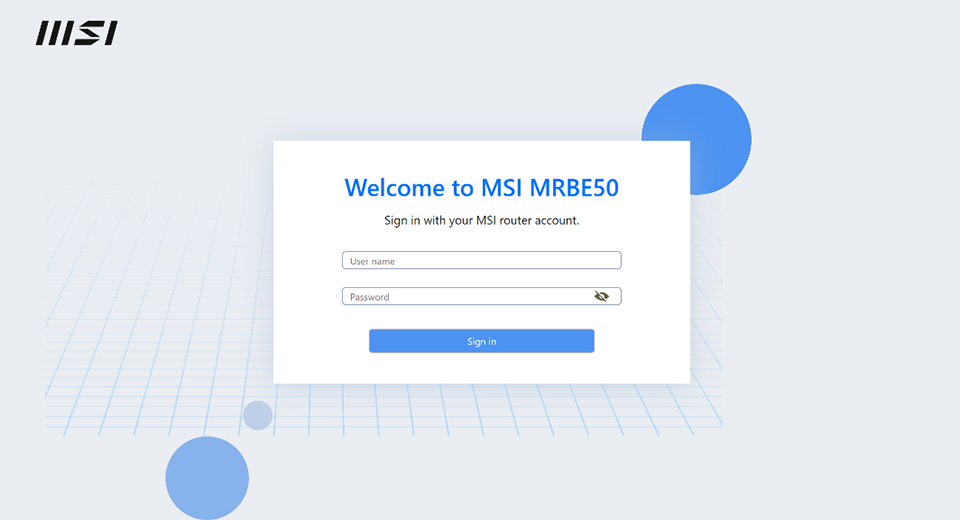
1.2 Access Web UI: Connect your device to the router (via Ethernet or WiFi) and log in to the web interface at https://msirouter.login.
1.3 Check Update: Navigate to Advanced → Administration → Firmware Upgrade → Online Firmware Upgrade
1.4 Verify Version: Click Check. Your current version should be between v722187 and v753636.
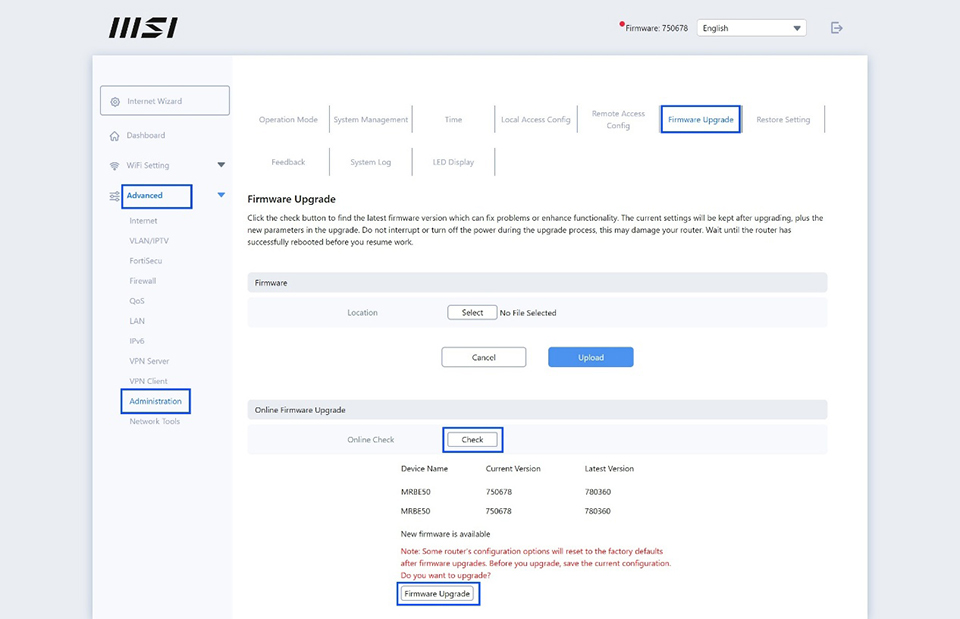
1.5 Upgrade: The latest version available should show as v780360, click Firmware upgrade.
1.6 Be Patient: Wait for the process to complete. The router’s LED indicator will turn steady white once the upgrade is finished
Phase 2: Final Firmware Migration (to v1.00 or above)
2.1 Re-login: Log back into the web UI (https://msirouter.login)
2.2 Check your internet status is connected and all of your mesh nodes (if any) are connected
2.3 Check Update: Go to Advanced → Administration → Firmware Upgrade→ Online Firmware Upgrade
2.4 Verify New Version: Click Check. Confirm that the Current Version of all routers is 780360 and the "Latest Version" is 1.00 or above
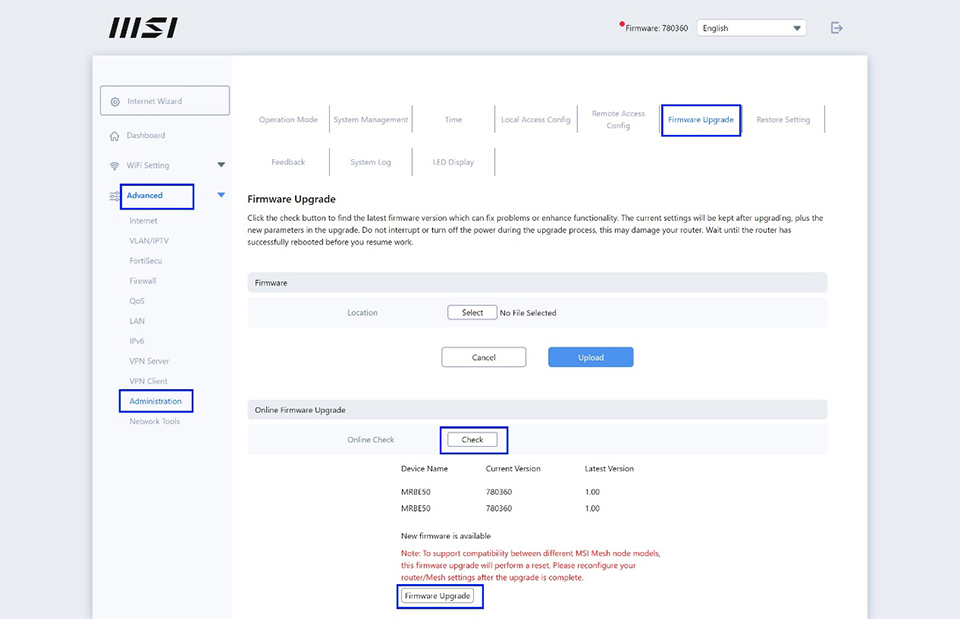
2.5 Final Upgrade: Firmware Upgrade. Note: This will reset your router to factory settings.
2.6 Status Check: Wait until the router’s LED indicator starts blinking blue, indicating it is ready for re-configuration.
Phase 3: Re-configuration and Mesh Setup
3.1 Power Off Nodes: Turn off your mesh nodes for now.
3.2 Connect to Main Router:
- Wired: Connect your PC to the LAN port.
- Wireless: Connect to the default SSID [MSI_XX] using the password found on the router's label.
3.3 Setup: Use the MSI Router 2.0 App or visit https://msirouter.login to follow the on-screen instructions to finish the setup
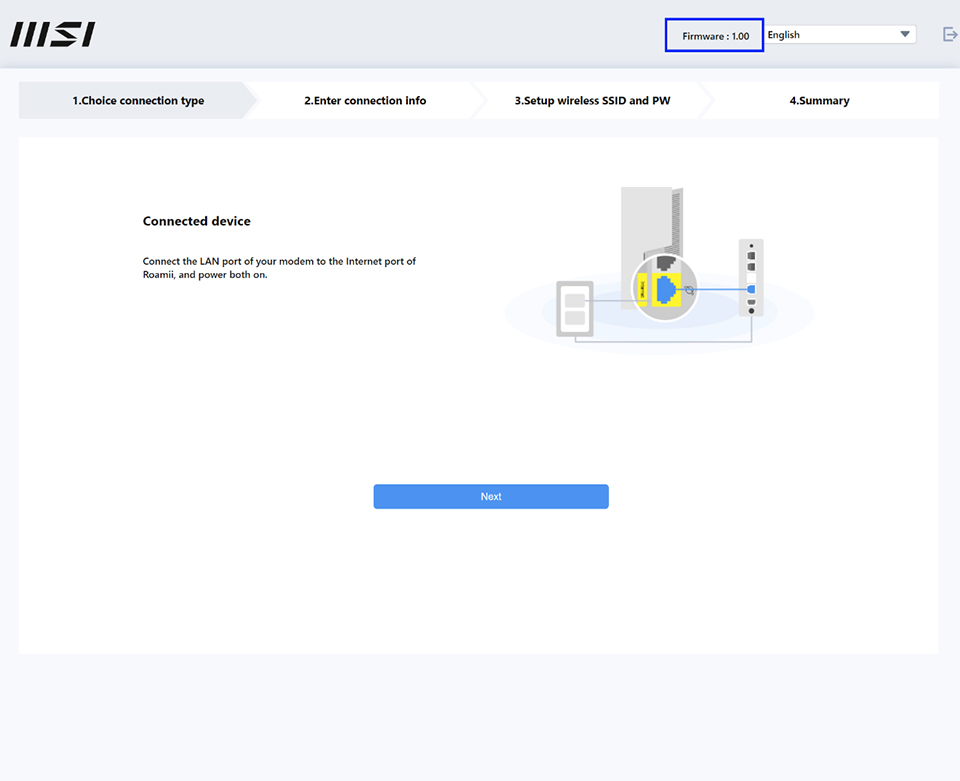
3.4 Reconnect Mesh Nodes: power up your mesh nodes
- If the nodes are from the same pack, they will connect automatically
- If they are from different packs, press the Sync button on both the main router and the mesh node to pair them
3.5 Completion: Once all Roamii indicators turn steady white, the setup is complete.
Download MSI Router 2.0 app